Attach an email to a quote, an order, an invoice or a project
A customer replies to your quote, or sends you a document concerning an ongoing order. This action links the email to the right document, and files its files into it.
Available types: project, quote, order, invoice, supplier invoice, ticket, job application.
A supplier invoice is attached like the other documents: the email must be linked to the supplier, and the list only offers its invoices. You need the read supplier invoices right to see it, and the create supplier invoices right to attach it. It is not offered in Insert an object: it is the supplier's document, not yours. When ScanPdf creates the invoice from an attachment of the email, the email is attached to it automatically, see Send an invoice received by email to ScanPdf.
A job application belongs to no third party: the list offers every application, whatever the third party of the email. For an email from a candidate, which is usually linked to no third party, use the Application tab instead, see Create a job application from an email.
Before starting
- The email must be linked to a third party. The tab does not appear otherwise: the proposed objects are those of the customer, so you must know which customer it is.
- You must have the edit right on the relevant module. A user without rights on invoices will not see this type in the list.
- The corresponding module must be enabled in Dolibarr.
Steps
- Open the email in Lead Mode.
- Right column, click the Attach tab.
- Choose the object type. Only the types you can edit are offered.
- Select the document in the list, or search it by its reference. The list only contains the objects of the email's third party.
- If the email has attachments, tick those to copy into the object. You can rename them on the way.
- Click Attach.
Faster: from a reference quoted in the email
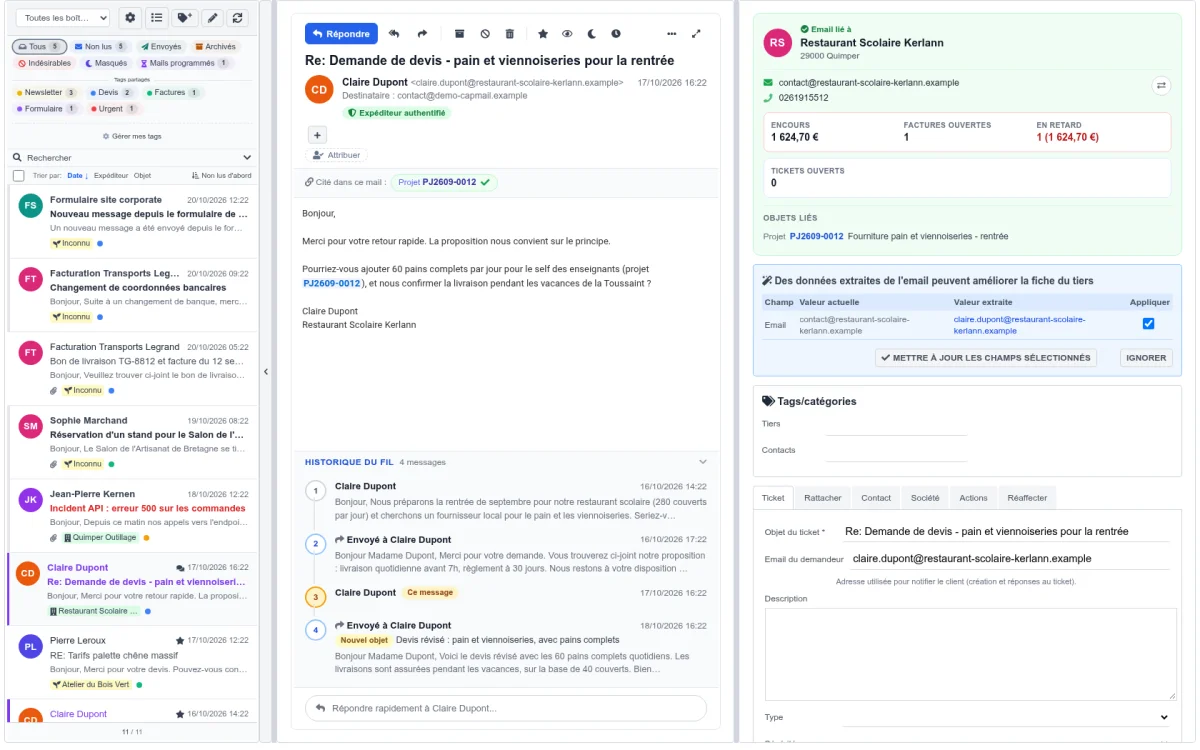
When the email quotes the reference of a Dolibarr document ("your quote PR2610-0038", "invoice IN2601-0037", "ticket TS2610-0005"...), Capmail recognizes it:
- the reference becomes a link in the message body, which opens the document card;
- a Cited in this email line appears under the header, with each recognized document. Hovering it shows its label and its third party;
- the paperclip icon of a document attaches the email to it in one click, without going through the tab. A green check replaces the icon when the email is already attached.
This shortcut does not copy the attachments: to file them into the document, use the Attach tab above.
Only documents that really exist in Dolibarr and that you have the right to view are recognized. A user limited to their own customers only sees those customers' documents. A document belonging to another third party than the email's is shown with a dashed border: check before attaching. The search ignores case: "pr2610-0038" is recognized.
What it produces
The email appears in the "Linked objects" block of the relevant card. From the quote, you can therefore see the related exchanges without leaving Dolibarr.
The checked files are copied into the documents of the object. The email keeps its own: it remains a faithful archive of what the customer sent.
When the attached object is a project, the email is additionally associated with this project in Capmail, which makes it show up in project-filtered views.
Detaching
Already attached objects are listed in the same tab, each with a detach button. Detaching removes the link; files already copied into the object stay in place, since they were filed there as full documents.
Attaching is not linking to a third party
Two distinct mechanisms, often confused:
- Link to a third party attaches the email to a customer, and applies to the whole conversation.
- Attach to an object links the email to a specific document of that customer, and only concerns this message.
The first is a prerequisite of the second.