Send an email later
You reply in the evening or over the weekend, but you prefer the customer to receive the email on Monday at 8am. Or you want to follow up with a supplier on a given date without having to think about it. Capmail keeps the written email and sends it at the chosen time, in your name.
Steps
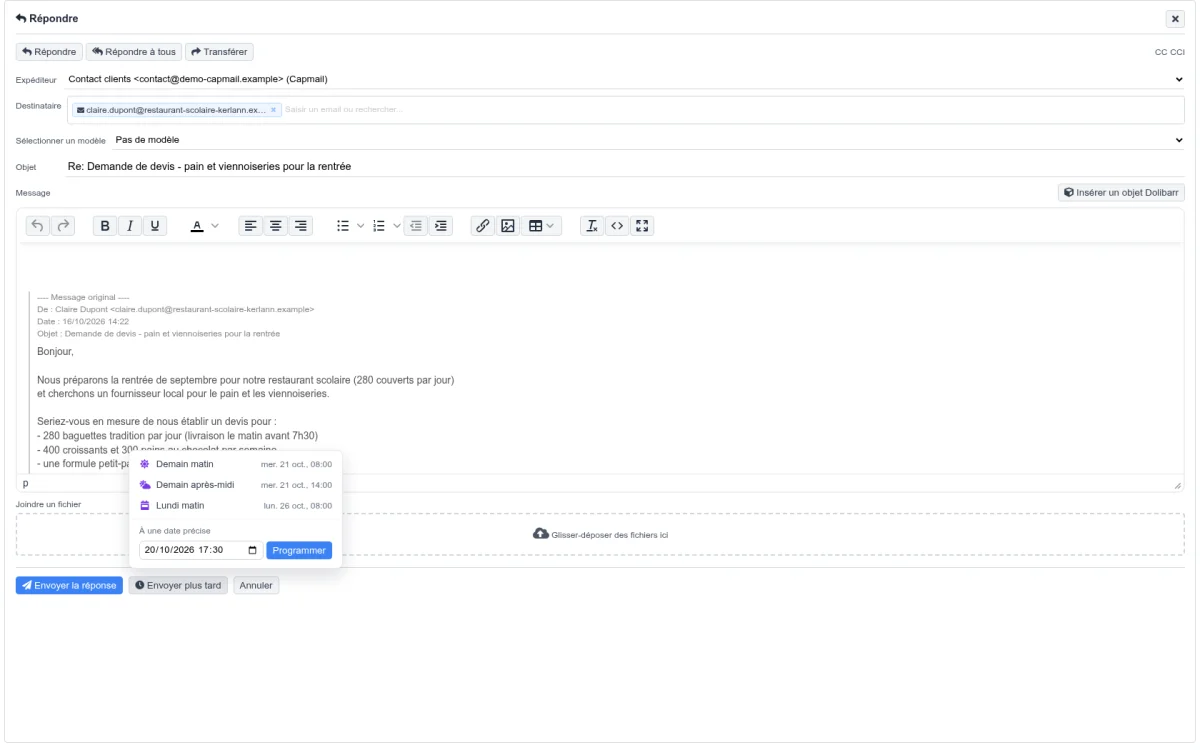
- Write your message as usual, in the reply form (including a forward) or the new message form. Attachments are kept with it.
- Next to the send button, click Send later.
- Choose a time:
- Tomorrow morning (8am), Tomorrow afternoon (2pm) or Monday morning (8am). The exact time is displayed next to each choice;
- or On a specific date: set the date and time, then click Schedule.
The "Sending scheduled for ..." message confirms the time. The form closes, nothing has been sent yet.
Following, cancelling or sending right away
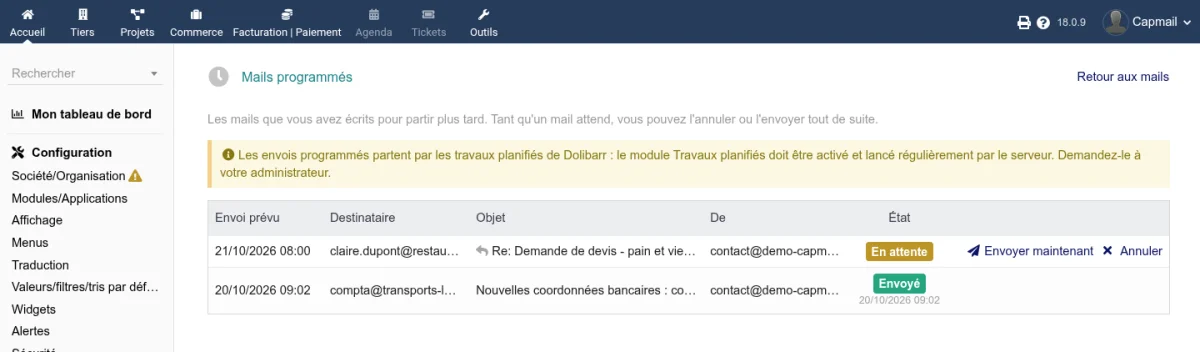
As long as an email is waiting, a Scheduled bubble appears at the top of the Lead Mode list, with the number of waiting emails. It opens the list of your scheduled emails:
- Send now sends the email immediately;
- Cancel abandons it: it will not be sent, its attachments are deleted;
- once sent, the line switches to Sent with the actual sending time, and View sent email opens its card.
The list also keeps emails sent or cancelled over the last month. Everyone only sees their own scheduled emails.
What it does
At the chosen time, the email goes out exactly like an immediate send: from the address chosen in Sender, with its copies, its attachments, its copy in the "Sent" folder and its record in the third party's history.
For a reply, the original email switches to Replied status when the reply is sent, not before. Automatic archiving after reply does not apply to a scheduled send.
Good to know
- The chosen time is your browser's time: "tomorrow 8am" is 8am in your timezone.
- What is checked right away: the recipient, the subject and your right to send from the chosen address. An email that could not be sent is refused as soon as you schedule it, not the next day.
- Your rights at sending time: if your send right is withdrawn in the meantime, or if your account is disabled, the email is not sent.
- Quick reply under the message does not offer delayed sending: open the full form.
If it does not work
- The email stays "Waiting" after the scheduled time: scheduled sends go out through Dolibarr's scheduled tasks, checked every five minutes. The Scheduled tasks module must be enabled and run regularly by the server. A banner reports it on the list when the module is disabled. Ask your administrator (see Configuration). Meanwhile, Send now sends the email.
- The line switches to "Failed": the reason is displayed under the status. After a sending server failure, Capmail retries twice, ten minutes apart, before giving up. Fix the cause then click Send now.
- "Sending interrupted": the server stopped during sending. The email may have gone out: check the "Sent" folder before clicking Send now, Capmail never resends it by itself.