Automatically filter incoming mail
A filter examines each incoming message and, if it matches the conditions you set, runs the actions you chose: move to a folder, archive, label, link to a third party, create a ticket, reply, delete.
Common examples:
- any message whose subject contains "attestation de" goes to the trash;
- any message whose subject contains "password request" is archived;
- any message from
@bigcustomer.comis linked to the Big Customer third party and gets the "Strategic customer" label; - any message arriving at
support@from an already known sender becomes a ticket.
Two places depending on who decides
| Screen | Who accesses it | Scope |
|---|---|---|
| Module configuration > Filters | administrator | one specific mailbox, or all |
| My preferences > My filters | any user with a personal mailbox, and any administrator | their own mailboxes; for an administrator, also global filters |
A personal filter can only target a mailbox you own. This is deliberate: archiving or deleting in a shared mailbox would make mail disappear for your colleagues.
Administrator: manage everything from "My filters"
If you are an administrator, the My filters screen displays, under your personal filters, a second block Global filters: the same table as in the module configuration, with a New global filter button.
Creating, editing, enabling or disabling, changing the priority, cloning or deleting a global filter is done from this block. The form is the one of the module configuration, and once the action is done you return to My filters. No need to go through the configuration to adjust a filter.
This block is displayed even if you have no personal mailbox. A user who is not an administrator never sees it.
Creating a filter
- Open the filters screen and choose New filter.
- Give it a meaningful name: this is what appears in the logs when it triggers.
- Choose the mailbox concerned, or leave "All mailboxes".
- Set the priority. Filters apply from the smallest number to the largest.
- Add the conditions, then the actions.
- Dry-test it (see below) before saving.
The conditions
Each condition compares an element of the message to a value. You can require all conditions to be met, or at least one.
Examinable elements: subject, sender (name and address, address only, name only, domain), recipient, copy, recipient or copy, message body, full headers, a specific header (X-Spam-Flag, List-Id...), name of an attachment, arrival folder, mailbox name, number of attachments, message size, presence of an attachment, sender already known as a third party, message already linked to a third party, message that is a reply.
Available comparisons: contains, does not contain, contains one of, contains none of, is exactly, is not, is part of, is not part of, starts with, ends with, matches a regular expression, is empty, is not empty, and numeric comparisons for size and attachment count.
Case and accents are ignored by default. A filter written "attestation de" catches "Attestation de" as well as "ATTESTATION DÉ". Tick "Case sensitive" if you want a strict comparison.
The "contains one of" and "is part of" comparisons accept one value per line, which avoids multiplying near-identical filters.
The actions
| Family | Actions |
|---|---|
| Filing | move to a folder, archive, mark as spam, delete |
| Reading | mark read or unread, set or remove the star, set or remove a flag 1 to 8 |
| Labels | add or remove a Capmail label |
| Snooze | snooze (2h, 3d, 1w, 1m, or monday for next Monday 8am) |
| Linking | link to a third party, link to a project |
| Creation | create a ticket, create the third party if it does not exist, create a project, create a job application (Recruitment module) |
| Documents | file attachments into the documents of the third party, or of the contact |
| Communication | reply with a template, forward to an address, notify a user |
| Misc | mark private, add an internal note |
The third party, the project, the user to notify and the reply template are chosen in a list. For the third party and the project, type a few letters of the name or reference: the list only offers open third parties and projects you have the right to see.
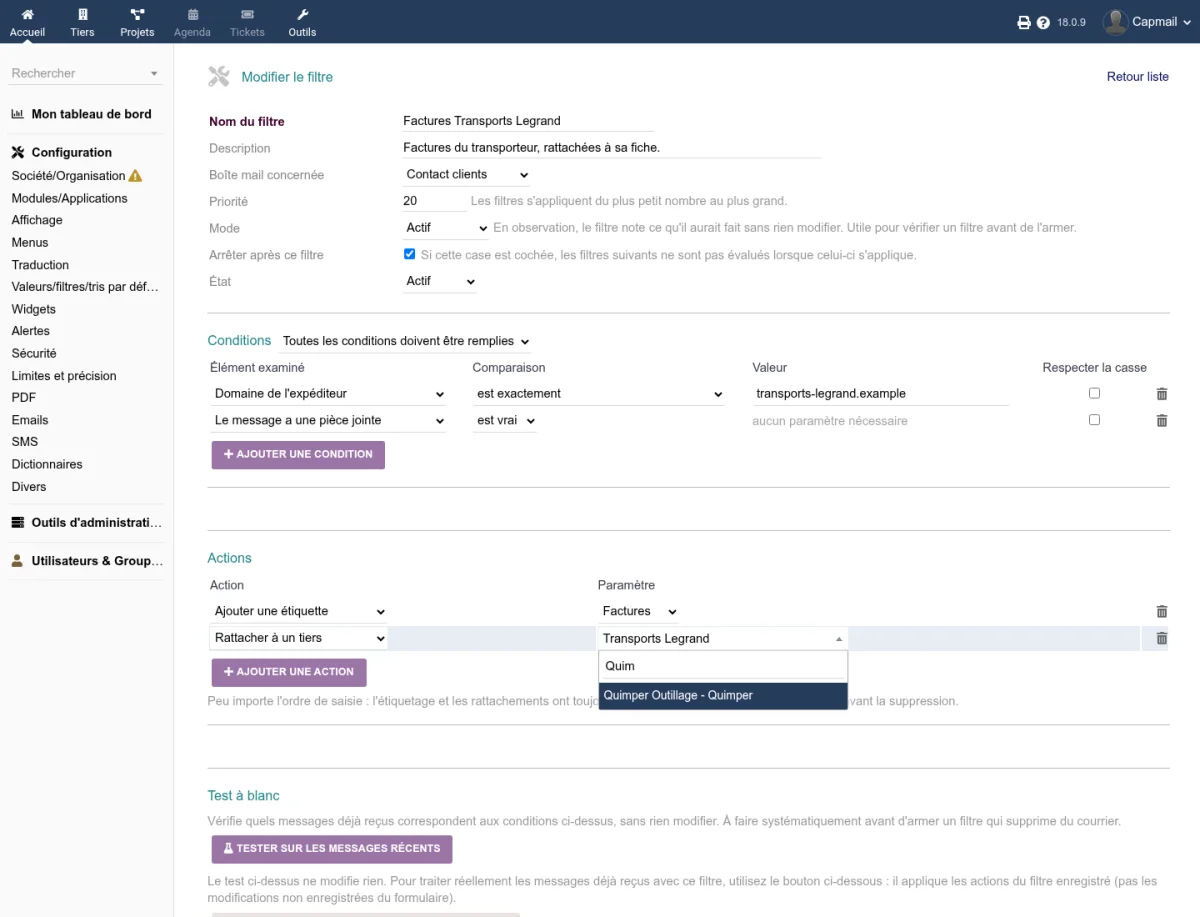
The entry order does not matter. Labeling and linking always happen before attachment filing, filing before filing away, and filing away before deletion: a filter that labels then deletes still leaves its trace before erasing.
Duplicating a filter
The list's Duplicate button creates a copy of the filter and opens its card directly. Handy to derive a variant without retyping everything.
The copy is created disabled, deliberately: two identical active filters would process the same mail twice. Adjust it, dry-test it, then enable it. Its counters start from zero, so its history stays readable.
Dry-test before arming
The Test on recent messages button compares your conditions to the last 200 received messages and displays those that would have matched. Nothing is modified.
Do it systematically, and particularly before a filter that deletes: an overly broad condition is immediately visible in this list.
Observation mode
A filter can be put in observation: it logs what it would have done, without modifying anything, and its trigger counter advances normally. This is the cautious way to check a filter on real mail for a few days before arming it for good.
What stops a filter
By default, the first matching filter is the last applied. Untick "Stop after this filter" if you want a message to be processed by several successive filters, for example a first one that labels and a second one that files away.
Applying filters to already received mail
Filters only apply to messages that arrive. Three ways to catch up on existing mail, from the most targeted to the broadest:
| Where | Scope |
|---|---|
| From the email list: select messages (for example by filtering on unread), then the "..." menu of the selection bar | the selected messages, all filters combined |
| From a filter card: button "Apply this filter to already received messages" | this filter only |
| Configuration > Advanced: "Apply filters to already received mail" | all filters, over a scope and a number of messages of your choice |
The first two offer a test that shows what would happen without modifying anything. Use it first.
After an application from the list, the display reloads: the filters may have archived, moved or deleted part of the selection, and only the reloaded list shows the real state.
Limits to know
- Deletion is irreversible on the Dolibarr side. The message goes to your mail server's trash, but its card, its source file and its attachments are deleted from Dolibarr. Each deletion decided by a filter is logged with the subject and the sender.
- Automatic replies and forwards never go to a machine. Capmail refuses to write to a message carrying the marks of an automatic send (
Auto-Submitted,List-Id,Precedence: bulk), to an error return, to anoreplyaddress or to one of your own domains. Without this guardrail, two auto-responders would write to each other all night. - Creating a ticket assumes the message is already linked to a third party. Put the linking action in the same filter, or in a filter with a smaller priority.
- A filter without condition never triggers, and saving refuses it: it would be a filter applying to all mail.