Link an email to an existing third party
The customer is already in Dolibarr: no need to recreate them. This action attaches the email to their card.
Before starting
You need the Third party: read right.
Steps
- Open the email in Lead Mode.
- In the right column, Link to a third party or project tab.
- The Search a third party or a contact field already contains the sender's address (the first recipient for an email you sent), and matching third parties are displayed below. You can also paste something else there: an address, a name, a phone, a SIREN or SIRET, a domain name.
- Click the right result: it fills the Third party field and, if a contact was found, Contact. You can also choose the third party directly in the list, and specify a project.
- Click Link. Nothing is linked before this click.
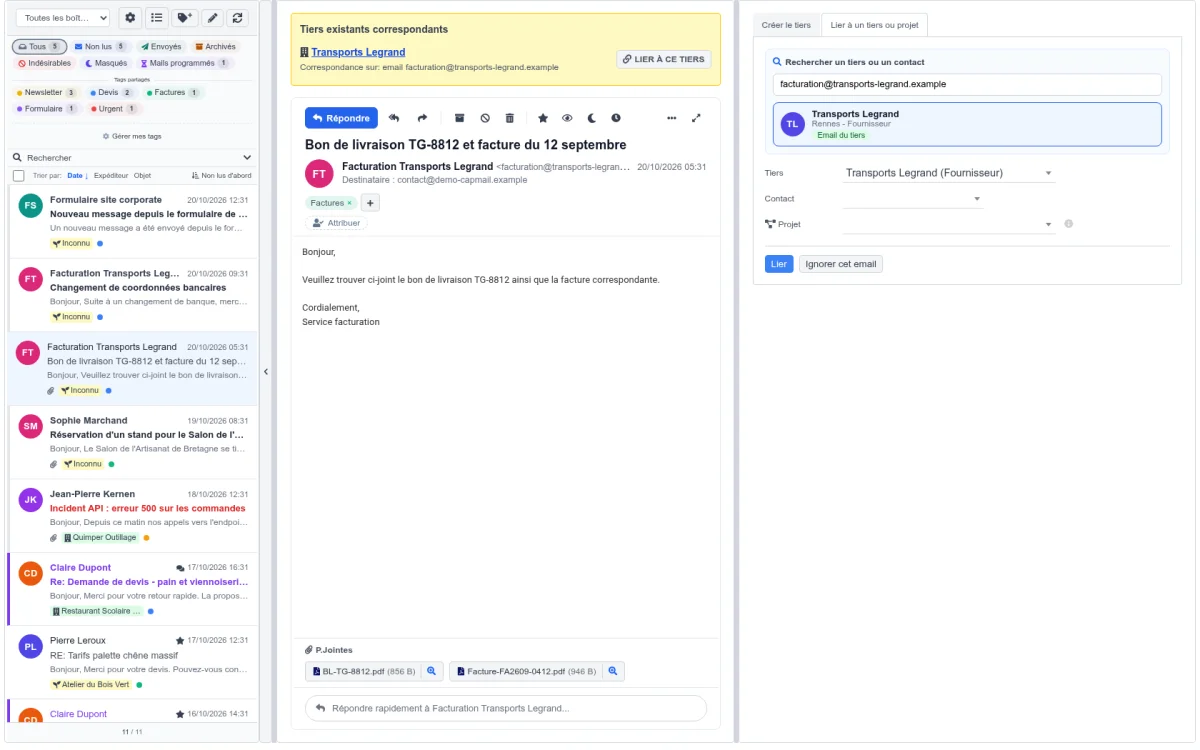
What the search field looks for
Each result is a third party, with its city, its type (customer, prospect, supplier) and the reason it is proposed:
- Third party email, SIREN / SIRET: the match is certain, it comes first;
- Contact Paul Martin: the address, name or phone is that of a contact of the third party;
- Phone, Name: the number (spaces and dots ignored) or the name of the third party;
- Same domain: the address is unknown, but other addresses of the third party, or its website, are on the same domain. This is the case of a new contact at a known customer. Public mail providers (Gmail, Orange, Free...) do not count: two Gmail addresses say nothing about the same company.
A closed third party appears last, marked closed. If you are a sales rep and only see your own customers in Dolibarr, the search only offers those.
Capmail often proposes the right third party
Even before you search, the module displays the matches it found, by comparing:
- the sender's email address with those of third parties and contacts;
- the phone, ignoring spaces and formatting;
- the SIREN;
- the company name, by approximate matching, which catches typos and variants;
- the message subject, compared to emails already attached to a customer, including without the
Re:andTr:prefixes.
If one of these matches is the right one, one click is enough.
The whole thread is linked, not just this message
This is the behavior to remember: linking applies to all the messages of the same conversation. A six-email exchange is linked in a single operation. Only the thread messages you have the right to see are modified: a message from a mailbox you do not have access to, or a private message from a colleague's personal mailbox, keeps its link.
This is also true of the contact and the project you may have specified.
A conversation can however change customer along the way: an email forwarded to a colleague, a reply that brings someone else in. In the Link (or Reassign) tab, the Apply to the whole conversation checkbox appears when the email is part of a thread; untick it to link only this message. Links made from detected duplicates or the t shortcut always apply to the whole conversation.
See also
- Create a third party from an email -- if the customer does not exist yet
- Reassign an email to another third party -- if the link is wrong
- What do you want to do?