Act on several emails at once
Processes a series of emails in one gesture: clearing a pile of notifications, archiving a finished conversation, labeling all the emails of the same customer.
Steps
- In the Lead Mode list, click the initials badge, on the left of each email to process. On hover, the badge turns into a round checkbox; a selected email displays a white check on a blue background, and its row turns blue.
- An action bar appears at the top of the list, with the number of selected emails.
- Click the desired action in this bar.
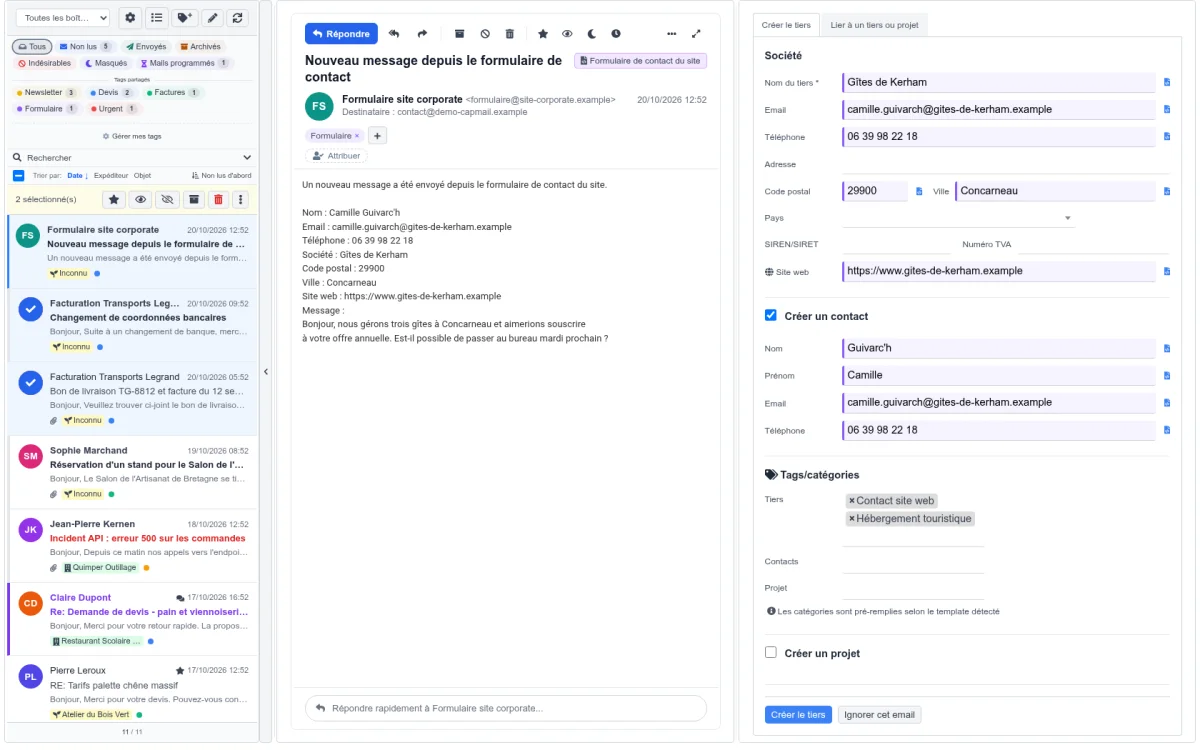
A click elsewhere on the row opens the email, as usual.
To go faster:
- as soon as one email is ticked, a click anywhere on a row also ticks or unticks that email;
- the
xkey ticks or unticks the displayed email; - the checkbox at the top of the list ticks all the displayed emails: emails not yet loaded at the bottom of the list are not included.
Available actions
Directly in the bar:
- the star (Star/unstar);
- Mark as read and Mark as unread;
- Archive;
- Delete, if you have the Capmail message deletion right.
In the More actions menu (the three dots):
- Add tag and Remove tag;
- Snooze, or Reactivate selection in the same window to bring back snoozed emails;
- Test filters (change nothing) and Apply filters;
- Mark as spam.
Each email is processed exactly as if you had performed the action on it alone: see the action's page for its effects on the mail server.
You can also drag the selection onto the Archived bubble (archiving), onto the Spam bubble or onto a label in the sidebar.
Good to know
- Delete, Mark as spam and Apply filters ask for confirmation. Archive does not.
- Actions on several emails do not offer Undo. Check your selection before a deletion.
- The star toggles the status of each email: in a selection mixing starred and unstarred emails, the first lose their star and the others get it.
- Emails from a mailbox you do not have the right to read are silently ignored: the count announced at the end only counts emails actually processed.