Connect a Google or Microsoft 365 mailbox via OAuth
Microsoft 365 and Outlook.com refuse any password connection: they require an OAuth2 token. Google accepts it too, and it is the only way when the Google Workspace administrator has forbidden app passwords.
Capmail does not manage these tokens itself: it uses those of the Dolibarr OAuth module, the same as the core email collector. The procedure is done once per mailbox, by a Dolibarr administrator.
For a Gmail mailbox with an app password, the simpler procedure remains valid: see Connect a Gmail mailbox.
Step 1 -- Enable the Dolibarr OAuth module
Home > Setup > Modules/Applications, find OAuth and enable it.
Step 2 -- Create the application at Google or Microsoft
In the Dolibarr OAuth module configuration, add a Google or Microsoft provider with a label (for example capmail). Dolibarr then displays the redirect URI to declare at the provider.
- Google: in the Google Cloud console (link given by Dolibarr), create an OAuth credential of type "Web application" with this redirect URI, and enable the Gmail API. Note the client ID and the client secret.
- Microsoft: in the Azure portal (Microsoft Entra ID, "App registrations"), register an application with this redirect URI, create a client secret, and grant the delegated permissions
IMAP.AccessAsUser.All,SMTP.Sendandoffline_access. For a company account, also fill in the Tenant in Dolibarr.
Step 3 -- Declare the service in Dolibarr
Go back to the OAuth module configuration and fill in, for the added provider:
- the OAuth client ID and the OAuth client secret;
- the Permissions: for Google, tick at least
gmail_full(full access to the mailbox); for Microsoft, the proposed IMAP and SMTP permissions.
Step 4 -- Generate the token
Go to the token generation tab of the OAuth module, then click the link that requests access. Log in with the mailbox account to connect (not necessarily yours) and accept the permissions. Dolibarr then indicates that a token has been generated and saved.
One token corresponds to one account: to connect two Google mailboxes, declare two Google providers with two different labels, each with its token.
Step 5 -- Create the mailbox in Capmail
In Capmail configuration > Mailboxes, create the mailbox (see Administration -- Mailboxes):
- Login: the full address of the mailbox;
- Authentication: OAuth2 (Google, Microsoft 365). The password fields disappear;
- OAuth service: the provider declared in step 3;
- servers:
imap.gmail.com(993, SSL) andsmtp.gmail.com(587, STARTTLS) for Google,outlook.office365.com(993, SSL) andsmtp.office365.com(587, STARTTLS) for Microsoft. The Detect servers button fills them in.
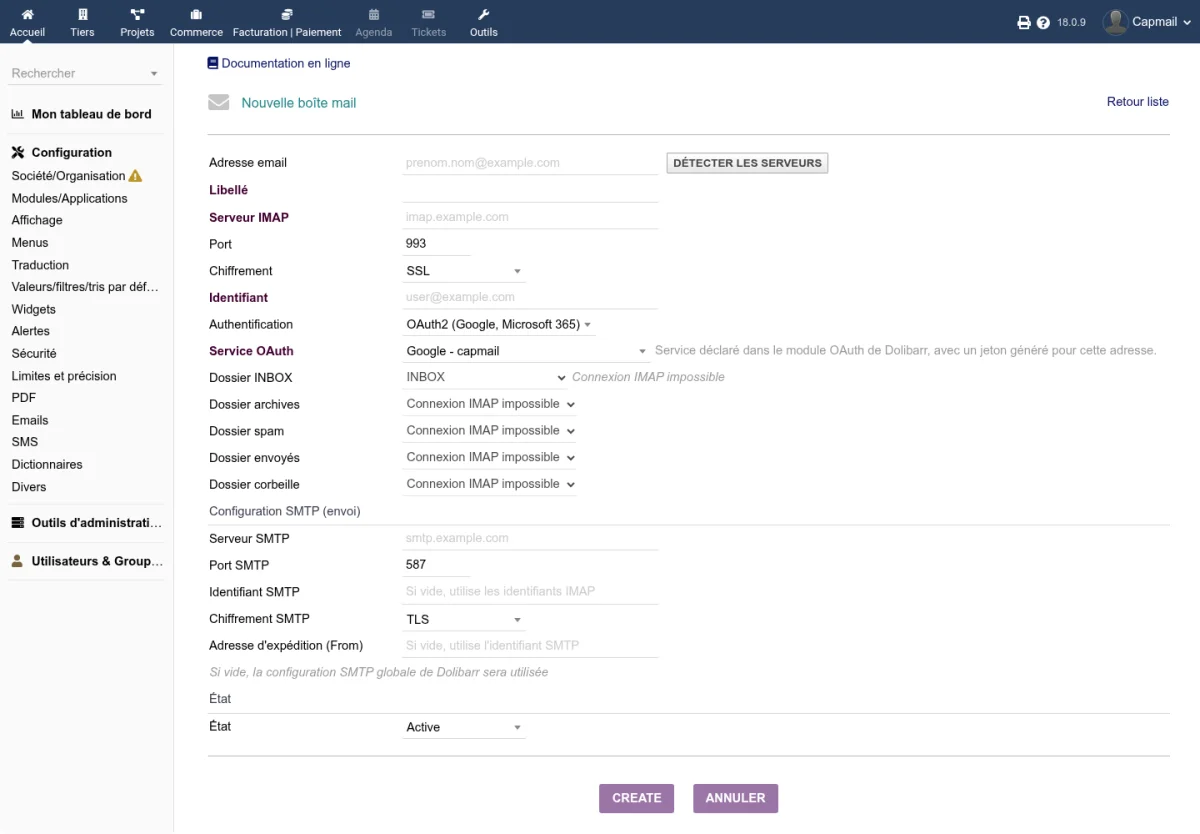
The mailbox card then indicates the service used, whether a token exists, and a Manage tokens link to the OAuth module.
Step 6 -- Verify
On the mailbox card, Test connection (IMAP) and the SMTP test must succeed. Collection and sending then use the token without asking users anything.
What you should know
- The token renews itself: when it has expired, Capmail renews it with the refresh token given by Google or Microsoft, and saves it in Dolibarr.
- Personal mailboxes: a user cannot connect their own mailbox via OAuth themselves, token generation being reserved to Dolibarr administrators. An administrator can connect a user's personal mailbox from their card.
- Revocation: deleting the token in the OAuth module, or removing access from the Google or Microsoft account, cuts off collection and sending for the mailbox.
In case of failure
| Message | Probable cause | What to do |
|---|---|---|
| No OAuth token | the token was not generated, or was generated for another provider | redo step 4 with the right service |
| The OAuth token has expired and cannot be renewed | the provider did not give a refresh token | delete the token and generate it again (step 4) |
| OAuth token renewal failed | client secret changed or expired, access removed | check step 3, then generate a new token |
| The Dolibarr OAuth module is disabled | module switched off | redo step 1 |
| SMTP authentication refused | missing SMTP permissions, or authenticated SMTP disabled for the mailbox on the Microsoft 365 side | check the permissions, then the "Authenticated SMTP" option of the mailbox in the Microsoft 365 admin center |