Lead Mode
Lead Mode is a specialized three-column interface, designed to efficiently process incoming emails as sales leads. It lets you quickly create Dolibarr third parties, contacts and projects directly from an email.
Accessing Lead Mode
Lead Mode is the default Capmail interface. You access it:
- From the Tools > Capmail menu.
- From any page of the module via the left menu.
A Classic list mode button (list icon) lets you switch at any time to the tabular view for advanced searches. A Lead Mode button (columns icon) lets you switch back.
Prerequisites
At least one mailbox must be configured by an administrator (see Configuration). If no mailbox exists, a home page offers the administrator to create the first one.
Interface overview
The interface is divided into three resizable columns:
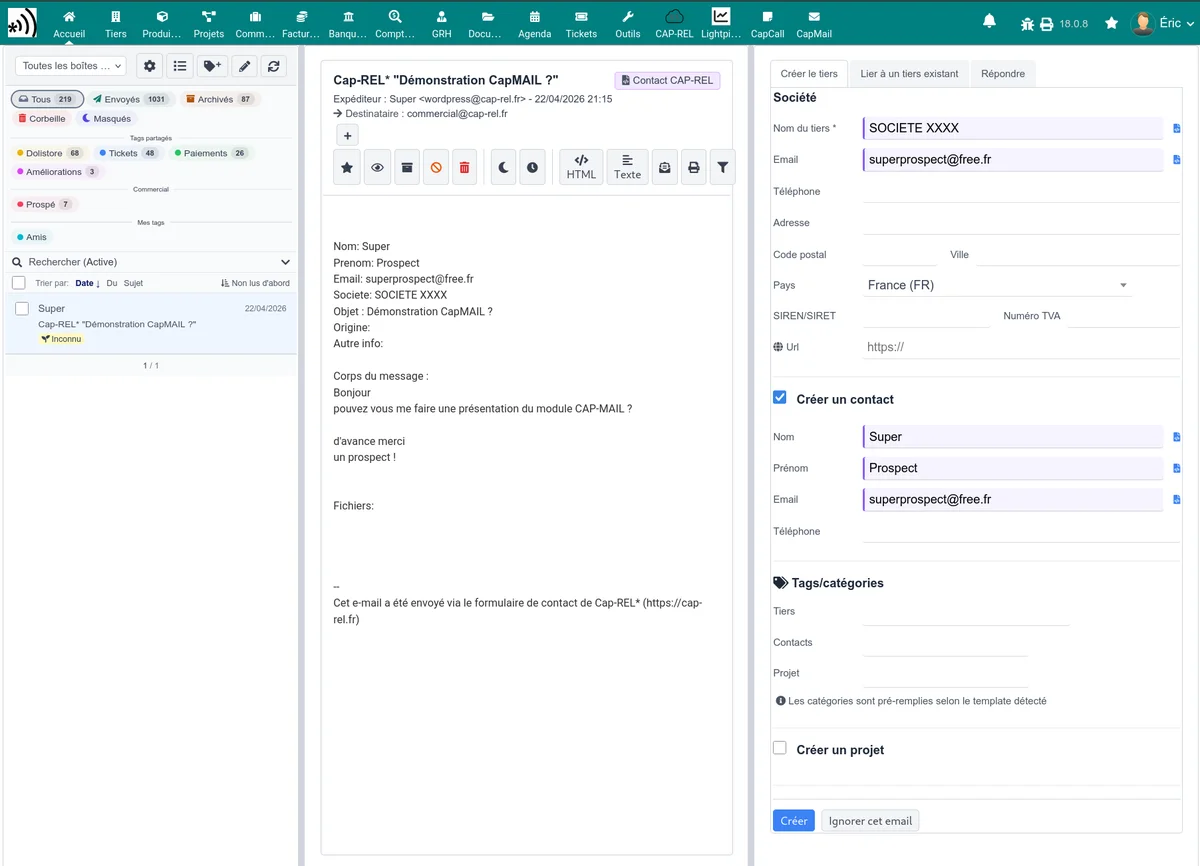
Left column: email list
Displays the list of unprocessed emails. Each email is represented by a card showing the correspondent's initials in a colored badge, their name, the date, the subject and the first line of the message. Unread emails are highlighted with a blue border.
You can filter emails by mailbox thanks to the selector at the top of the column.
The Refresh button launches an immediate collection of new emails.
Center column: preview
Click an email in the list to display its content in the center column. You will find:
- The toolbar: Reply, Reply all, Forward, Archive, junk, deletion, star, read / unread, snooze, reminder, then the ... menu (HTML or text display, headers, printing, re-applying filters) and full screen
- The email header (subject, sender initials and name, recipient, date, labels)
- On a shared mailbox, the Assign button and the Read by list of colleagues who opened the email (see Assign an email to a colleague)
- The email body (displayed securely)
- Attachments with preview, and checkboxes to file them into the documents of the third party or the contact (see File attachments)
- The conversation history, when the email is part of a thread (see Follow a conversation thread)
- The Quick reply bar, which opens a small editor under the message
- Automatically extracted data (if a template matches)
Automatic data extraction
When a template matches the email, the extracted data is displayed under the message body: name, email, phone, address, SIREN, etc. This data automatically pre-fills the forms of the right column.
Automatically pre-filled fields are visually identified by a blue border on the left and a magic wand icon.
Duplicate detection
The module automatically searches whether the sender matches an existing third party or contact in Dolibarr. The search covers:
- The sender's email address
- The sender's name
- Phone numbers extracted from the email body
If matches are found, they are displayed in a "Potential duplicates detected" box with a button to directly link the email to the existing third party.
Right column: actions
The right column offers the lead processing actions.
When the email is already linked to a third party, it starts with a summary card of the third party (name, city, contact, email, phone, outstanding balance and overdue invoices if you have access to invoices, open tickets, ongoing interventions and remaining time credit if you have access to tickets or interventions) and the Dolibarr objects attached to the email. The actions below follow directly.
Create a third party
The quick third party creation form is pre-filled with the data extracted from the email. You can adjust the information before validating:
- Third party name
- Email address
- Phone
- Postal address
- SIREN/SIRET number
- Status (Prospect or Customer, depending on the default configuration)
- Assigned sales representative
Categories (tags) are automatically applied if the detected template defines them.
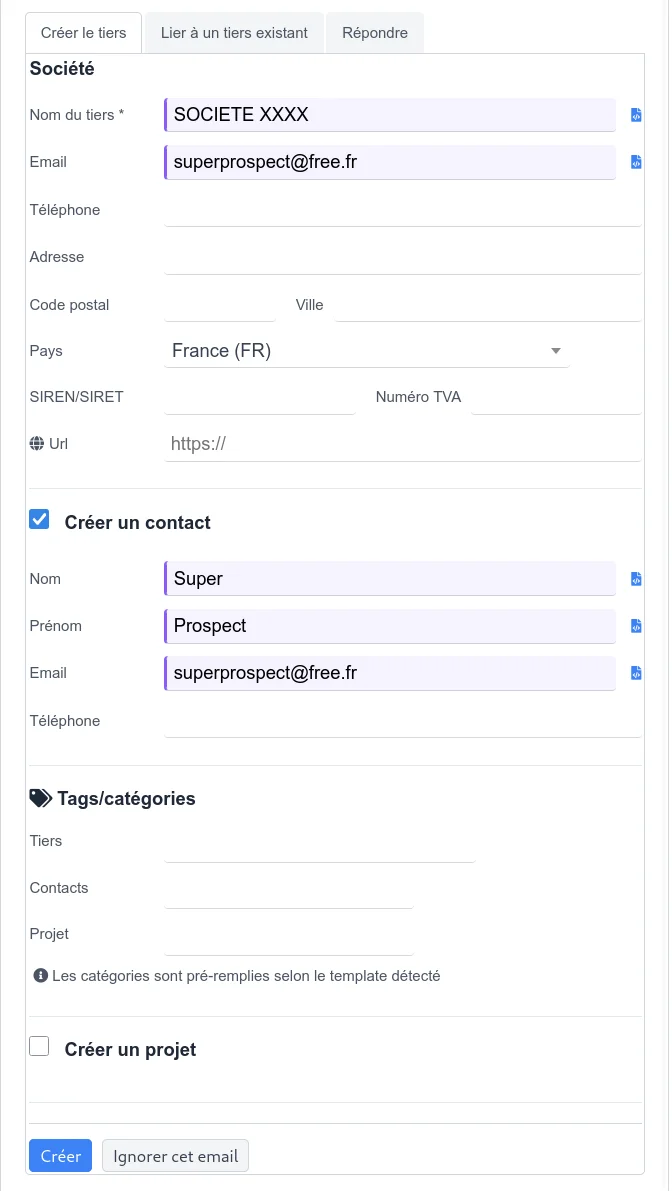
Create a contact
After creating the third party (or when linking to an existing one), you can create a contact attached to the third party:
- Last name and first name
- Phone
Create a project
If the "Automatic project creation" option is enabled in the configuration, a project is automatically created when the third party is created. Otherwise, a form lets you create a project manually with:
- Project title
- Notes (you can copy/paste extracts from the email)
- Selection of attachments to attach to the project
The selected attachments are copied into the project directory, with the possibility to rename them.
Link to an existing third party
If the third party already exists in Dolibarr, click Link to an existing third party to associate the email with the third party without creating a duplicate. A search field lets you find the third party by name or email.
Propagation to the conversation thread: when you link an email to a third party (whether via creation, linking to an existing one or duplicate detection), all emails of the same conversation thread are automatically linked to the same third party. This allows correcting or assigning a whole conversation in a single action.
Create a job application
For an email from a candidate, the Application tab creates a job application in the Dolibarr Recruitment module, with the resume, without creating a third party. It is shown whether the email is linked to a third party or not. See Create a job application from an email.
Send an attachment to ScanPdf
When the ScanPdf module is enabled and you may import documents in it, the ScanPdf tab lists the PDF and image attachments of the email. The Send to ScanPdf button drops them into ScanDocuments, where they are processed; the supplier invoice or order created is then linked to the email. The tab is shown whether the email is linked to a third party or not. See Send an invoice received by email to ScanPdf.
Reply
Replying happens from the center column: the Quick reply bar under the message for a short reply, or the Reply button of the toolbar for the full form (template, copies, choice of sender). See Reply to an email.
Ignore / Mark as processed
If an email does not require any processing, you can mark it as processed or archive it directly.
Column resizing
The separators between columns can be moved by drag and drop. Your width preferences are automatically saved in your browser and restored on the next visit.
Configuration button
A gear icon is present in the Lead Mode toolbar for all module users. A click opens the Capmail preferences page, organized in tabs:
- Interface: default displayed mailbox, email order, compact mode, delay before automatic mark-as-read, keyboard shortcuts, browser notifications, etc.
- Sending: default sending mailbox, automatic copy (CC), automatic archiving on reply, custom signature.
- Personal mailboxes: configuration of the personal IMAP mailbox(es) (requires the "Use a personal mailbox" permission, see Personal mailbox).
- My labels: creation, modification and deletion of your personal labels. Shared labels (global or group) are listed read-only and remain managed by an administrator (see Labels).
A Manage my tags shortcut is also available at the bottom of the label sidebar: it opens the "My labels" tab directly and offers a way back to the email list on close.
Upcoming actions tab
When an email is linked to a Dolibarr third party, an Actions tab appears in the right panel, next to the Ticket, Attach, Contact, Company and Reassign tabs.
This tab displays the upcoming Dolibarr calendar actions for the linked third party:
- Each action is displayed with its date, label and type (appointment, call, task, etc.).
- Click an action to edit it: the Dolibarr action card opens in a popup window.
- Click the Add an action button to create a new calendar event. The third party and the contact (if any) are pre-filled in the form.
This system lets you schedule a reminder or an appointment directly while processing a lead, without leaving the interface.
Duplicate purge
A purge tool is available in the module administration page (Advanced tab). It detects and deletes duplicate emails in the database.
The duplicate criterion is strict: same Message-ID + same mailbox + same direction (incoming/outgoing). This covers the classic case of a re-fetch or a migration that inserted the same message twice.
For each group of duplicates, the system keeps the most complete copy (with third party/contact/project links) and deletes the copies. A preview mode (dry-run) is available to check what would be deleted before running.
Typical workflow
- Select an unprocessed email in the left column.
- Consult the content and extracted data in the center column.
- If duplicates are detected, link the email to the existing third party.
- Otherwise, create a new third party (and possibly a contact and a project).
- Attach the attachments to the project if necessary.
- Send a reply if needed.
- The email is automatically marked as processed and disappears from the list.