Incoming email templates
Templates allow automatic recognition of the type of an incoming email (WordPress contact form, Wix, etc.) and extraction of structured data from it (name, email, phone, address, etc.). This data then pre-fills the forms of the Lead Mode.
Accessing templates
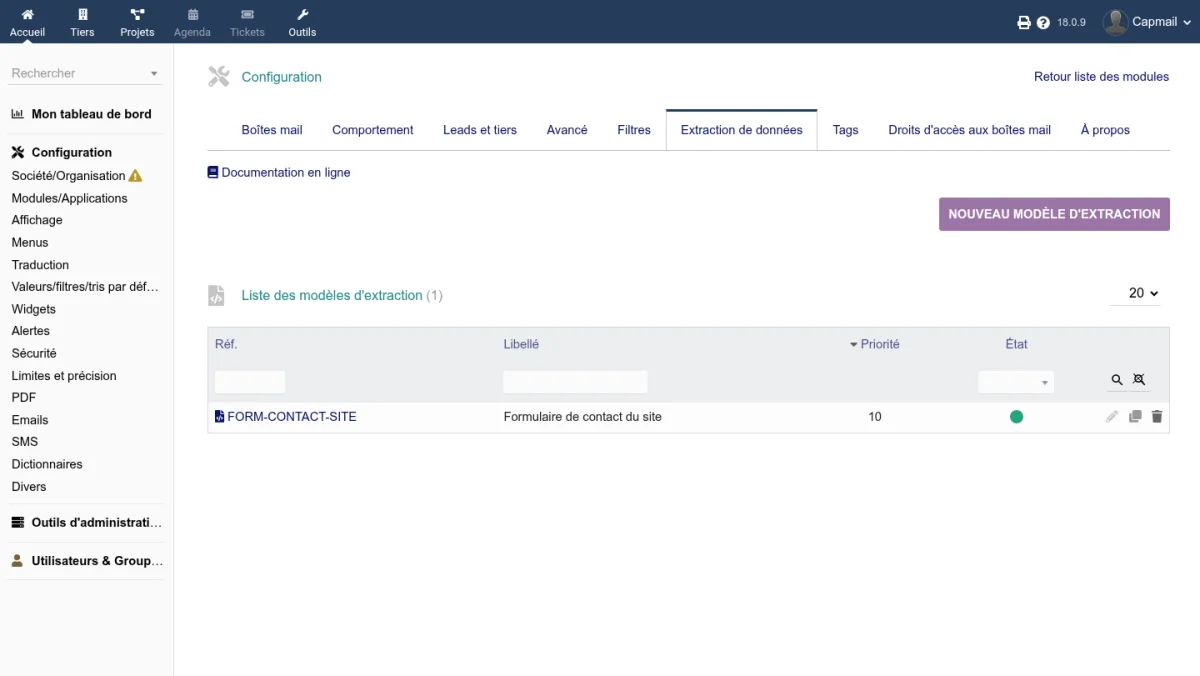
Go to the module configuration, Email templates tab.
Creating a template
Click New template and fill in the basic information:
- Label: template name (e.g. "Contact Form 7", "Wix form")
- Description: free description
- Priority: evaluation order of the templates. The lower the value, the earlier the template is tested (1 = maximum priority)
Template card
A template card has five tabs.
General tab
Basic template information: label, description, priority, active/inactive status.
Detection tab
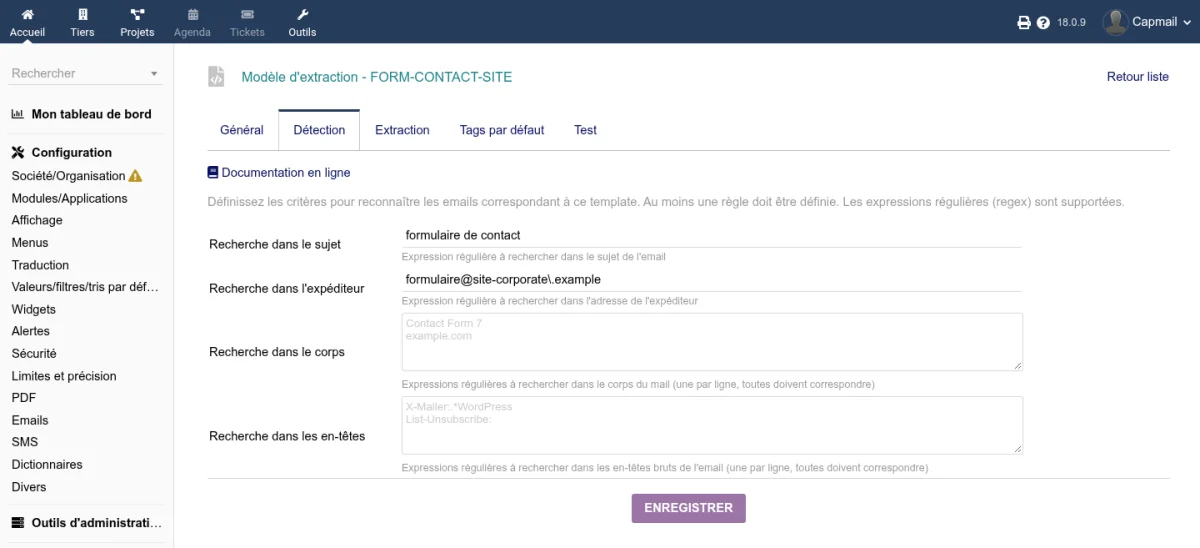
Detection rules determine whether an email matches this template. Define one or more criteria:
| Field | Description |
|---|---|
| Source | The part of the email to analyze: subject, sender, or message body |
| Operator | Comparison type: "contains" (substring search) or "regex" (regular expression) |
| Value | The text or regular expression to search for |
All rules must match for the template to be considered detected.
Example: to detect emails from a WordPress Contact Form 7 form, you can create a rule on the subject containing "Contact Form" and a rule on the sender containing "wordpress@".
Extraction tab
Extraction rules use regular expressions to capture precise data in the email body. For each rule:
| Field | Description |
|---|---|
| Name | Identifier of the extracted field (e.g. email, phone, name) |
| Source | Part of the email: text body, HTML body, subject, or sender |
| Regular expression | The regex pattern with a capture group in parentheses |
| Flags | Regex options: i = case insensitive, s = dot matches newlines |
The capture group (the part in parentheses in the regex) is used as the extracted value.
Example: to extract an email address after the "Email:" label, use the pattern:
Email\s*:\s*([\w.-]+@[\w.-]+)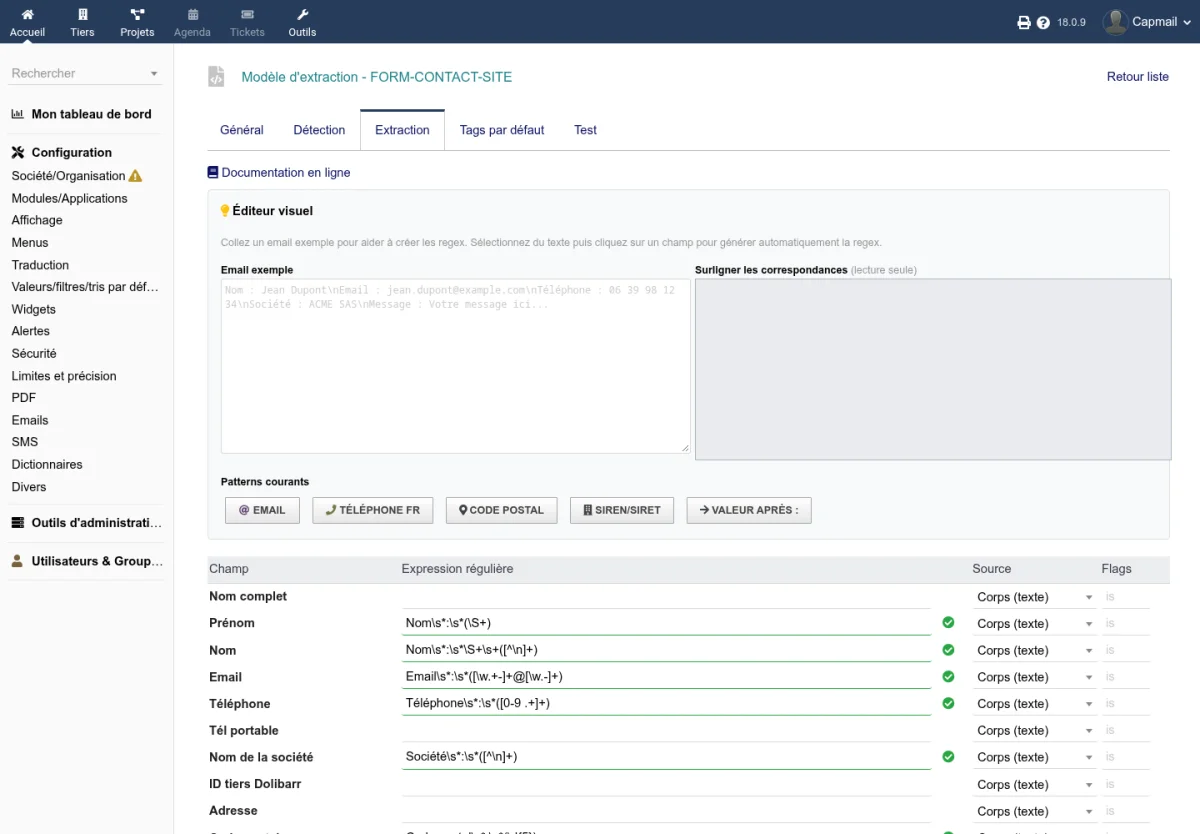
Visual editor
The visual editor makes it easier to create regexes. Paste a sample email into the provided area, select a text passage, then click a field to automatically generate the corresponding regular expression.
Common patterns are offered in one click:
| Pattern | Description |
|---|---|
| Captures an email address | |
| FR phone | Captures a French phone number |
| Zip code | Captures a 5-digit zip code |
| SIREN/SIRET | Captures a SIREN number (9 digits) or SIRET (14 digits) |
| Name after label | Captures the text after a label followed by ":" |
| Value after : | Captures any value after a colon |
A visual indicator confirms whether the regex is valid and how many matches it finds in the sample.
Default tags tab
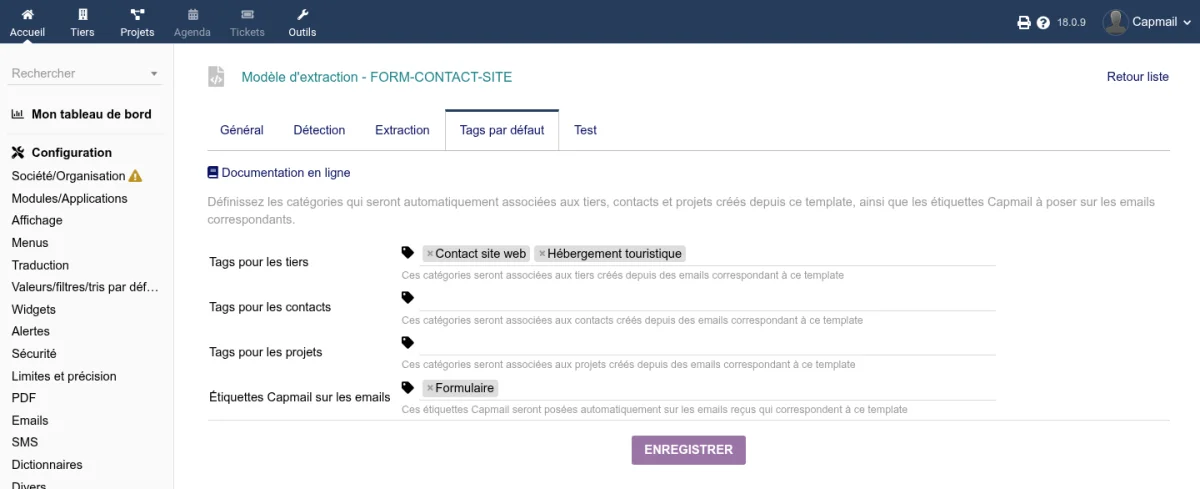
Define the Dolibarr categories that will be automatically assigned to third parties, contacts and projects created from an email matching this template.
Three independent sections:
- Tags for third parties: categories of type "Customer"
- Tags for contacts: categories of type "Contact"
- Tags for projects: categories of type "Project"
Select one or more categories in each section. They will be automatically associated when creating in Lead Mode.
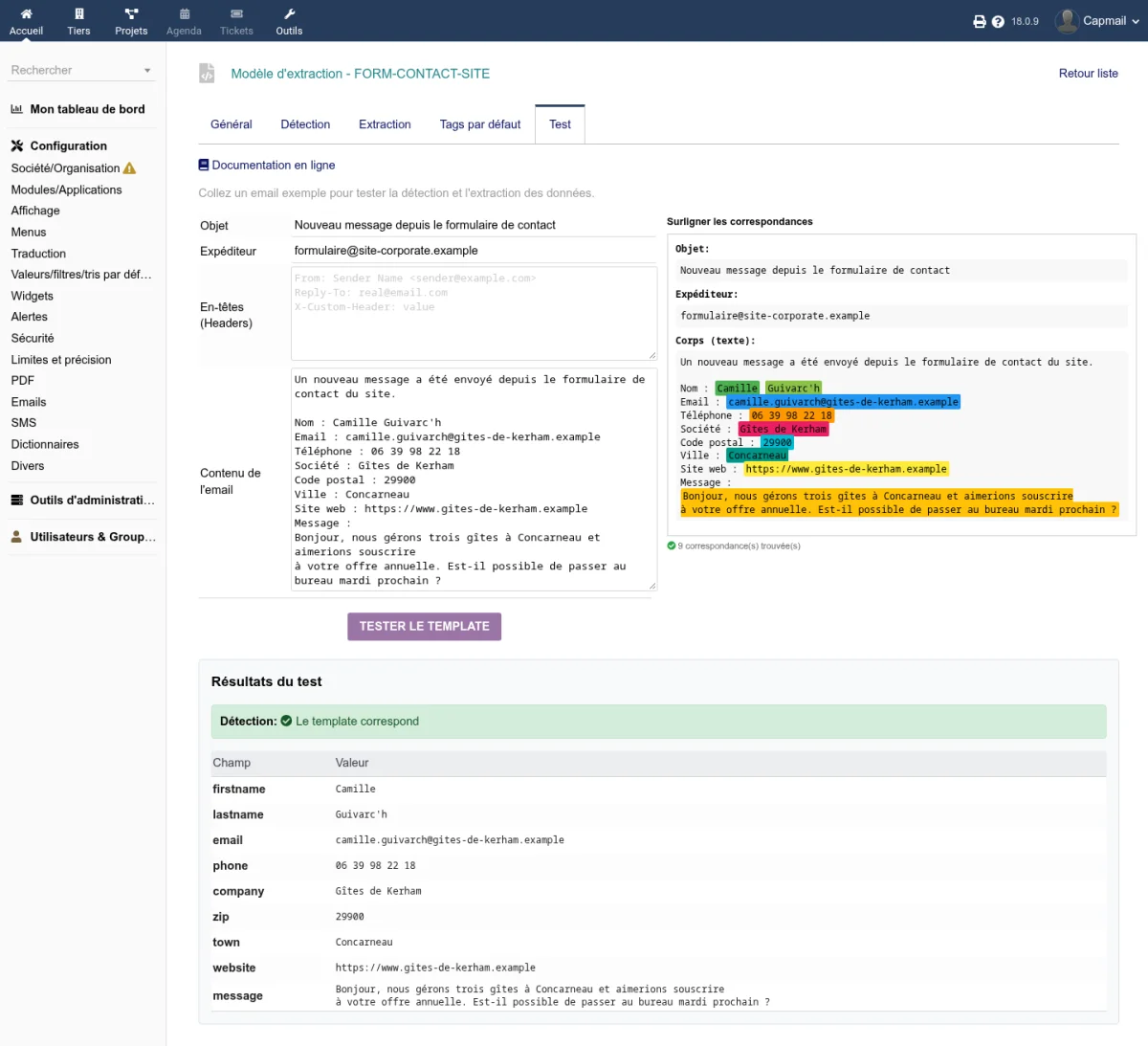
Test tab
The Test tab lets you validate the template under real conditions:
- Paste the content of a sample email (subject, sender, body).
- Click Test template.
- The result indicates:
- Whether the template matches or not (detection)
- The extracted data (extraction) with the values found
Use this tab to refine your regular expressions before putting the template into production.
How it works in Lead Mode
When an email is selected in Lead Mode, the active templates are evaluated by priority order. The first template whose detection rules all match is selected. The data extracted by this template automatically pre-fills the third party, contact and project creation forms.
The detected template is displayed in the center column of the Lead Mode interface, with its label.
Duplicating templates
You can duplicate an existing template to create a variant. From the template card, use the Duplicate button. The new template is created with all rules and tags copied, ready to be adjusted.