Highlight some emails in the list
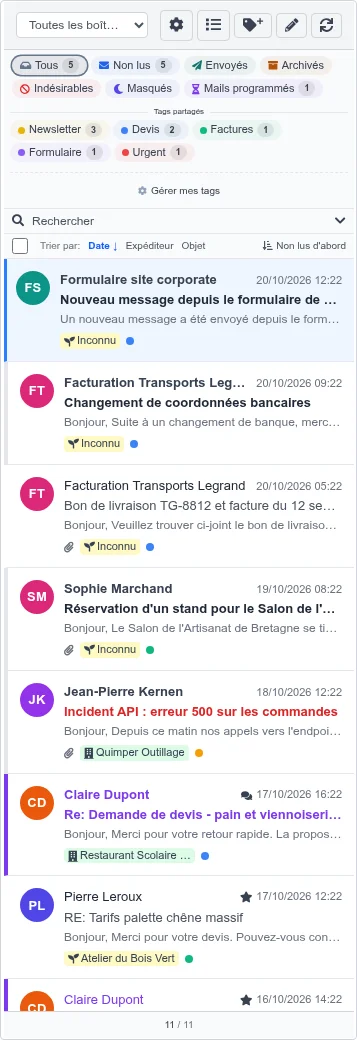
Some emails must catch the eye: an important customer, a monitoring alert, a subject that comes back every month. Formatting colors them in the Lead Mode list, without moving or modifying them.
These rules only concern your display: your colleagues do not see them.
Steps
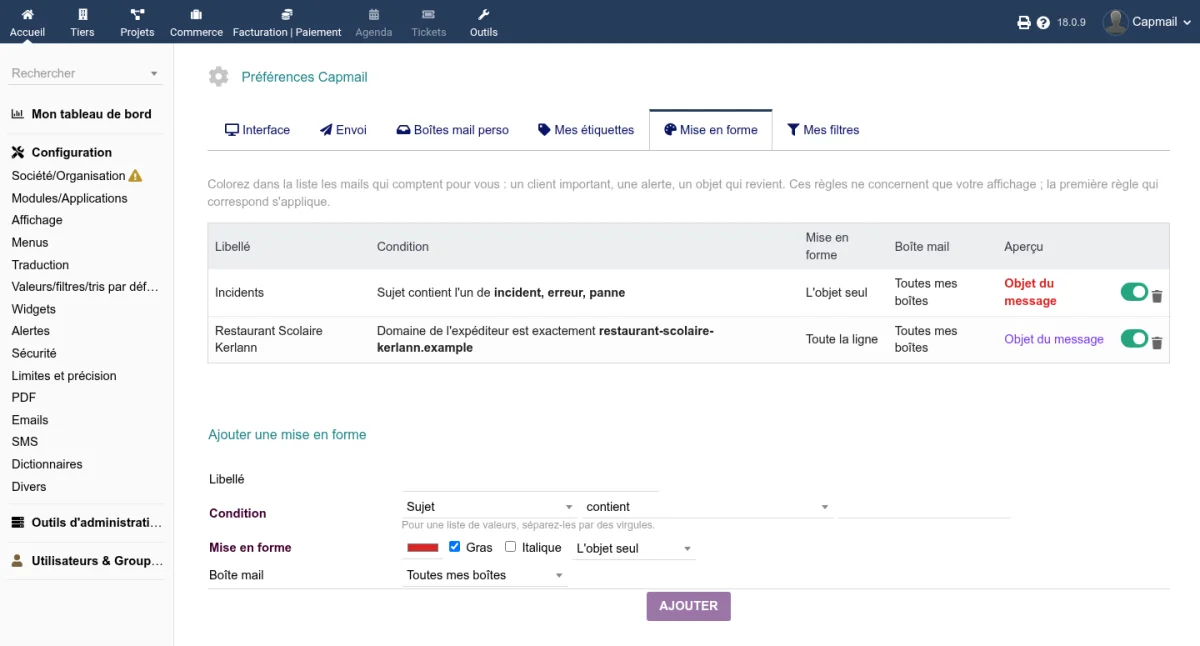
- Open your preferences (Lead Mode gear icon), Formatting tab.
- Under Add a format, give a label (it appears when hovering the email in the list).
- Choose the condition: the field (subject, sender, sender address or name, sender domain, recipient), the operator and the value. For a list of values ("contains one of", "is part of"), separate them with commas.
- Choose the format: the color, bold and italic, and what is colored, the subject only or the whole row (name, subject and left border).
- If needed, limit the rule to a mailbox.
- Click Add. The table shows a preview of each rule.
Good to know
- The first matching rule applies: put the most important ones first (delete and recreate to change the order).
- A rule's toggle disables it without deleting it.
- The operators are those of the automatic filters, including regular expressions. Case and accents are ignored.
- Formatting only reads what the list already displays (subject, sender, recipient): it does not slow the list down. The email body is not consulted.
- 30 rules maximum.