Installation
Download
Get the Capmail module from CAP-REL.
Module installation
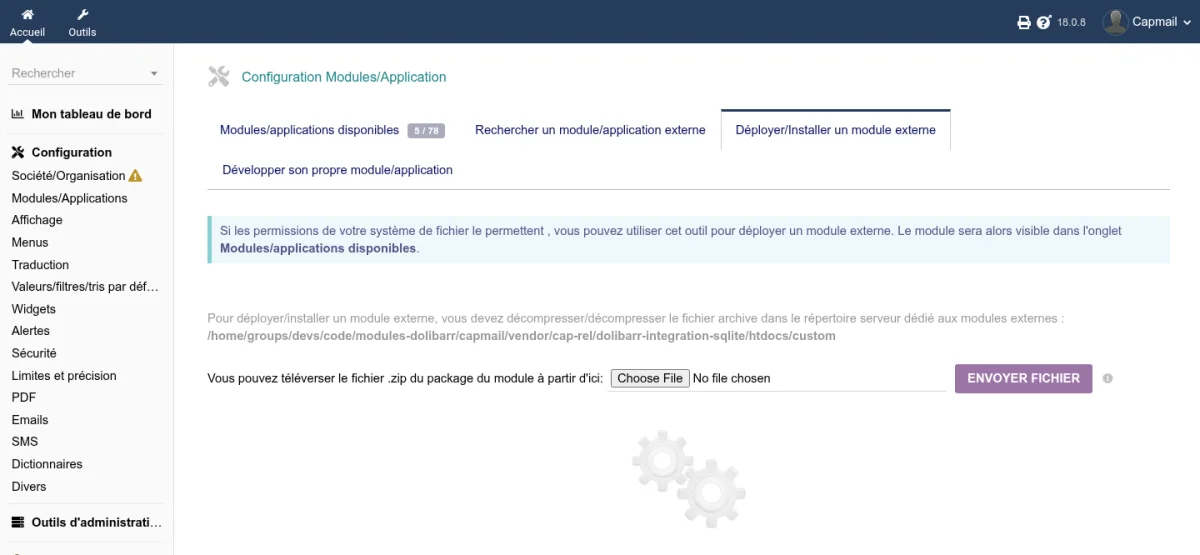
- Go to Home > Setup > Modules/Applications > Deploy/install external app/module.
- Select the module zip file and click Send.
- Dolibarr automatically installs the files in the appropriate directory.
Activation
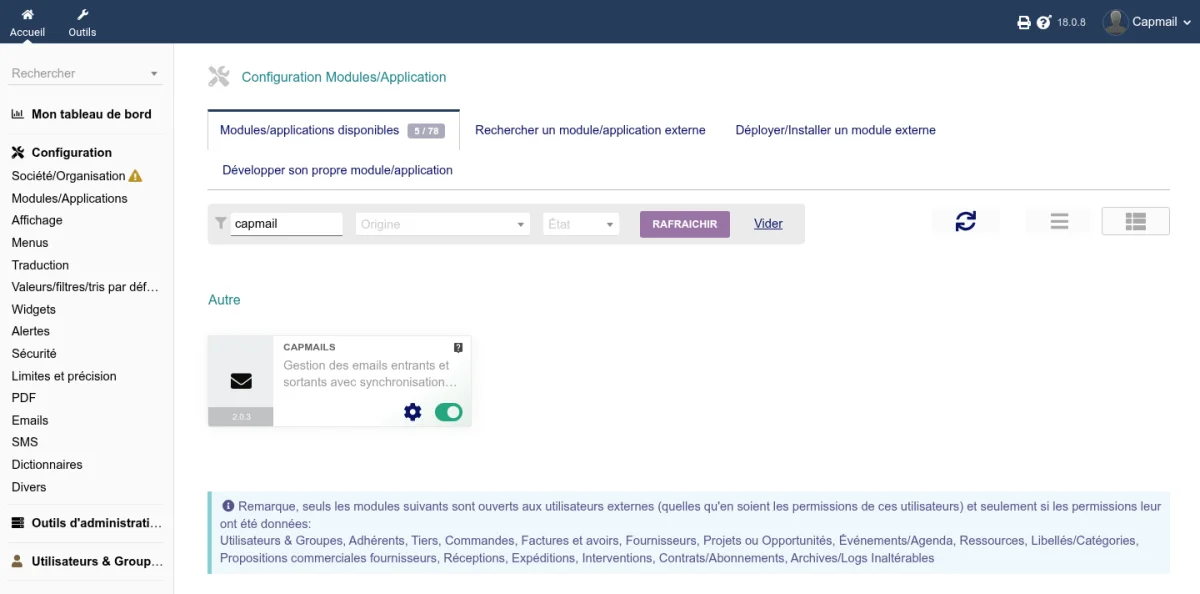
- Go to Home > Setup > Modules/Applications.
- Find "Capmail" in the module list.
- Click the toggle to enable the module.
Once enabled, the module automatically creates the required tables in the database and registers its permissions and menus.
Capmail requires the PHP iconv and mbstring extensions, which are used to read emails in all character sets. They ship with PHP and are enabled at most hosting providers. If one is missing, activation is refused with the message "Capmail cannot be enabled: the PHP extension ... is missing on this server": ask your hosting provider to enable it, then try again.
Post-installation check
After activation, check that:
- The Tools > Capmail menu appears in the left sidebar.
- The configuration page is accessible via the gear icon next to the module, or via Tools > Capmail > Setup.
- The "Capmail" tab appears on third party cards.
Update
To update the module to a new version:
- Go to Home > Setup > Modules/Applications > Deploy/install external app/module.
- Send the new zip file (it replaces the existing files).
- Disable then re-enable the module to apply database updates and register the new hooks and permissions.
Warning: the disable/reactivate step is essential for the new columns, permissions and menus to be registered correctly.
Uninstallation
To uninstall the module, disable it from Home > Setup > Modules/Applications. The data (emails, attachments) remains in the database and on disk. If you re-enable the module later, you will find your data again.