Search for an email
Finds a specific message when you no longer remember where it is filed: a word in the subject, a sender's name, a period, the presence of an attachment.
Steps
- Open Lead Mode.
- If you have several mailboxes, choose at the top of the list the mailbox to search in, or All mailboxes. The search remains limited to the displayed mailbox.
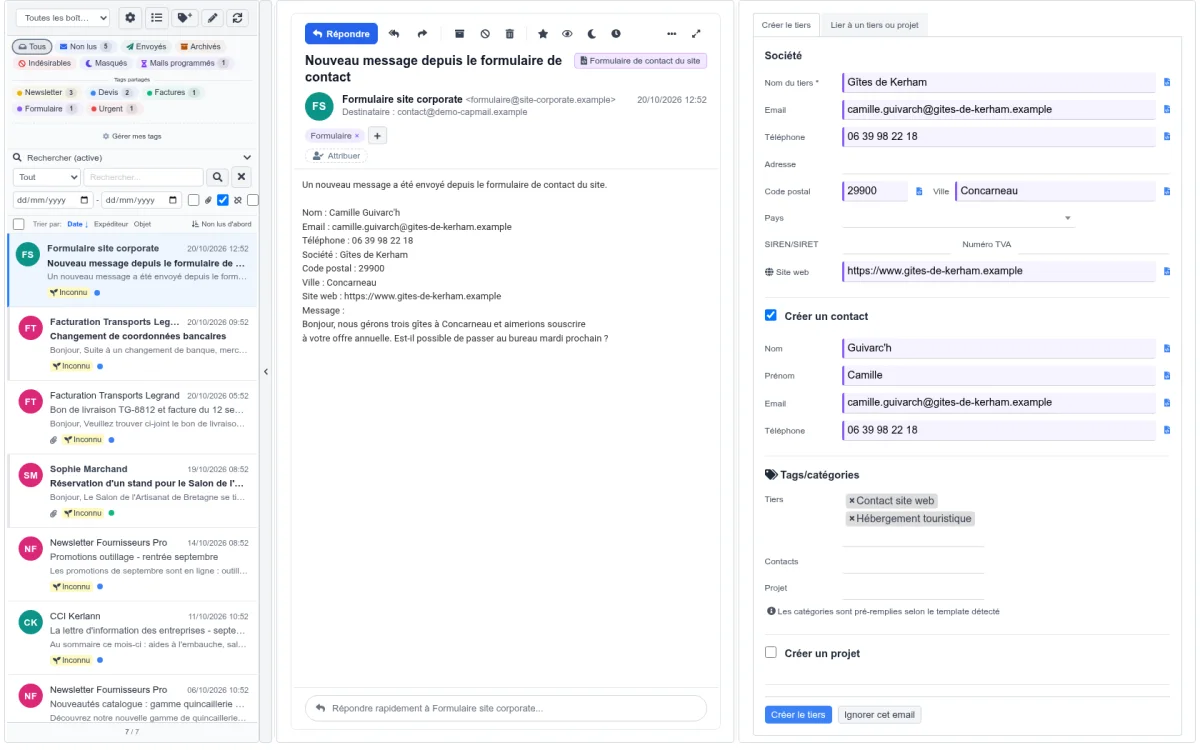
- Click the Search bar, under the status bubbles, to expand the search panel.
- Type your text. The dropdown on its left limits the search to the subject, the sender, the recipient or the message content; by default, it covers all of them at once.
- If needed, specify the criteria of the second line (see below).
- Click the magnifier, or press Enter.
The panel stays open as long as a search is active. To return to the normal list, click the Clear filters cross on the right of the magnifier.
The criteria of the second line
- two dates: start and end of the period. The end date is included up to 23:59;
- the paperclip: only emails with at least one attachment;
- the broken link: only emails not linked to any third party. Handy to find what remains to be processed. An email linked to a job application of the Recruitment module is processed: it is not listed, even without a third party. Shortcut: clicking the Unknown badge of an email in the list directly applies this filter, in the displayed mailbox;
- the crossed archive: exclude archived emails;
- the read/unread list: All (read + unread), Unread only or Read only. The last two choices only keep received mail, never sent messages.
- the Assignment list: Mine or Unassigned, for shared mailboxes. This criterion does not launch a search by itself: it restricts the current view (see Assign an email to a colleague).
You can fill in a criterion without typing any text: a period alone, or "with attachment" alone, is enough to launch a search.
The search looks everywhere
This is the key point: as soon as a search is active, Capmail no longer limits itself to the inbox. Results include:
- archived messages (unless you tick the crossed archive);
- messages in the trash;
- sent messages;
- snoozed messages, which are hidden from the usual list.
An email filed by mistake is therefore found with a simple search.
The bubbles and the labels
The bubbles above the search are shortcuts to a category: All, Unread, Sent, Archived, Spam, Hidden (snoozed emails). A bubble's number counts unread, not the total of the category: Unread counts received unread emails, without snoozed ones, and Hidden the snoozed emails still unread. All displays no number: the list also contains read emails, and the total number of emails is indicated at the bottom of the list. Sent, Archived and Spam do not display one either, since an email in these categories is never unread. The Mine bubble only appears if an email is assigned to you: it lists those emails, and its number counts those still in the inbox (see Assign an email to a colleague).
Clicking a bubble starts from scratch: the searched text and the criteria are abandoned.
Clicking a label, however, filters the list on that label, and a search launched afterwards remains limited to the emails that carry it.
What the search does not find
- the content of attachments: only the message text is searched, not that of an attached PDF or document;
- mailboxes you do not have the right to read: the search respects the rights matrix, an email from a mailbox not open to you never appears. A Dolibarr administrator sees all mailboxes;
- private emails from your colleagues' personal mailboxes;
- emails from excluded senders in the module configuration (Excluded senders setting): they are excluded everywhere, search included;
- emails from another entity, if your Dolibarr manages several;
- deleted emails: deletion is permanent, unlike the trash.
Good to know
There is no Capmail search in Dolibarr's general search bar: email search is done from Lead Mode or the classic list.
For column-by-column search (reference, sender, recipient, status...), the Classic list mode button (list icon, at the top of Lead Mode) opens Dolibarr's table view. Beware, it behaves differently: archives, trash and snoozed emails do not appear there. For them, use the Lead Mode search. The Lead mode button (columns icon) takes you back to Lead Mode.
To find all exchanges with a customer, the third party card is often more direct than search: see View exchanges from a third party's card.
See also
- What do you want to do?
- Follow a conversation thread
- View exchanges from a third party's card
- Snooze an email
- Apply a label to an email
- Permissions -- the per-mailbox rights matrix