Usage
Accessing emails
Go to Tools > Capmail via the left sidebar. If the "Add icon to top menu" option is enabled in the configuration, you can also access it directly from the top menu bar.
Email list
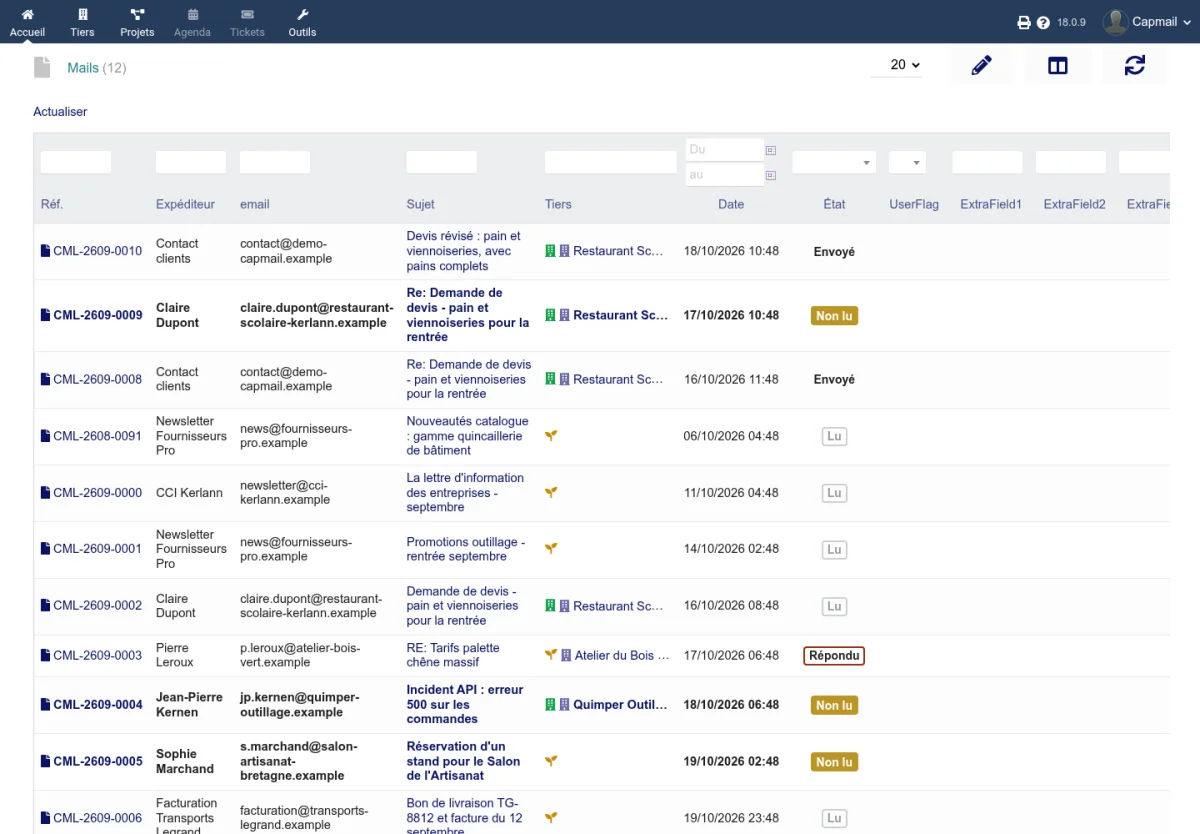
The email list displays all collected emails, sorted by reception date.
Displayed columns
The visible columns and their order are configurable (see Configuration). Available columns include:
- Ref: internal Capmail reference
- Sender: sender name and email address
- Recipient: recipient email address
- Subject: email subject
- Attachments: number of attached files
- Third party: linked Dolibarr third party
- Contact: linked Dolibarr contact
- Project: linked Dolibarr project
- Mailbox: mailbox concerned
- Date: reception date
- Status: email status (unread, read, processed, archived, etc.)
- Star: star flag (synchronized with
\FlaggedIMAP / Thunderbird) - Flags: custom flags (synchronized with IMAP keywords
$Label1to$Label4-- compatible with keys 1 to 4 of the Thunderbird numeric keypad)
Read / unread distinction
Unread emails are highlighted with a blue border on the left and a slightly tinted background.
In the leads interface, each row shows the correspondent's initials in a colored badge (always the same for the same person), their name, the subject and the first line of the message: you know what an email is about without opening it.
Filtering and search
Use the filters at the top of each column to refine the list:
- Filter by sender, subject, third party, mailbox
- Filter by period (start date / end date)
- Filter by presence of attachments
- Filter by status (unread, read, archived, etc.)
Mass actions
Tick several emails in the list, then use the mass action menu to:
- Star/unstar (
\FlaggedIMAP) - Mark as read / unread
- Archive
- Delete
- (secondary menu) Add or remove a label, snooze, mark as spam
Refreshing the mailbox
Click the Refresh button to immediately launch a collection of new emails from the IMAP server, without waiting for the next scheduled task run.
Keyboard shortcuts
The leads interface supports keyboard shortcuts for fast navigation (active only when the cursor is not in an input field):
| Key | Action |
|---|---|
↓ or j |
Select the next email |
↑ or k |
Select the previous email |
a |
Archive the current email |
s |
Mark as spam |
d or Del |
Delete the current email |
u |
Mark as unread |
i |
Toggle the star (\Flagged IMAP) |
p |
Print the current email |
r |
Open the reply form |
x |
Check/uncheck the selection box |
t |
Assign a third party (opens a quick search) |
Ctrl+Z |
Undo the last action (archive, spam, delete) |
? |
Show the keyboard shortcut help |
Destructive actions (archive, spam, delete) executed from a keyboard shortcut do not ask for confirmation. The email is removed from the list and the next one is automatically selected. A toast appears at the bottom of the screen with an Undo (Ctrl+Z) link to go back.
Quick third party assignment
The t shortcut lets you quickly assign an email to a third party without using the mouse:
- Select an email in the list (with the arrows or by clicking)
- Press
t: a search modal opens with the input field active - Type the beginning of the third party name (search starts from 2 characters)
- Results are displayed in real time with the name, type (customer, prospect, supplier), city and email
- Navigate the results with
↑and↓ - Press
Enterto validate: the email is linked to the selected third party - Press
Escto cancel
The search covers the third party's name, alias, email and phone. If the email is part of a conversation, all emails in the thread are automatically assigned to the same third party.
Email card
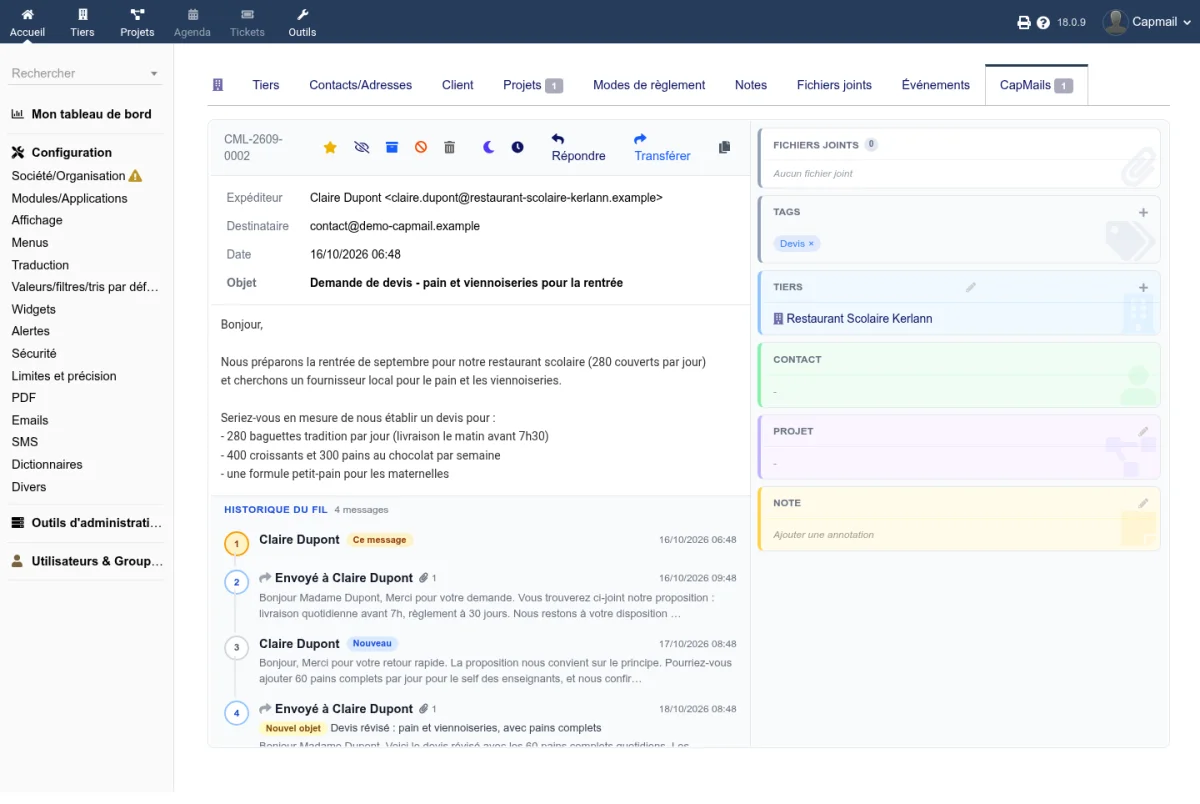
Click an email in the list to open its detailed card.
Email content
The email body is displayed in a secured frame (sandboxed iframe). You can switch between HTML view and plain text view. Scripts and active content are automatically blocked for your security.
Quick actions
The action bar at the top of the card allows you to:
| Action | Description |
|---|---|
| Star | Star/unstar the email (equivalent of \Flagged IMAP, synchronized with Thunderbird and most webmails) |
| Read / Unread | Toggle the read status |
| Archive | Move the email to the archives |
| Spam | Mark the email as junk |
| Delete | Delete the email |
| Reply | Open the reply form |
| Reply all | Reply to all recipients |
| Forward | Forward the email to another recipient |
| Open a printable version | |
| Snooze | Hide the email until a chosen date (see the "Snooze" section) |
| Calendar reminder | Create a calendar event so you do not forget to come back to this email |
Attachments
Attachments are listed under the email. You can:
- Preview documents directly in Dolibarr (PDF, images, etc.)
- Download files individually
- File the checked files into the documents of the third party or the contact of the email (see File attachments)
Replying to an email
Click Reply to open the reply form. You can:
- Select a predefined email template or write a free message.
- Edit the subject and body of the message.
- Choose whether to include the original attachments.
- Send the reply.
The reply is sent from the mailbox on which the original email was received (if that mailbox's SMTP configuration is defined), or from the global Dolibarr SMTP configuration.
Quick reply
In the leads interface, the Quick reply to... bar under the message opens a small inline editor without leaving the reading view. Type your text then Send (or Ctrl+Enter). The reply goes to the sender, with the subject prefixed by "Re:", your signature and the original message quoted, exactly as from the full form.
Need a template, a copy or to change the sender? Full form opens the usual form, keeping what you already typed. Quick reply is not offered on an email you sent yourself.
Conversations (threaded view)
A request, its reply, an additional piece of information: exchanges rarely happen in a single email. Capmail automatically groups the messages of the same conversation thanks to the standard email headers ("In-Reply-To" and "References"). No configuration is needed.
Spotting a thread
In the email list, replies belonging to a conversation carry a small chat bubble icon, on the sender row, on the right, with the other indicators (star, attachment...). The very first message of a thread does not have one: it is the reply that creates the link.
Reading a thread
Open an email of the thread: the Conversation history section appears under the message. It numbers the messages of the exchange from oldest to newest and indicates for each who wrote it (or who it was sent to), its date and its first lines. The message you are reading is marked This message; a message that changes the subject of the exchange carries a New subject badge with the new subject.
Click a message in the thread to display it in place of the current one, without going back to the list. The arrow on the right of the title collapses the history; Capmail remembers this for the following emails.
An email card displays the same history under the message. Only the messages you have the right to read appear there.
Linking the third party to the whole thread
When you link an email to a third party (creation, manual linking or duplicate detection), the link is automatically propagated to all the emails of the same thread: a whole conversation ends up attached to the right third party in a single action. Only the thread messages you have the right to see are modified: a message from a mailbox you do not have access to, or a private message from a colleague's personal mailbox, keeps its assignment.
When Capmail recognizes the third party of an email on its own (reply to a quote or invoice sent from Dolibarr, extraction template), it links it when the message is opened, then applies this link to the thread emails not yet linked to any third party. An email you have already filed under a third party is never moved.
Snooze
An email that does not require immediate action can be snoozed: it disappears from the list and reappears by itself on the chosen date. Nothing to archive, nothing to delete: the email stays in the database and on the IMAP server.
Snoozing
The "Snooze" button (moon icon) of the quick action bar offers predefined delays:
- Tomorrow morning (8am)
- In 2 days
- Next Monday (8am)
- In 1 week
- In 1 month
- Custom date
The reappearance time of the "tomorrow", "next Monday", etc. shortcuts is adjustable in your personal preferences (gear icon of the Lead Mode, Interface tab).
Spotting and reactivating
- A snoozed email carries a moon icon in the list.
- The "Reactivate" button (sun icon) brings it back into the list immediately.
- In the leads interface, the "Hidden" status bubble displays snoozed emails; in the classic list, use the moon button of the toolbar.
In bulk
Snoozing is also available as a mass action: tick several emails, then use the moon button of the action bar to hide them all until the same date. Bulk reactivation follows the same path.
Creating a calendar reminder
Next to snooze, the reminder button of the email card creates an event in the Dolibarr calendar on the chosen date, with a free note: a way not to lose track of a follow-up to do in fifteen days without cluttering the inbox.
Recipient in the preview
The email preview header now displays the recipient ("To:" field) directly under the sender's name and address. This lets you immediately know who the email was addressed to, which is particularly useful for shared mailboxes or forwarded emails.
Preview toolbar
Everyday actions are at the head of the bar: Reply, Reply all, Forward, Archive, junk, deletion, star, read / unread, snooze and reminder. The ... (More actions) button groups the rest: HTML or text display, technical headers, printing and re-applying filters. The last icon switches reading to full screen.
When the column is narrow, labels disappear and only icons remain; hovering an icon recalls its action and its keyboard shortcut.
Re-applying filters
The Re-apply extraction filters entry of the ... menu of the preview manually re-runs template detection and data extraction on the selected email.
This feature is useful in the following cases:
- A template was created or modified after the email was received.
- The initial extraction did not work as expected and you want to retry it.
- You want to check which template applies to a given email.
The extracted data is updated in the center column and the forms of the right column are automatically refilled.
Email linked to a third party: the right panel
When an email is already linked to a third party, the right panel starts with a summary card: the third party name (link to its card), its city, the linked contact, its email and phone, then the Dolibarr objects (project, quote, order, invoice, ticket) to which this email is attached. The double-arrow icon, at the top right of the email and phone ("Not the right third party?" on hover), opens reassignment directly.
If you have the right to view invoices, the card also shows the customer situation: the outstanding balance (what remains to be paid, credit notes and deposits deducted, calculated by Dolibarr), the number of open invoices and the number of overdue invoices, in red, with their amount. One click opens the customer's unpaid invoice list.
If you have the right to view tickets or intervention sheets, a second line gives the technical follow-up: open tickets (neither resolved nor abandoned), ongoing interventions (draft or validated, neither invoiced nor closed) and, if the OnePageBasket module manages prepaid services, the customer's remaining time credit, in red when exhausted. Each figure opens the corresponding list. A salesperson therefore sees the financial situation, a technician the technical follow-up, and a user with both rights sees both lines.
The actions (ticket, attach to an object, contact, card, calendar, categories) follow the summary card, always visible.
Actions tab
When an email is linked to a third party, an Actions tab appears in the right panel of the leads interface. This tab displays the list of future Dolibarr calendar actions associated with this third party.
From this tab, you can:
- View the upcoming scheduled actions (appointments, calls, to-dos).
- Edit an existing action by clicking it: the action card opens in a Dolibarr popup window.
- Add a new action via the "+" button: a creation form opens in a popup with the third party pre-filled.
The displayed actions are sorted by date and limited to upcoming events.
Sending spinner
When sending a reply by email, the send button displays a loading indicator (spinner) and automatically disables itself to avoid accidental double clicks. The button becomes active again once sending is complete or in case of error.
CapMails tab on the third party card
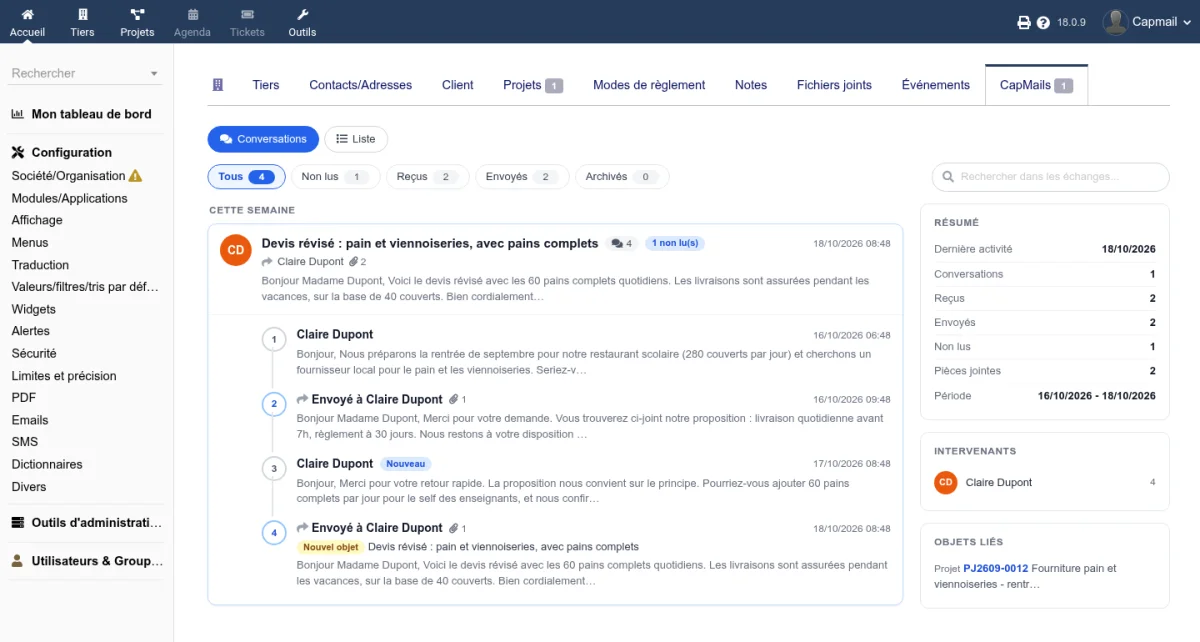
The module adds a CapMails tab on each third party card. This tab displays the history of all emails exchanged with this third party (incoming and outgoing), allowing you to consult the correspondence without leaving the card. It opens on the Conversations view; the List view remains available for mass actions. See View a customer's emails from their card.
Notifications
You can enable browser notifications to be warned of the arrival of new emails. Click Enable notifications in the list toolbar. Your browser will ask you for permission to display notifications.
Sending from Dolibarr forms
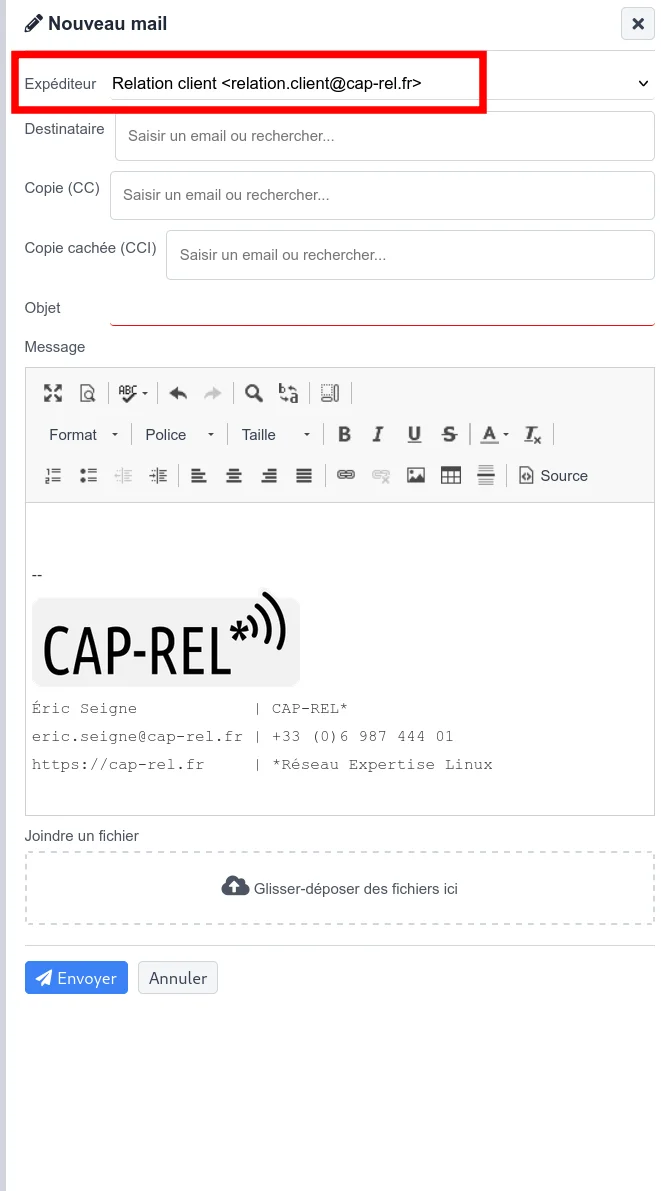
When a Capmail mailbox has an SMTP configuration and you have the send right on that mailbox, a Send from mailbox selector appears in the standard Dolibarr email sending forms (quotes, invoices, orders, etc.).
Select the desired mailbox so that the email is sent via the SMTP server of that mailbox, and automatically copied to the "Sent" folder of the corresponding IMAP mailbox. If you select no mailbox, the global Dolibarr SMTP configuration is used.
Scheduled task
The module automatically registers a scheduled task (cron job) that collects emails every 2 hours. You can adjust the frequency in Home > Setup > Scheduled tasks by editing the "Capmail" job.