Assign an email to a colleague
On a shared mailbox like contact@, everyone sees the same emails. Without a convention, a request goes unanswered because everyone thinks someone else is handling it, or gets two different replies. Capmail lets you say who is taking it, and shows who has already opened it.
Take an email or hand it over
In the Lead Mode preview, under the sender and the labels, click Assign:
- I'll take it assigns the email to you;
- a colleague's name hands it over to them;
- Return to team removes the assignment.
Once assigned, the button displays the person's name (or "You"), and hovering it shows the assignment date. In the list, the person's initials appear on the email row.
From an email card, the Assigned to line offers the same list.
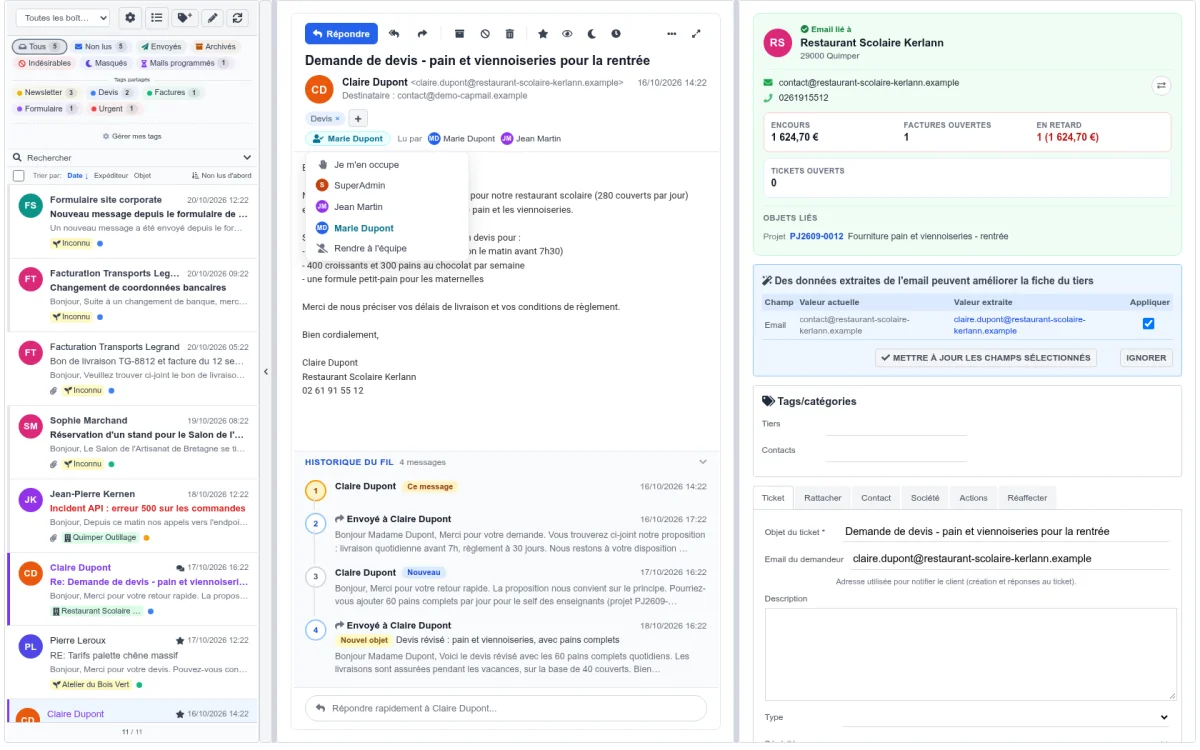
Who can receive an email
Only colleagues who can read this email are offered: those with the Capmail read permission and access to the mailbox in the rights matrix. An email can therefore not be handed to someone who would not see it.
A private email (personal mailbox) offers neither assignment nor "Read by": it has only one reader.
Read by
Next to the button, Read by lists the colleagues who opened the email, in Lead Mode or on its card. Hovering a name gives the date of first opening, of last opening, and the number of openings. You do not appear in your own list.
"Read by" does not change the read or unread status of the email, which remains common to the whole team: it is information, not a status.
Finding your emails
- The Mine bubble, at the top of the list, appears as soon as an email is assigned to you. Its counter gives the emails assigned to you that are still in the inbox.
- In the advanced search, the Assignment menu filters on Mine or Unassigned, to see what nobody has taken yet.
Archiving an email does not remove its assignment: you can still see who handled it.
When a colleague leaves
When an administrator disables (or deletes) a user's Dolibarr account, the emails assigned to that user become unassigned again. They show up again with the Unassigned filter, so that another team member can take them over. See also Mark an email as personal for what happens to their personal mailboxes.
See also
- What do you want to do?
- Search for an email
- Permissions -- the per-mailbox rights matrix
- Lead Mode