Creating an offer
The application offers two creation modes, both reachable from the home screen.
Quick creation (category grid)
The Quick offer button opens the quick creation page. A touch grid shows the product categories for fast selection.
- Browse the categories by tapping them
- Select a product to add it to the offer
- Adjust the quantity if needed
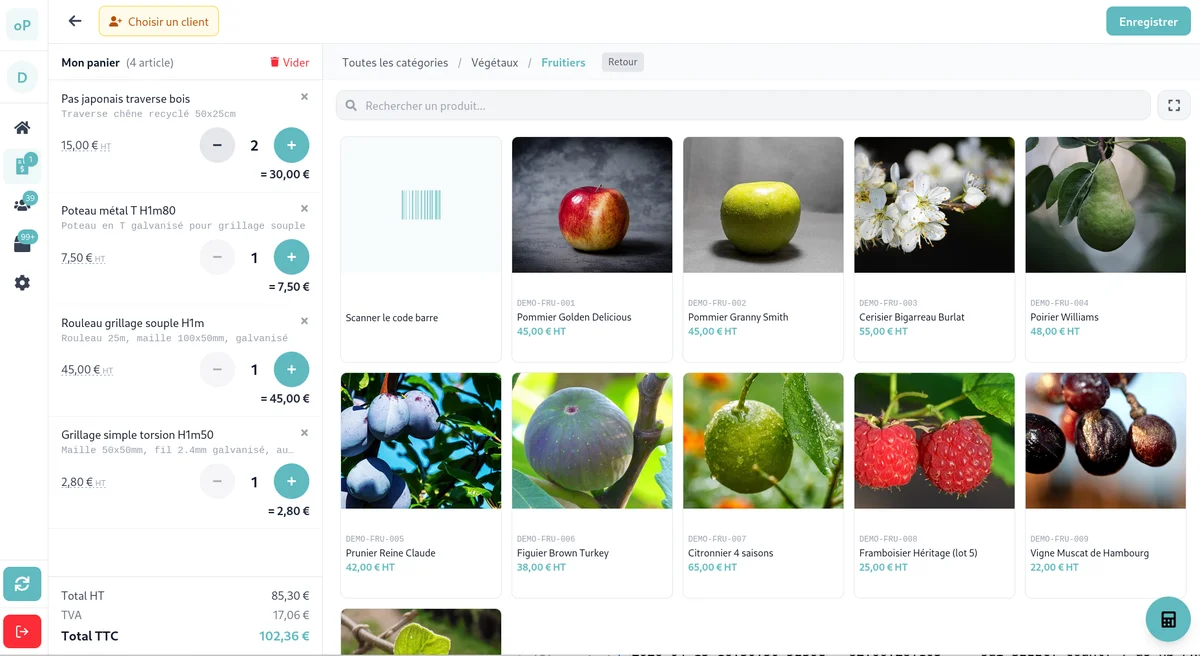
This mode suits simple offers made of standard products.
Full form
The Full quote button opens the detailed form. A draft is created automatically as soon as the page opens.
Selecting the customer
- Tap the Customer field
- Search for the customer by name or reference
- Select it in the list
Tip: The search works offline too, on the synced data.
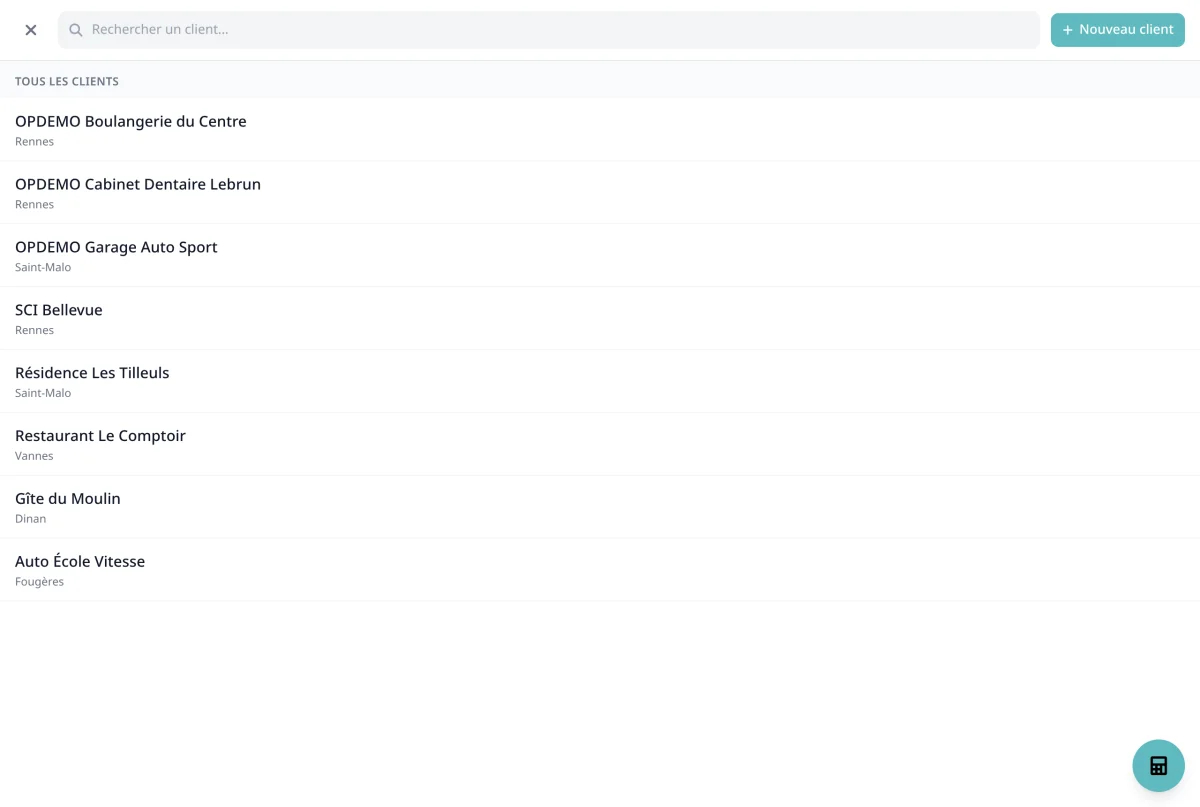
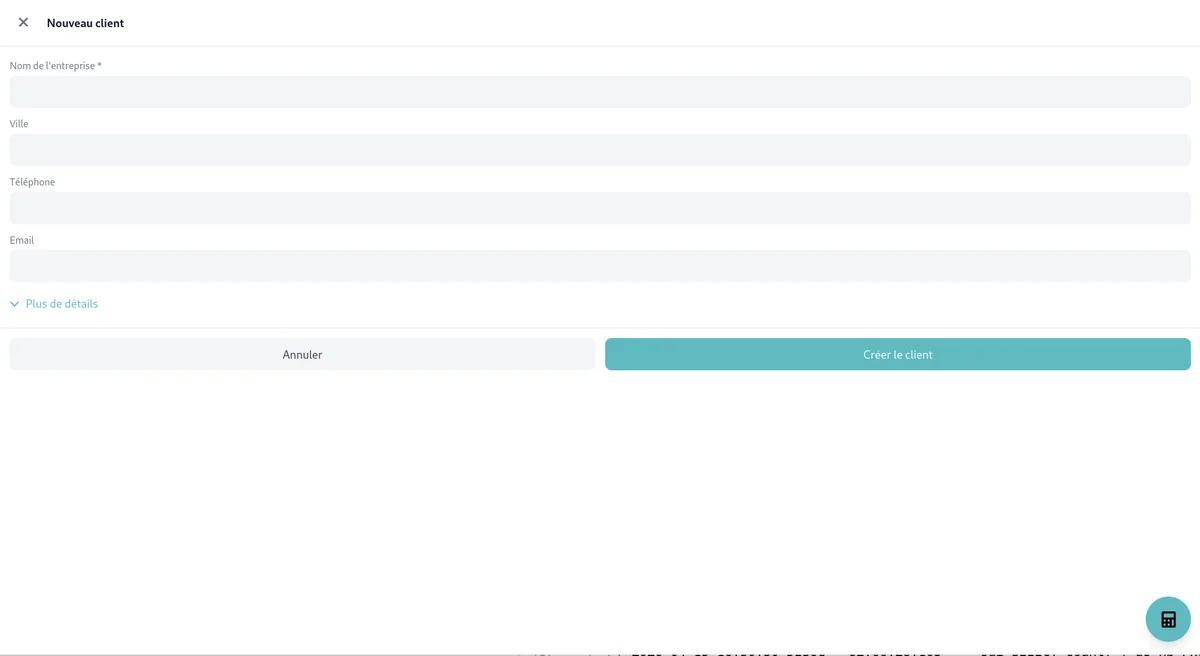
Creating a customer on site
If the customer does not exist in Dolibarr yet, tap + New customer in the selection dialog.
Fill in the customer name at the very least. The other fields (town, phone, email, address, SIRET, VAT number) are optional.
The customer is created locally with a temporary identifier and will be synced to Dolibarr at the next synchronisation. It can be picked for your offer straight away.
Additional information
- Customer reference (optional): the customer's own reference for this offer
- Project (optional): link the offer to an existing Dolibarr project
- Delivery date (optional): requested delivery date
- Validity: how long the offer stays valid (30 days by default)
Commercial terms
- Payment terms: pick from the list (30 days, immediate payment, and so on)
- Payment method: cheque, bank transfer, credit card, and so on
Adding lines
Selecting a product
- Tap Add a line
- Choose the selection mode:
- By category: browse the category tree
- By search: search by reference or label
- By barcode: scan the barcode with the device camera
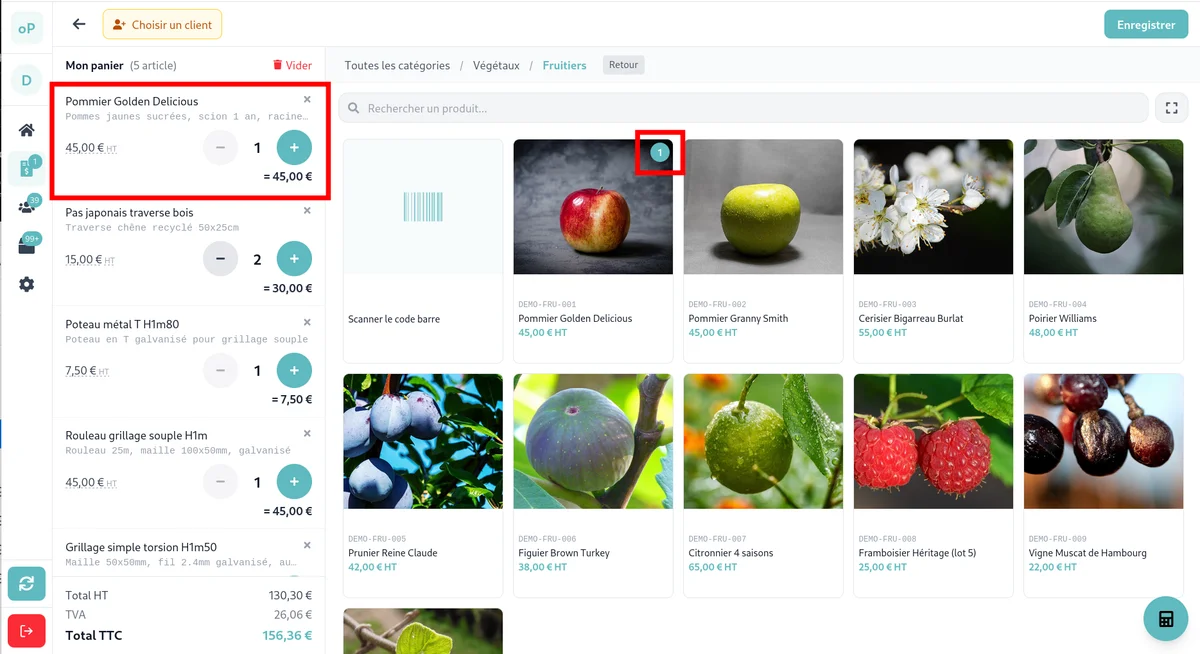
- Select the product you want
Scanning several products in a row
The Scan products button opens the camera in continuous mode: every barcode recognised adds the product straight to the offer, without going back through the list. Scanning the same code twice increases the quantity of the existing line.
If no catalogue product matches the code read, a message tells you and scanning carries on. A button also lets you type the code in by hand, which helps when the label is damaged or poorly lit.
This mode is available from the full form as well as from quick creation.
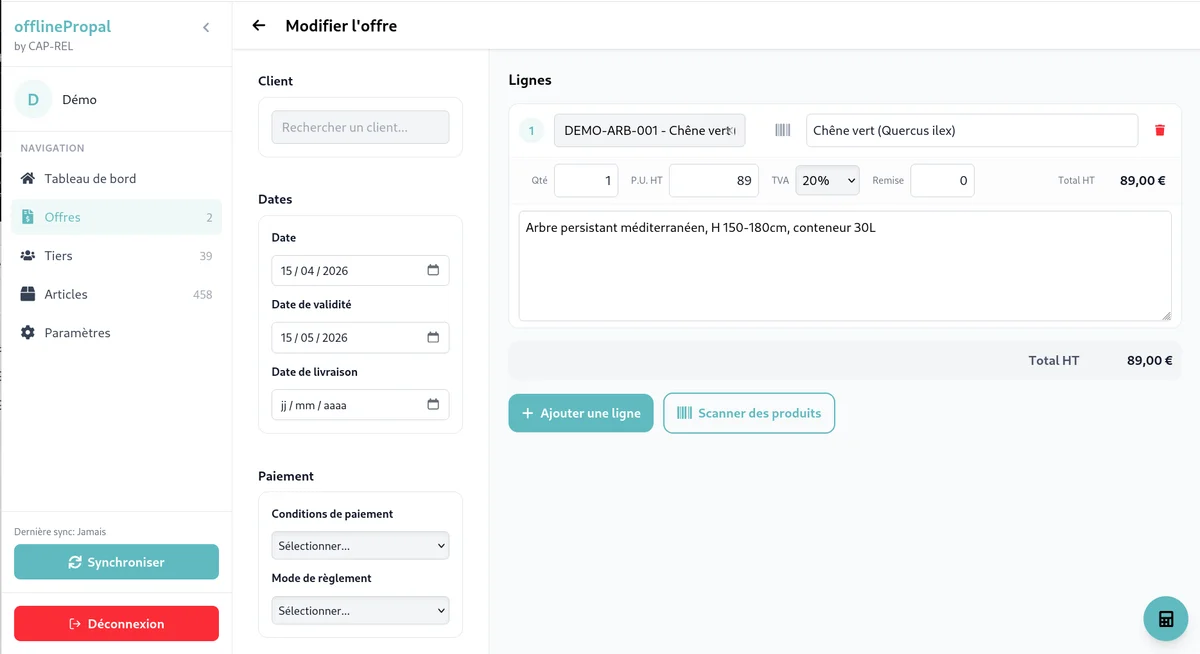
Setting up the line
For every line added you can change:
- Quantity: number of units
- Unit price excl. tax: editable if needed (catalogue price by default)
- Discount %: discount on this line
- VAT: applicable VAT rate
- Description: add details if needed
Managing lines
For every existing line:
- Edit: tap the line to edit it
- Delete: use the bin icon
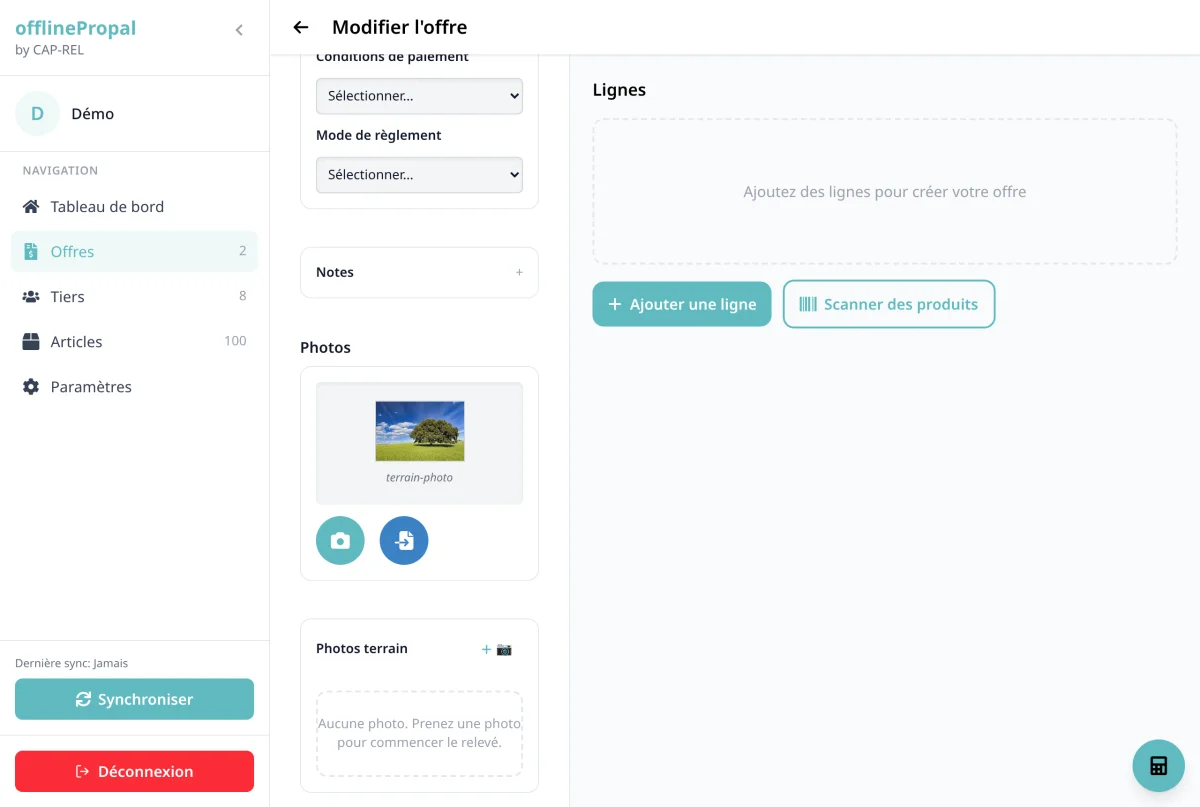
Adding photos
Photos document the site, the measurements or the condition of the premises.
- Scroll down to the Photos section
- Tap Add photos
- Choose between the camera and the gallery
Photos are compressed automatically before being stored, to limit the space they take up.
Note: GPS coordinates are recorded automatically if you have allowed geolocation.
Annotating a photo
Tap a photo to open the editor. You can drop markers straight onto the image, at the exact spot that matters to you: that is the site survey.
- Tap the image where you want the marker
- Choose the marker type: Product, Service, Note or Sub-photo
- Fill in the information requested
Important: Product and service markers become lines of the offer when it is turned into a proposal in Dolibarr. Dropping a "window to replace" marker on the photographed facade therefore amounts to pricing that window.
The editor, sub-photos and marker management are described in detail on the Photo dossier page.
Notes
Public notes
Visible on the PDF and on the Dolibarr proposal. Use them for:
- Specific terms
- Lead times
- Technical information
Private notes
Visible in the Dolibarr back office only. Use them for:
- Internal remarks
- Points to check
- Context of the appointment
Checking and saving
Totals summary
Before saving, check the summary shown at the bottom of the page:
- Total excl. tax
- Total VAT (broken down per rate)
- Total incl. tax
Saving
Tap Save. The offer is stored locally on your device with the Pending sync status.
Important: The offer is held on your device. Remember to sync as soon as you can to save it on the server.
Automatic drafts
When you open the full form, a draft is created automatically. If you leave without entering anything (no customer, no lines, no photos), the empty draft is deleted automatically. If you started filling the offer in, the draft is kept and can be found again in the list.