Installation
Requirements
Before installing OfflinePropale, check that the following are in place:
- Dolibarr version 18.0 or above
- PHP 7.4 or above
- The following Dolibarr modules must be enabled:
- Third parties
- Commercial proposals
- Products / Services
- Categories
- Document management (ECM)
- SmartAuth (for API authentication)
Download
Go to the DoliStore to download the OfflinePropale module.
Installing the module
- Log in to Dolibarr as an administrator
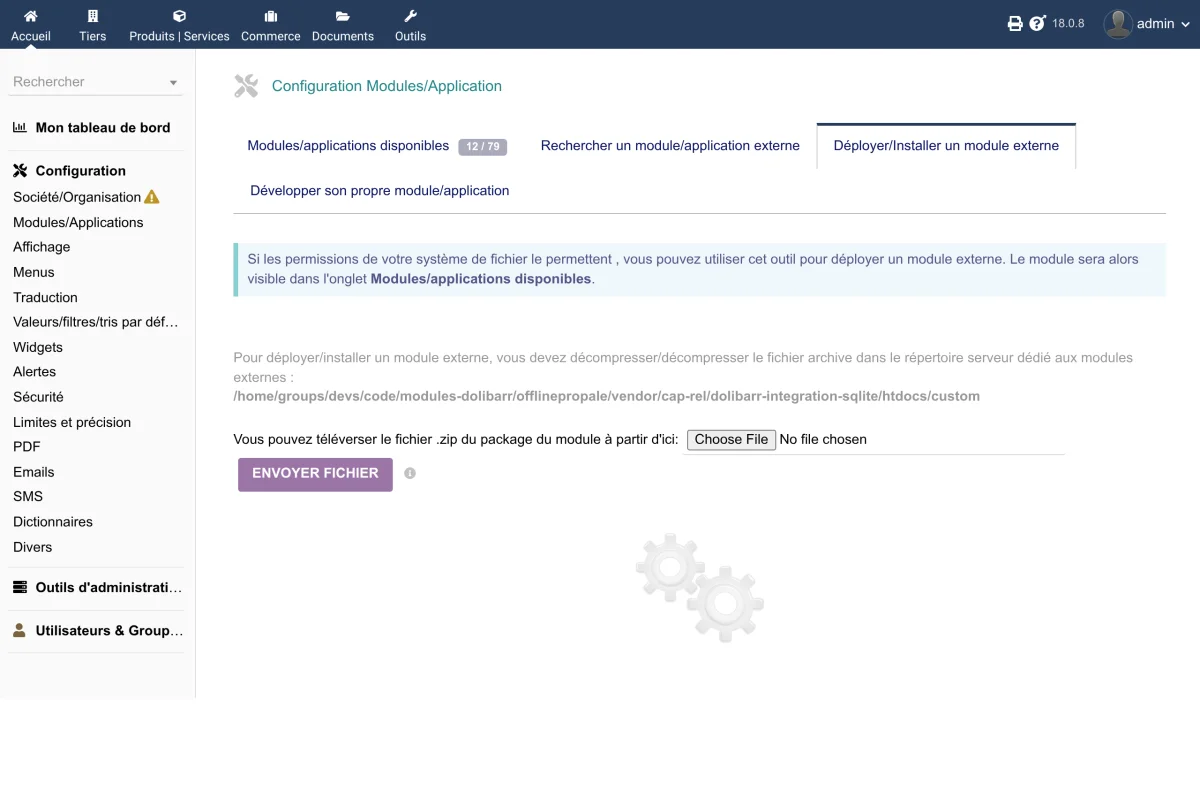
- Go to Home > Setup > Modules/Applications > Deploy/install external module
- Select the downloaded ZIP file and confirm
Enabling the module
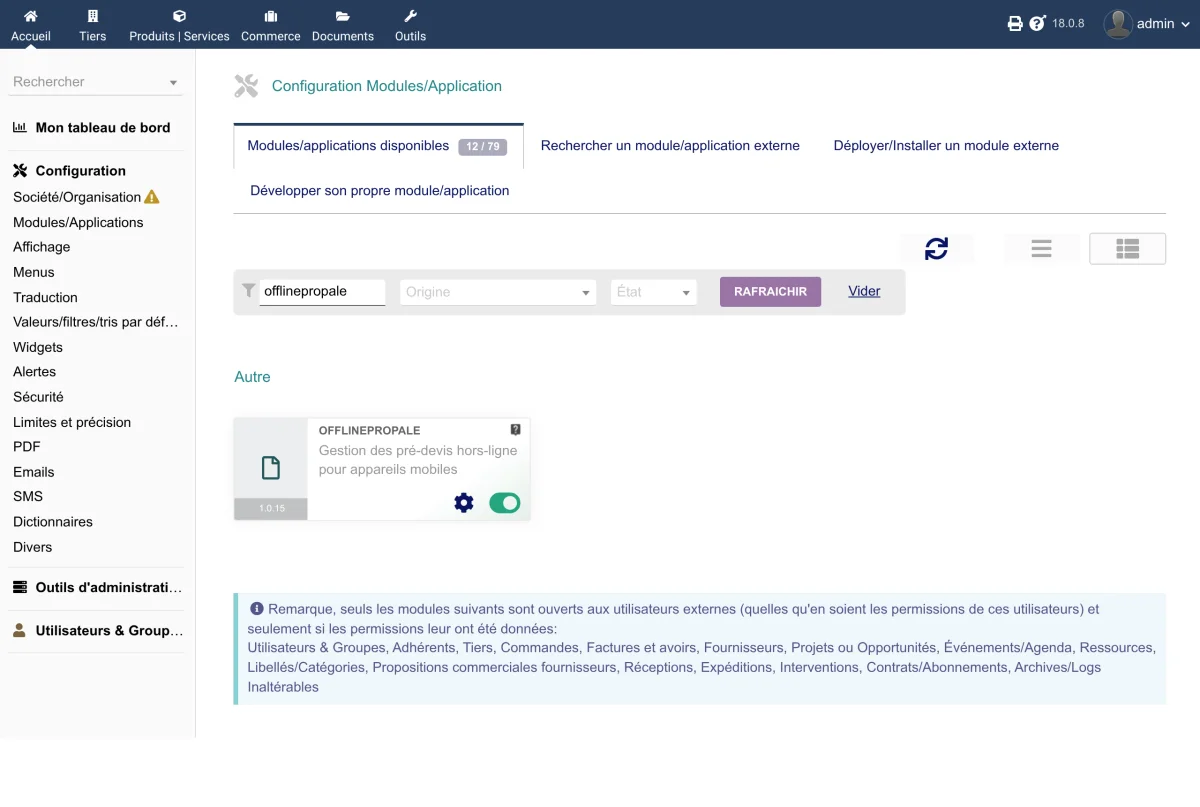
- Go to Home > Setup > Modules/Applications
- Search for "OfflinePropale" in the module list
- Click the enable button (ON/OFF switch)
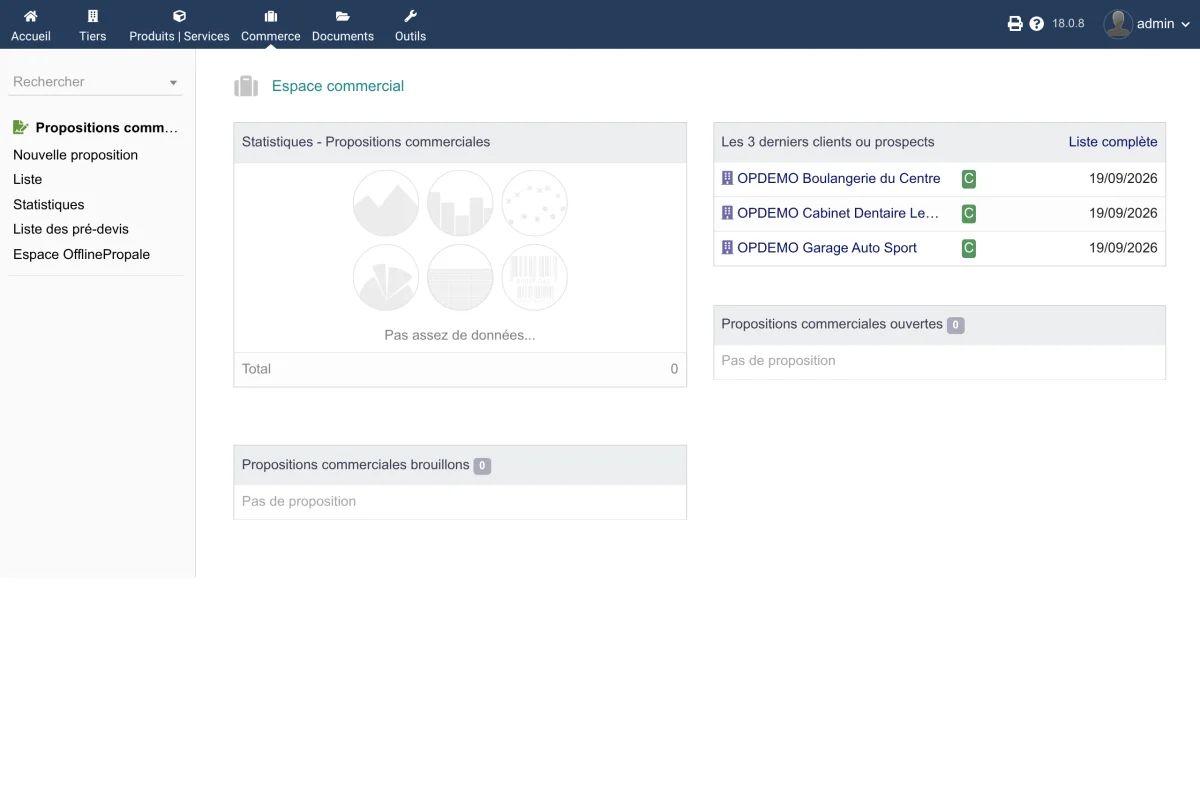
Database tables are created automatically on activation. A new Pre-proposals menu appears under Commercial > Commercial proposals.
Post-installation checks
Once enabled, check that:
- The Commercial > Commercial proposals > List of pre-proposals menu is reachable
- The setup page is reachable through the gear icon next to the module
Installing the mobile application
The mobile application is a PWA (Progressive Web App). It installs straight from the browser, with no store involved.
The application URL depends on your setup:
- Direct hosting:
https://your-dolibarr.com/custom/offlinepropale/pwa/ - Through DoliProxy: the URL supplied during provisioning (see Setup)
On an Android smartphone (Chrome)
- Open the application URL in Chrome
- An "Add to home screen" banner appears automatically
- Tap Install
- The application is added to your home screen like a native application

On iPhone / iPad (Safari)
- Open the application URL in Safari
- Tap the share button (square with an upward arrow)
- Select Add to Home Screen
- Confirm the name and tap Add

On a desktop computer
- Open the URL in Chrome, Edge or another compatible browser
- Click the install icon in the address bar
- Confirm the installation
Updating
To update the module:
- Download the new version from the DoliStore
- Deploy the ZIP file through Home > Setup > Modules/Applications > Deploy/install external module
- Disable then re-enable the module to apply database updates and register the new hooks and permissions
Warning: Disabling and re-enabling is mandatory for database structure changes and new permissions to be taken into account.
Uninstalling
To uninstall the module, disable it from Home > Setup > Modules/Applications. Data is kept in the database.