Setup
Reaching the setup page
- Log in to Dolibarr as an administrator
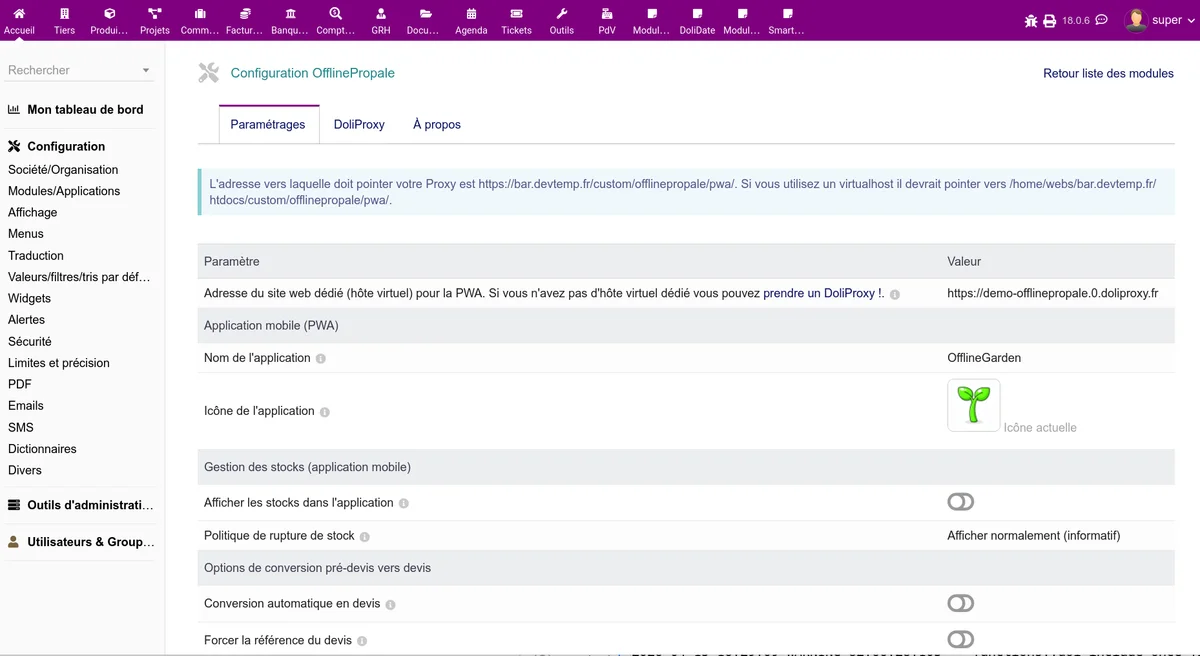
- Go to Home > Setup > Modules/Applications > OfflinePropale (gear icon)
The setup page is split into several sections.
Mobile application (PWA)
Virtual host
Enter the URL the mobile application is served from. This setting is required for the PWA to work properly.
- Direct hosting:
https://your-dolibarr.com/custom/offlinepropale/pwa/ - Through DoliProxy: the URL supplied during provisioning
Application name
The name shown on the smartphone home screen once the user installs the PWA. "OfflinePropale" by default. You can replace it with your company name or a business-oriented wording (for instance "Field quotes").
Application icon
Upload a square PNG or JPEG image, at least 512x512 pixels. This icon is shown on the smartphone home screen. The image is automatically resized to the required sizes (512px, 192px, 64px).
Conversion behaviour
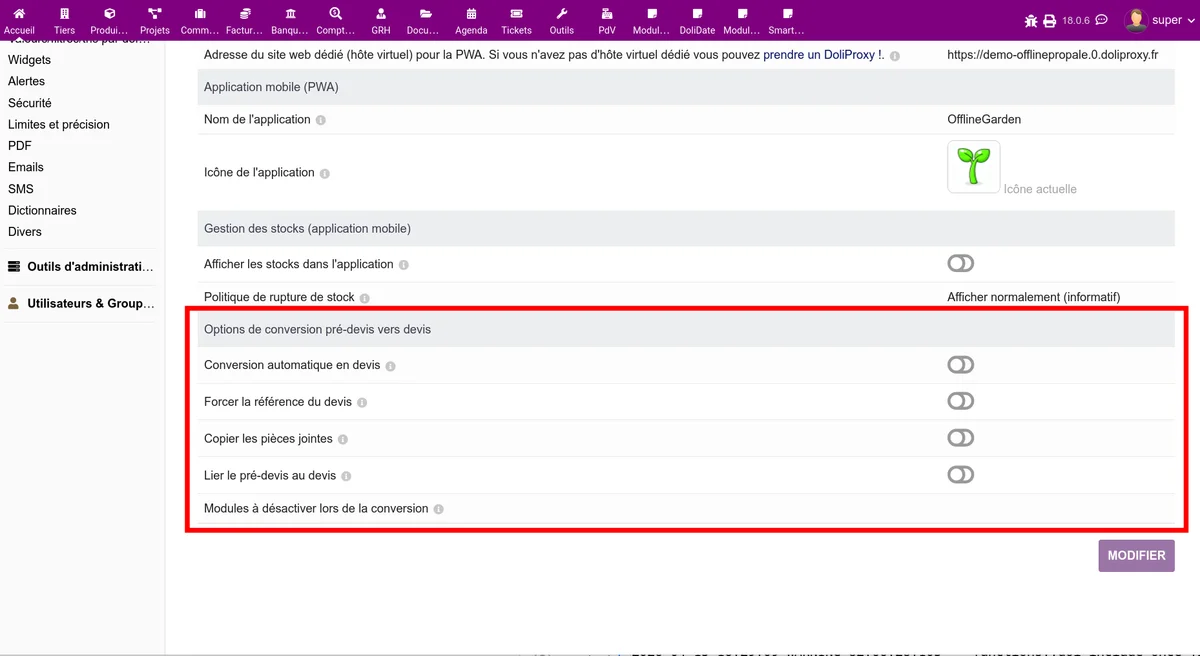
These settings control what happens when a synced offer is turned into a Dolibarr proposal from the back office.
| Setting | Description | Default |
|---|---|---|
| Automatic conversion | Automatically converts the offer into a Dolibarr proposal as soon as it is synced | Disabled |
| Force the reference | Uses the offer reference as the Dolibarr proposal reference | Disabled |
| Copy documents | Copies the photos and attachments of the offer to the proposal | Enabled |
| Link documents | Creates a link between the offer and the proposal in the linked documents | Enabled |
| Disabled modules | Modules to disable temporarily during the conversion (for instance ecotax) | ecotax, ecotaxdeee |
Stock management
These settings control how stock levels are shown in the mobile application.
| Setting | Description | Default |
|---|---|---|
| Show stock | Shows stock levels on product sheets | Disabled |
| Out-of-stock policy | Behaviour for products that are out of stock | Show normally |
Three policies are available for out-of-stock products:
- Show normally: the product stays visible with no specific marking
- Grey out: the product is greyed out to signal the shortage
- Hide: the product no longer appears in the mobile catalogue
DoliProxy (secure hosting)
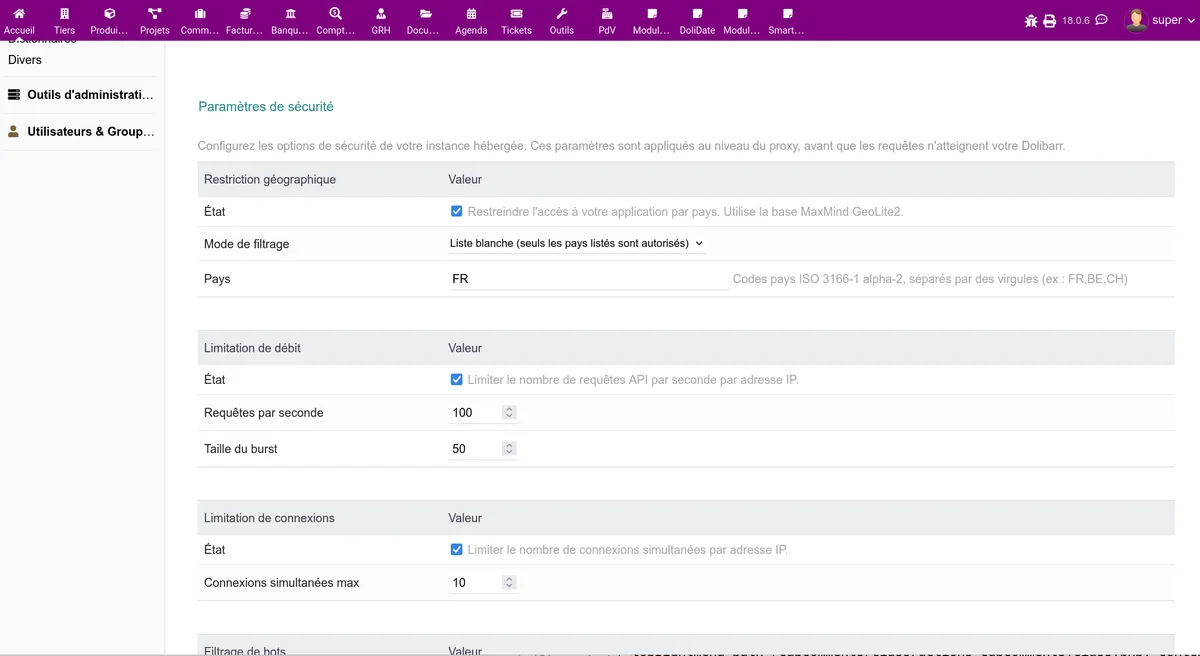
The DoliProxy tab configures secure hosting of the mobile application through the DoliProxy service. This service acts as a proxy between the mobile application and your Dolibarr, with advanced security features.
Provisioning
Enter your email address and the URL of your Dolibarr to create a DoliProxy instance. An authentication token is assigned to you.
Security settings
- Geographic restriction: limit access by country (allow list or block list)
- Rate limiting: maximum number of requests per second
- Connection limiting: maximum number of simultaneous connections
- Bot filtering: block robots by category
- Scanner detection: automatic blocking of scanning attempts
Extra fields
The SmartMaker tab configures which extra fields are visible and editable in the mobile application.
For each element, select the extra fields to display and decide whether they are read-only or read/write.
Managing permissions
Reaching the permissions
- Go to Home > Users & Groups > Users
- Select the user to configure
- Click the Permissions tab
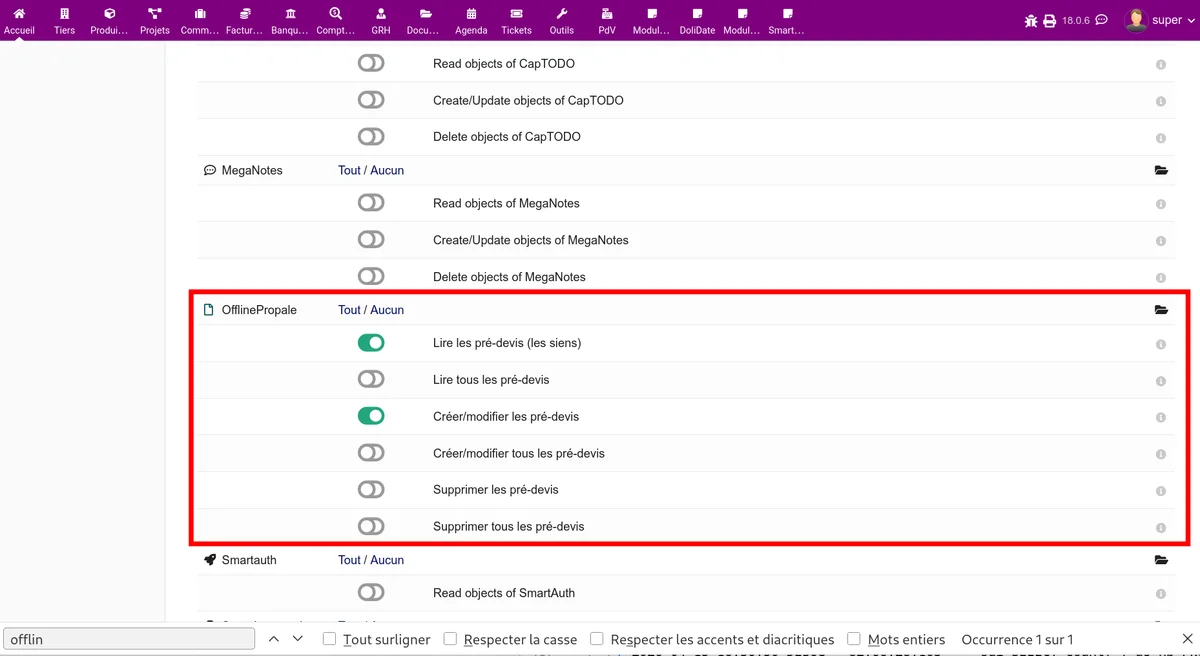
- Find the OfflinePropale section
Available permissions
| Permission | Description |
|---|---|
| Read pre-proposals | See your own offers |
| Read all pre-proposals | See the offers of every user |
| Create/Modify pre-proposals | Create and modify offers |
| Create/Modify all pre-proposals | Create and modify the offers of every user |
| Delete pre-proposals | Delete your own draft offers |
| Delete all pre-proposals | Delete the draft offers of every user |
Recommended setup per profile
Field salesperson:
- Read pre-proposals: yes
- Create/Modify pre-proposals: yes
- Delete pre-proposals: yes
Sales manager:
- Read all pre-proposals: yes
- Create/Modify all pre-proposals: yes
- Delete all pre-proposals: yes
Administrator:
- All permissions
SmartAuth configuration
For synchronisation to work, every mobile user must have API access configured in SmartAuth.
- Go to the SmartAuth setup
- Check that the user has a valid access token
Important: Without valid SmartAuth access, the user can neither log in to the mobile application nor synchronise their data.