Managing your offers
Offer list
Reaching the list
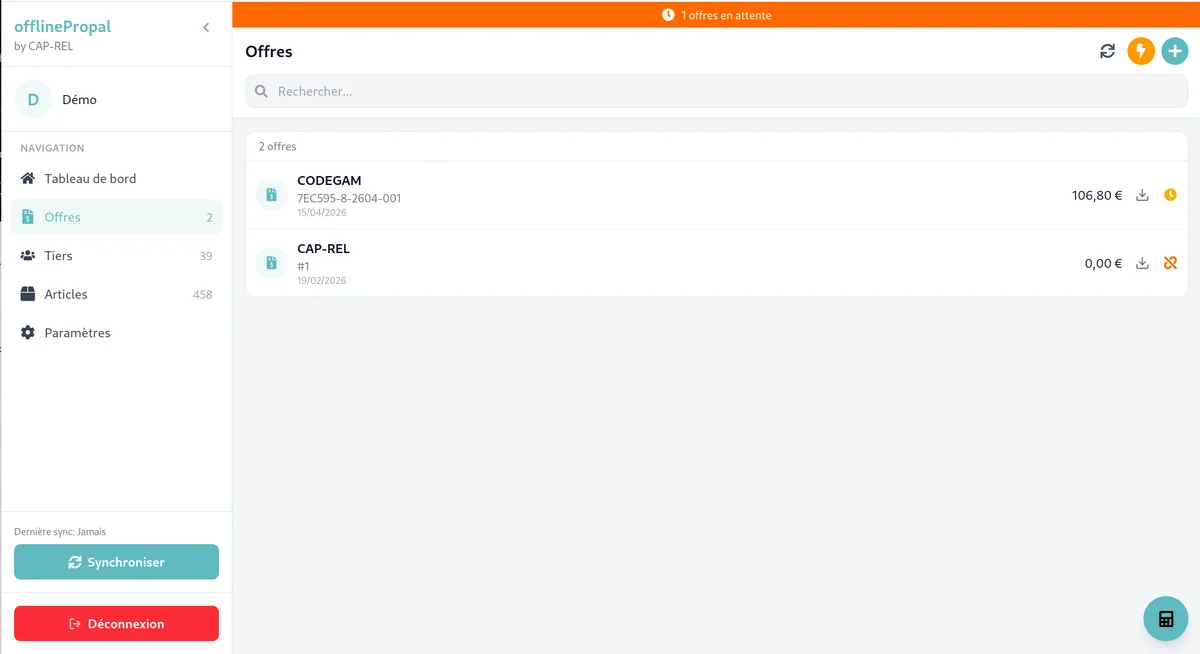
From the sidebar, tap Offers to show the list of all your offers.
Information shown
Each offer shows:
- Reference: unique number of the offer
- Customer: name of the third party
- Date: creation date
- Amount incl. tax: total of the offer
- Status: synchronisation state (coloured badge)
Filtering and searching
- Search: type a reference or a customer name
- Filter by status: draft, pending, synced, error, converted
Status colour codes
| Colour | Status | Meaning |
|---|---|---|
| Grey | Draft | Being created, editable |
| Orange | Pending sync | Ready to be sent to the server |
| Green | Synced | Saved on the server |
| Red | Error | Something went wrong during synchronisation |
| Blue | Converted | Turned into a Dolibarr proposal |
Viewing an offer
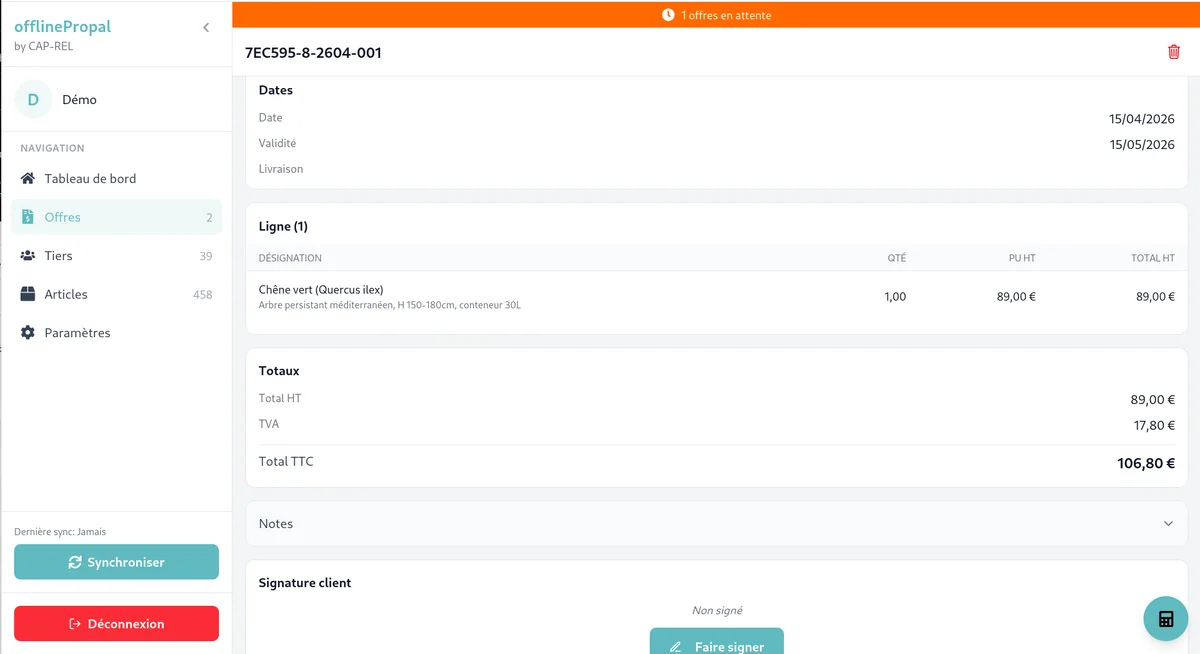
Tap an offer to open its detail sheet. The sheet shows:
- Header with the reference and the status
- Customer information
- Dates (creation, validity, delivery)
- Payment terms
- List of lines with their details (product, quantity, price, discount, VAT)
- Attached photos
- Totals (excl. tax, VAT broken down, incl. tax)
- Public and private notes
- Signature (if the offer has been signed)
Editing an offer
When editing is possible
An offer can be edited when its status is:
- Draft
- Pending sync
Warning: An offer already synced or converted can no longer be edited from the mobile application.
Procedure
- Open the offer sheet
- Tap the Edit button
- Make your changes
- Tap Save
Deleting an offer
Only offers in Draft or Pending sync can be deleted.
- Open the offer sheet
- Tap the Delete button
- Confirm the deletion in the dialog
Warning: This action cannot be undone. The offer and all its photos will be deleted.
Generating a PDF
Producing the PDF
From an offer sheet, tap the PDF button. The PDF is generated instantly, directly on the device, with no internet connection required.
PDF contents
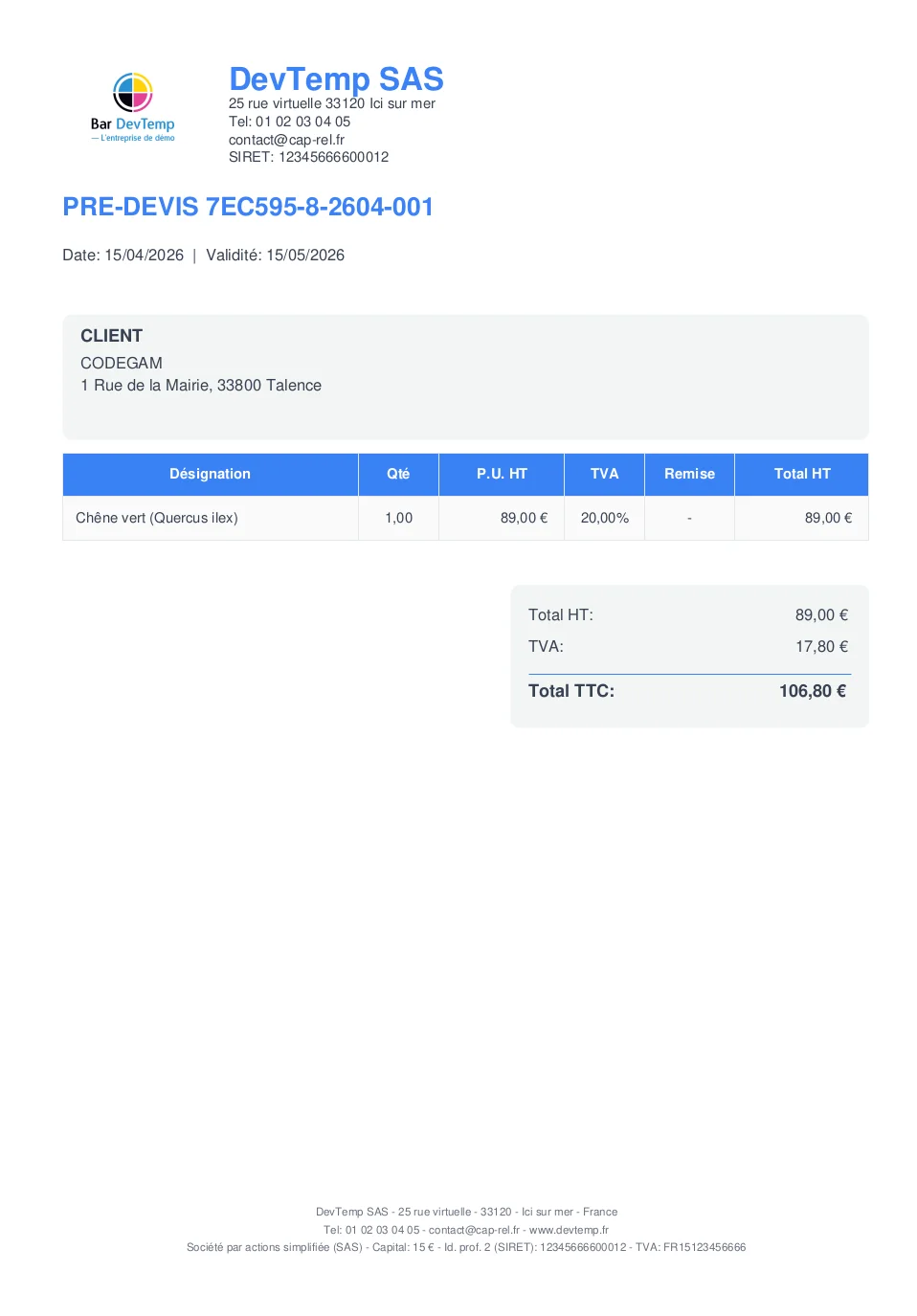
The generated PDF holds:
- Header: logo and contact details of your company
- Customer block: name and address of the customer
- Information: reference, date, validity
- Line table: description, quantity, unit price excl. tax, VAT, discount, total excl. tax
- Totals: excl. tax, VAT broken down per rate, incl. tax
- Public notes: if filled in
- Payment terms: method and delay
- Signature: if the offer has been signed
The PDF title can be customised in the application settings (for instance "OFFER", "ESTIMATE", "PROPOSAL").
Sending by email
Once the PDF has been generated:
- Tap Send by email
- On mobile, the native share menu opens: pick your email application, WhatsApp, and so on
- On a computer, the PDF is downloaded and your email client opens with a mailto link

Electronic signature
From the detail sheet of an offer, you can have the customer sign directly on the screen.
- Scroll down to the Signature section
- Fill in the signatory name
- The customer signs with their finger on the signature pad
- Tap Confirm
The signature is timestamped and GPS coordinates are recorded automatically. It will appear on the generated PDF.

Duplicating an offer
From the detail sheet, the Duplicate button creates a new offer carrying over the customer, the lines and the commercial terms of the original.
The copy is given a new reference and dates reset to today. It starts as a draft: the original is left untouched.
This is the quickest move for a customer ordering the same work again, or to start from a close-enough offer without typing everything in.
Templates
You can save an offer as a template to reuse it quickly.
Templates keep the product lines, the quantities and the commercial terms. When creating a new offer, select a template to pre-fill the form.
Template or duplicate? The template is meant for a standard job you sell often, and stays available permanently. Duplication is for starting from one precise offer, as a one-off.
Good practice
- Check the PDF before sending it to the customer
- Sync regularly to save your offers on the server
- Use private notes to keep track of the context of the appointment
- Document with photos to make later office work easier