Catalogue and customers
The application carries a copy of your catalogue and of your customer file, downloaded at synchronisation. Both can be browsed at any time, including with no connection: that is what lets you answer a question about a price or find a phone number in the middle of a site.
Both lists are reachable from the sidebar, under Third parties and Products. The counter next to each entry gives the number of items held on the device.
Products
Product list
The list shows every synced product and service, with its reference and its label. The search field at the top filters on the reference as well as on the label.
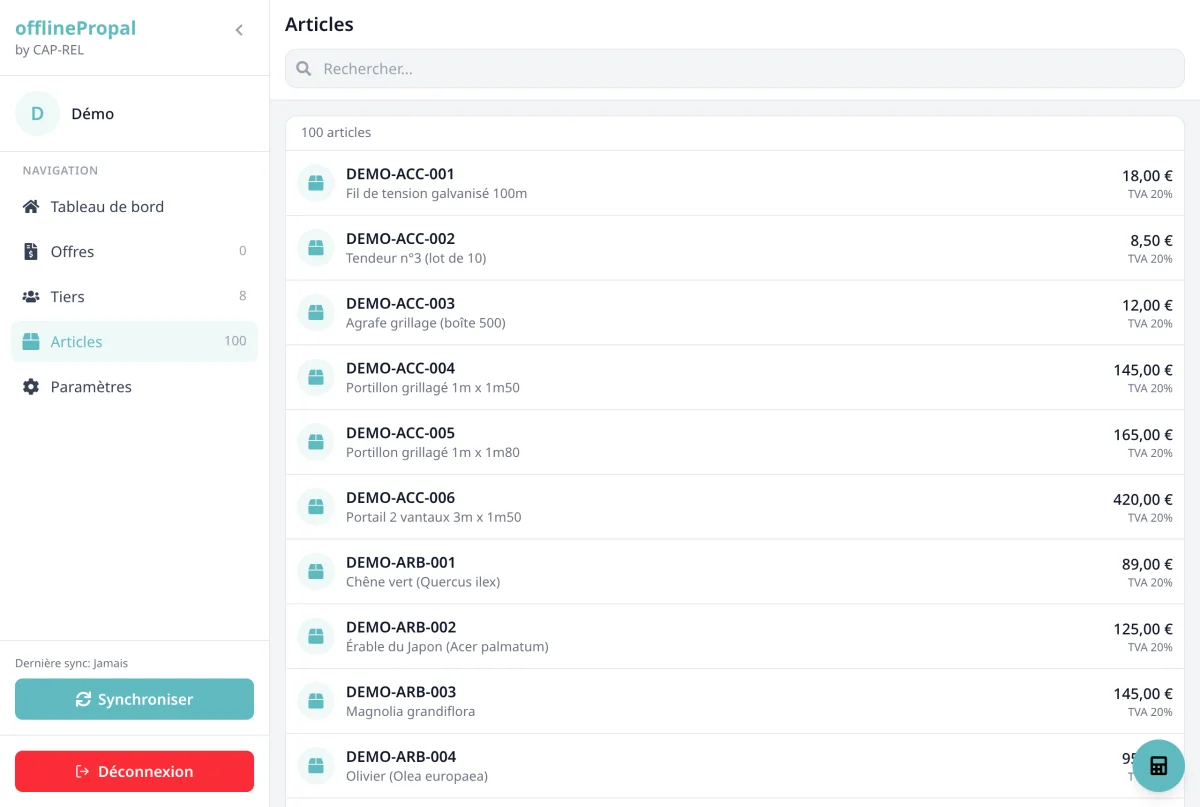
An empty list means synchronisation has not run yet: start it from the sidebar.
Product sheet
Tap a product to open its sheet.
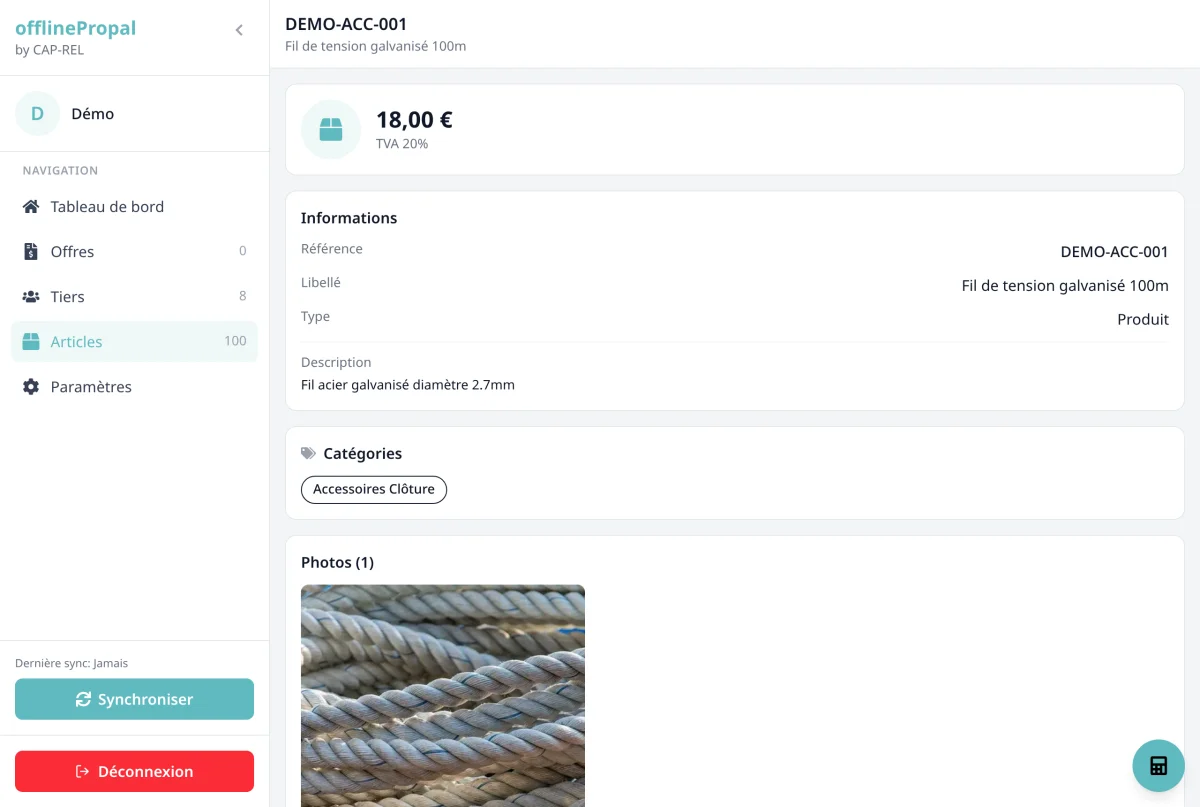
The sheet shows:
- The selling price and the VAT rate
- The reference, the label and the type (product or service)
- The full description
- The categories the product belongs to
- The photos of the product
- The associated PDF documents (data sheet, manual, certificate)
Tap a photo or a document to open it full size.
Note: Photos and PDF files only appear when the Sync documents option is enabled under Settings > Sync. Without it, the sheet states that no document is available.
Showing a customer the data sheet of a product, with no network, at the moment the question comes up, is the main use of this screen.
Third parties
Third party list
The list shows every synced customer and prospect, in alphabetical order. The search field filters on the name.
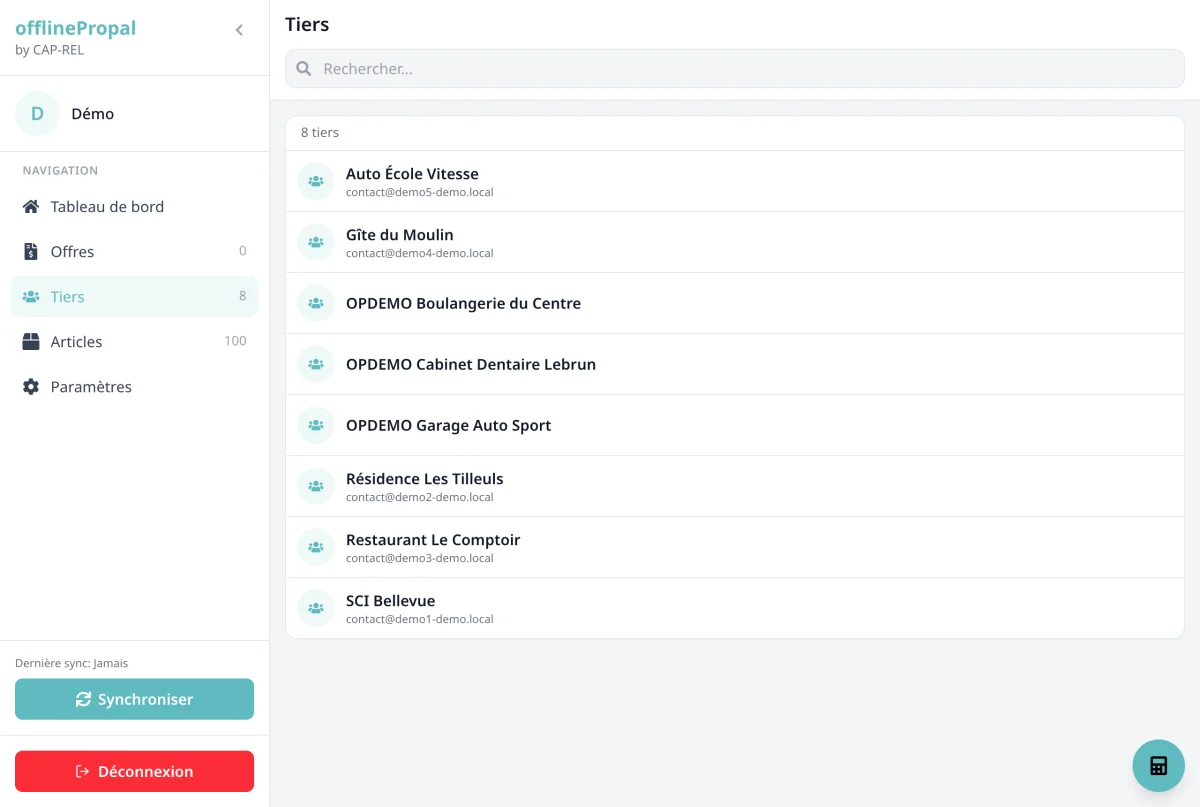
This list also holds the customers you created on the device and that have not been sent to the server yet.
Customer sheet
Tap a customer to open their sheet.
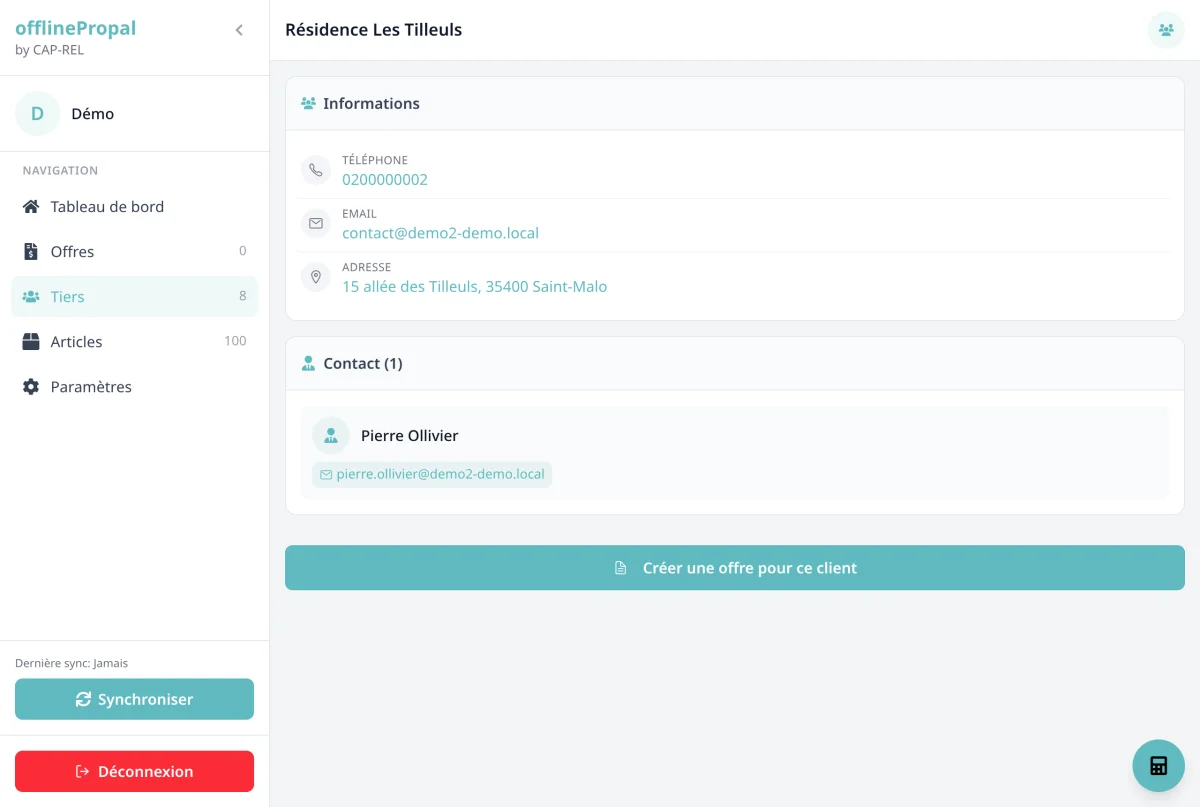
The sheet shows:
- The customer code and the SIRET number
- The phone: tap it to place the call
- The email address: tap it to open your mail application
- The postal address: tap it to open the directions in your navigation app
- The list of contacts attached to the customer
The Create an offer for this customer button opens the creation form with the customer already selected.
Choosing your navigation app
The application used for directions is set under Settings > Interface > Navigation app:
- Automatic (based on device): Apple Maps on iPhone, application picker on Android
- Google Maps
- Apple Maps
- Waze
- OpenStreetMap
- Bing Maps
- HERE WeGo
The Automatic setting suits most cases. Pick an application explicitly if you use a particular one for your rounds.
Updating the data
The catalogue and the customer file cannot be modified from these screens: they mirror the state of Dolibarr at the last synchronisation. A new product, a changed price or a renamed customer in Dolibarr only shows up on the device after a new synchronisation.
The only creation possible from the application is that of a customer, described on the Creating an offer page.
Tip: Sync in the morning before leaving on your round. Your prices and your data sheets will be up to date for the day, even in an area with no network.