Dolibarr back office
The back office is where synced offers coming from mobile devices are viewed, managed and turned into proposals.
The module adds two entries under Commercial > Commercial proposals:
- List of pre-proposals: offer management, described on this page
- OfflinePropale area: the module home page, with the QR code to install the mobile application and the activity figures, described on the Module area and demonstration page
Offer list
Access
In Dolibarr, reach the list through Commercial > Commercial proposals > List of pre-proposals.
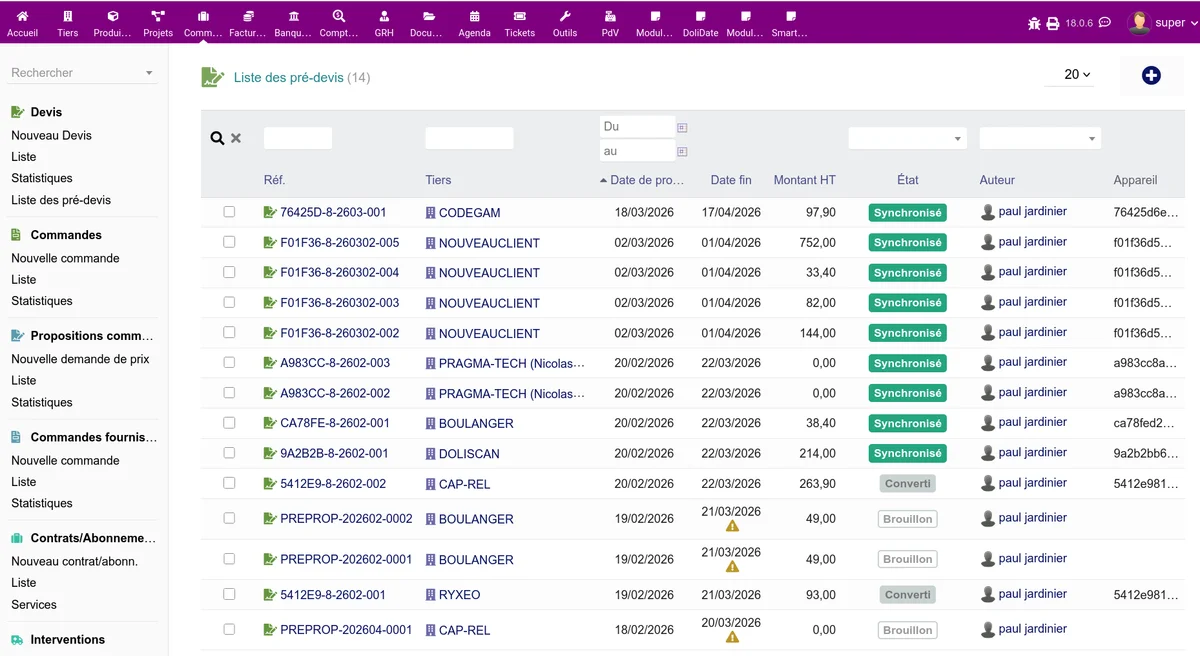
Columns shown
| Column | Description |
|---|---|
| Ref | Unique reference of the offer (link to the sheet) |
| Customer | Name of the third party (link to the customer sheet) |
| Date | Creation date |
| End of validity | Expiry date |
| Amount excl. tax | Total excluding tax |
| Status | State of the offer (coloured badge) |
| Author | User who created the offer |
| Device | UUID of the mobile device |
Click a column header to sort the list.
Filters
Filters sit above the table:
- Reference: search by number (partial or complete)
- Customer: third party selector or search by name
- Period: start date and end date
- Status: draft, pending, synced, error, converted
- Salesperson: filter by creating user (only shown with the "Read all pre-proposals" permission)
Fill in your criteria then click Search. Click Clear to reset the filters.
Mass actions
Group actions are possible on draft offers:
- Tick the offers concerned
- Select the Delete action in the drop-down menu
- Click Apply
Visibility according to permissions
- Read pre-proposals: the user only sees their own offers
- Read all pre-proposals: the user sees the offers of every user and gets the salesperson filter
Detail sheet
Click the reference of an offer to open its detail sheet.
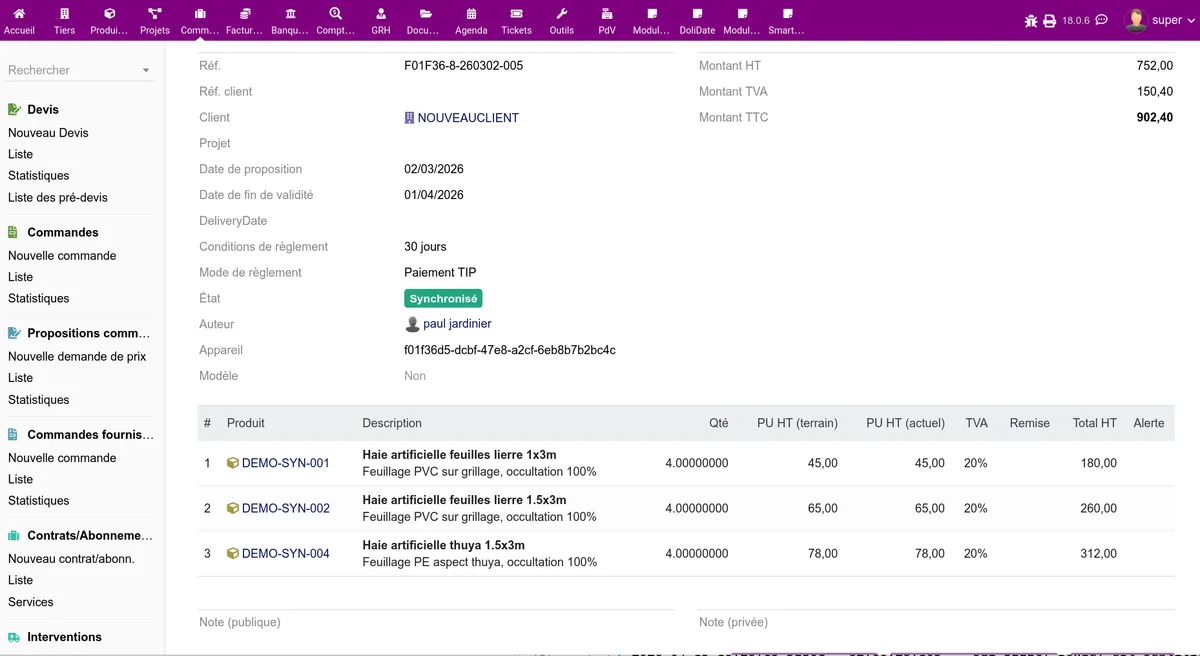
Main information
| Field | Description |
|---|---|
| Customer | Related third party (clickable link to the Dolibarr sheet) |
| Customer reference | Reference supplied by the customer |
| Project | Linked project (if filled in) |
| Date | Creation date of the offer |
| End of validity | Expiry date |
| Delivery date | Requested date |
| Payment terms | Payment delay |
| Payment method | Planned means of payment |
| Author | Creating user |
| Device | Identifier of the mobile device |
Line table
The lines of the offer are shown in a table with:
- Description: label of the product or service
- Ref: Dolibarr product reference
- Qty: quantity
- Unit price HT (field): price entered when the offer was created in the field
- Unit price HT (current): current price in the Dolibarr catalogue
- Discount: discount percentage applied
- VAT: VAT rate
- Total excl. tax: amount of the line
When the field price differs from the current price, a coloured indicator flags the gap:
- Green: field price lower than the current price (favourable to the customer)
- Red: field price higher than the current price (unfavourable to the company)
Signature
If the offer was signed by the customer in the field, the sheet shows:
- The signature image
- The name of the signatory
- The date and time of signature
Totals
- Total excl. tax: sum of the lines excluding tax
- Total VAT: breakdown per VAT rate
- Total incl. tax: amount including all taxes
Notes
- Public notes: visible on the proposal and on the PDF
- Private notes: visible in the back office only
Photos and documents
Photos taken in the field are shown as thumbnails. Click a thumbnail to display it full size or download it.
Terrain photos and markers
The Terrain photos section carries over the photographic survey made on site. For every photo it shows the image and the table of markers dropped onto it.
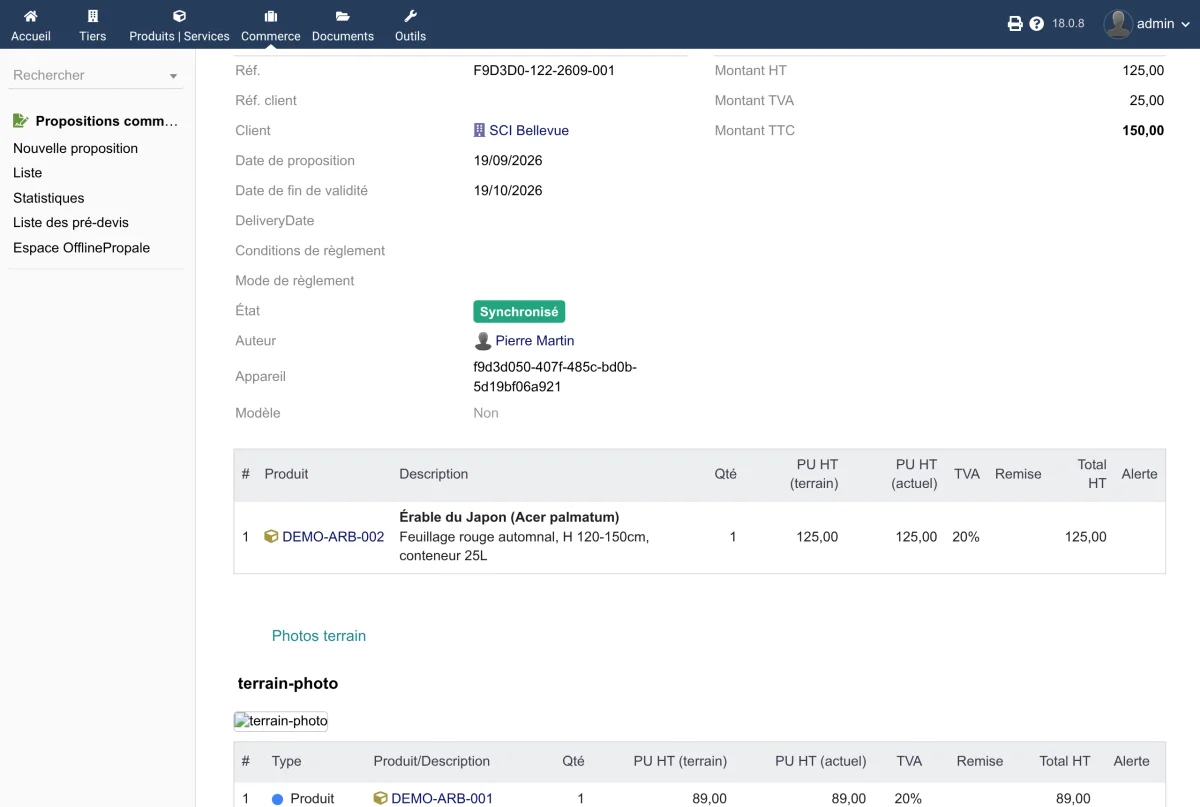
| Column | Contents |
|---|---|
| # | Number of the marker, as shown on the image |
| Type | Product, Service, Note or Sub-photo |
| Product / Description | Attached item, or text of the note |
| Qty | Quantity surveyed |
| Unit price HT (field) | Price at the time of the survey |
| Unit price HT (current) | Current catalogue price |
| VAT | Applicable rate |
| Discount | Percentage applied |
| Total excl. tax | Amount of the marker |
| Alert | Flags a conflict on this marker |
Sub-photos are shown indented under their parent photo, with markers of their own, on as many levels as the survey holds.
A total sums up the number of priced markers and their amount excluding tax. These product and service markers are added to the lines of the offer at conversion time.
How the survey is made on the mobile side is described on the Photo dossier page.
Conflict detection
When a synced offer is opened, the system automatically checks the data against the current catalogue. If differences are found, an alert block is shown at the top of the sheet.
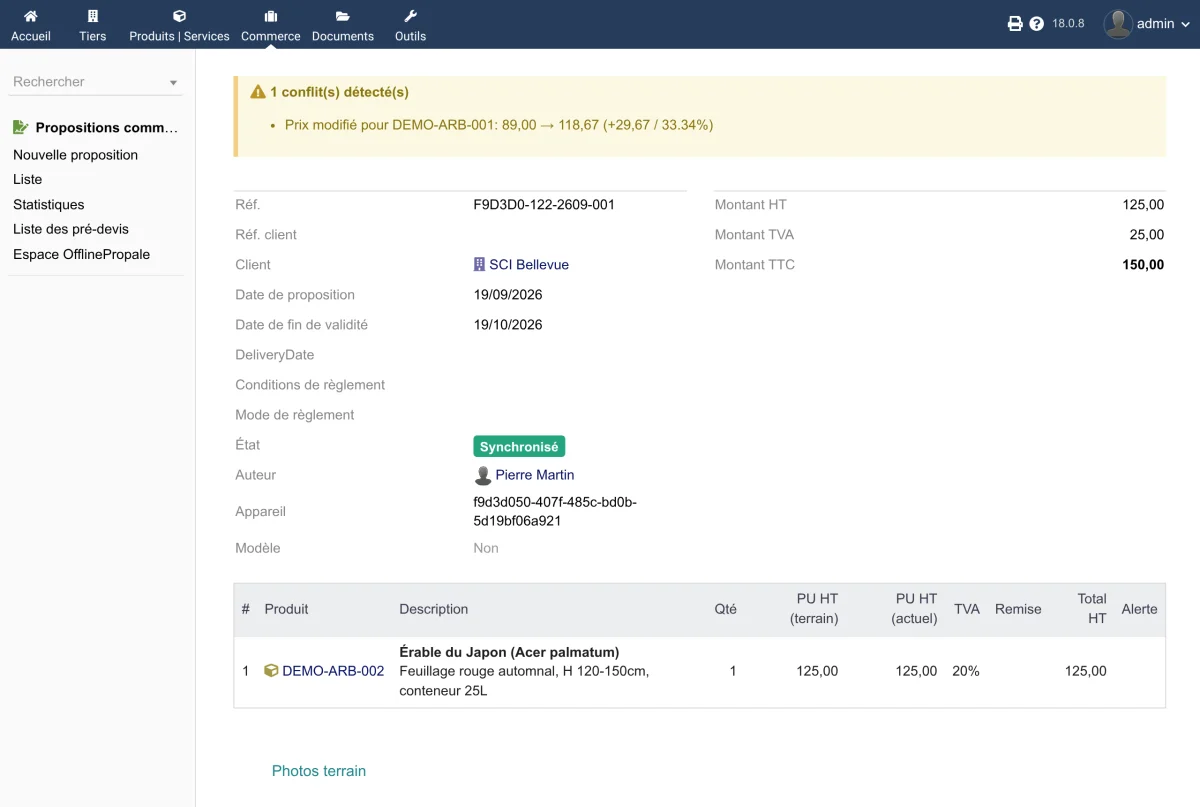
Conflict types
| Conflict | Description |
|---|---|
| Product deleted | The product no longer exists in the Dolibarr catalogue |
| Product not available | The product is no longer for sale ("on sale" status disabled) |
| Price changed | The current price of the product differs from the price recorded at creation time (beyond a tolerance of 0.01 EUR) |
Important: Conflicts should be reviewed before converting the offer into a proposal. Conversion stays possible, but conflicts are flagged so you can decide.
Conversion to proposal
Requirements
Conversion is available when:
- The offer status is Synced
- You hold the permission to create commercial proposals in Dolibarr
Procedure
- Open the offer sheet
- Click Convert to proposal
- Confirm in the dialog
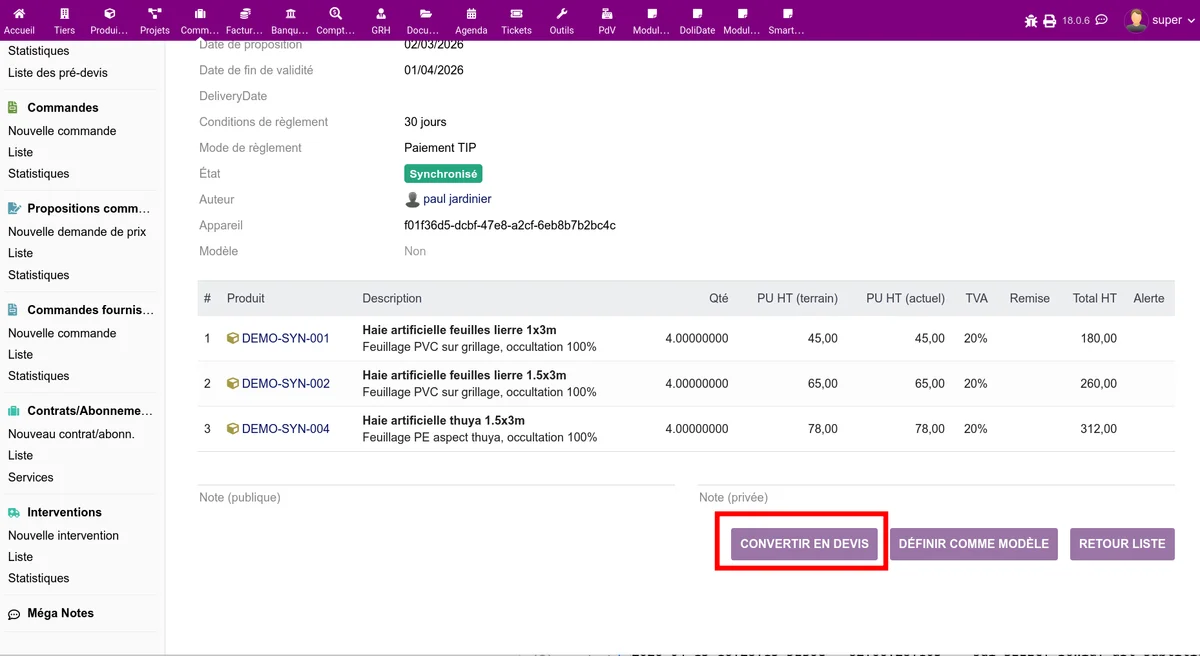
What gets created
Conversion automatically produces:
- A Dolibarr commercial proposal carrying every piece of information of the offer
- The proposal lines, carrying over the products, quantities, prices and discounts
- The photos and documents, copied to the proposal (if the option is enabled in the setup)
- A link between the offer and the proposal (if the option is enabled)
The offer moves to the Converted status and a link to the new Dolibarr proposal is shown on the sheet.
Automatic conversion
If the Automatic conversion option is enabled in the setup, offers are turned into Dolibarr proposals automatically as soon as they are synced. No manual step is required.
Templates
From the sheet of an offer, you can turn it into a reusable template:
- Click Save as template
- Give the template a name
- Choose its scope:
- Personal: visible to you only
- Company: visible to every user
To remove the template status, click Remove template.
Deletion
Deletion is only possible for offers in the Draft status.
- Click Delete
- Confirm in the dialog
The offer and its attached documents are deleted for good.
Offer already converted
Once an offer has been turned into a proposal, the sheet shows a direct link to the matching Dolibarr commercial proposal. No change is possible on a converted offer, which is kept as a record.