Synchronisation and offline mode
How it works
OfflinePropale is designed to run disconnected. All data is stored locally on the device. Synchronisation moves data between the device and the Dolibarr server:
- Download (pull): fetches reference data from Dolibarr (customers, products, categories, and so on)
- Upload (push): sends your offers and the customers created locally to the server
Starting a synchronisation
Manual synchronisation
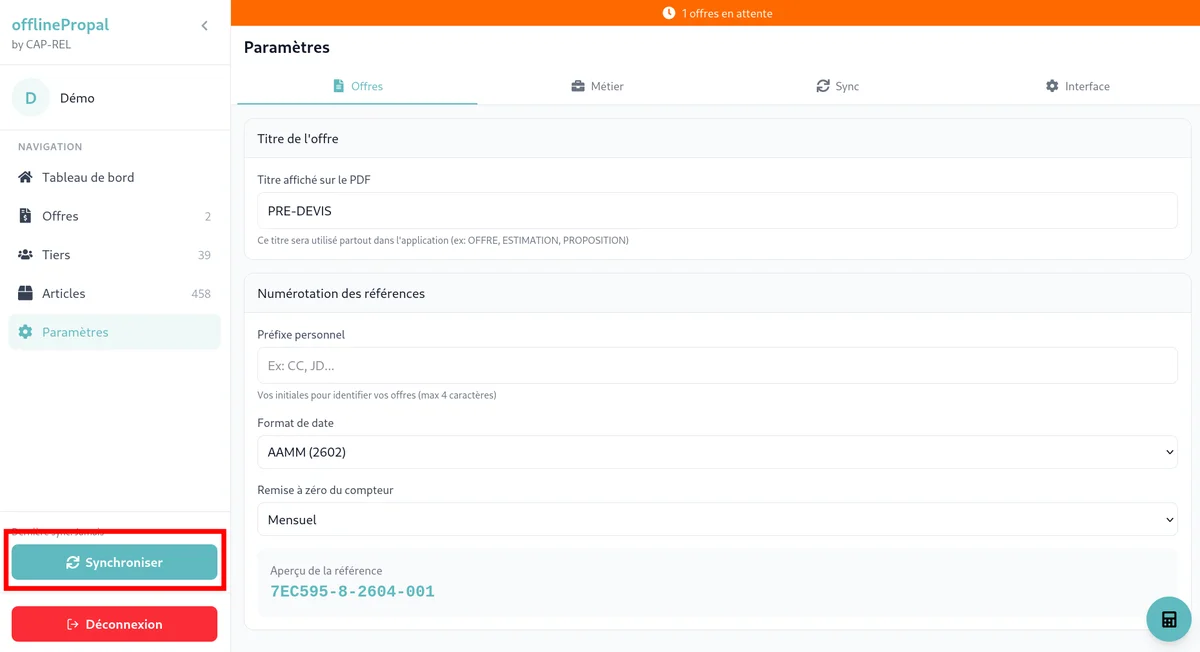
Tap the Synchronize button in the sidebar. Progress is shown in real time.
Automatic synchronisation
Synchronisation starts automatically when the application opens, provided an internet connection is available.
Synchronised data
Downloaded data (pull)
| Data | Description |
|---|---|
| Third parties | Customers and prospects |
| Products | Product and service catalogue with prices |
| Categories | Product category tree |
| Contacts | Contacts attached to third parties |
| Payment terms | List of terms (30 days, immediate payment, and so on) |
| Payment methods | List of methods (cheque, bank transfer, card, and so on) |
| Company logo | Logo printed on the generated PDF files |
| Stock settings | Stock levels if enabled |
Uploaded data (push)
| Data | Description |
|---|---|
| Local customers | Customers created on the device (sent first) |
| Offers | Offers pending synchronisation |
| Photos | Documents and photos attached to the offers |
Important: Customers created locally are sent before the offers, so that temporary identifiers are replaced by the final Dolibarr identifiers.
Synchronisation order
Synchronisation runs in this order:
- Download of reference data (customers, products, categories, and so on)
- Upload of local customers (those created on the device)
- Upload of pending offers (along with their photos)
- Orphan detection (offers deleted on the server)
Life cycle of an offer
Draft -> Pending sync -> Synced -> Converted
              |
              +-> Error
Status details
Draft
- Offer being created
- Not sent to the server
- Editable and deletable
Pending sync
- Finalised offer, ready to be sent
- Editable
Synced
- Offer received and saved on the Dolibarr server
- Visible in the back office
- No longer editable from the mobile application
Error
- Synchronisation failed
- An error message is available
- Retried at the next synchronisation
Converted
- Offer turned into an official Dolibarr proposal from the back office
- Link to the proposal available
Offline mode
What you can do offline
- Create new offers
- Edit draft or pending offers
- View your existing offers
- Search the synced customers and products
- Generate and share PDF files
- Take photos
- Create new customers
- Have the customer sign
What you cannot do offline
- Synchronise with the server
- Access new data (new customers, changed products)
- See offers created on other devices
Error handling
Synchronisation error
If an offer moves to the Error status, open its sheet to read the error message.
Common errors
"Customer not found" The customer has been deleted or disabled in Dolibarr. Edit the offer and pick another customer.
"Product not found" One product of the offer no longer exists in the catalogue. Edit the offer and replace the product.
"Error 403 Forbidden" Authentication or permission problem. Log out of the application and log back in.
Note: On a 403 error, synchronisation stops immediately to avoid being blocked by the server firewall. A warning message is shown for 8 seconds.
"Network error" Unstable connection or server unavailable. Check your connection and try again later.
Retrying
Offers in error are retried automatically at the next synchronisation. Fix the cause of the error if you can before starting synchronisation again.
Orphan offers
An offer is considered an "orphan" when it was synced successfully but has since been deleted from the server (by an administrator, for instance).
During synchronisation the application detects these orphans and offers two options:
- Resend to server: marks the offer to be sent again at the next synchronisation
- Delete locally: removes the offer from your device
Timeout and performance
Every synchronisation request has a 30-second timeout. If the server does not answer within that delay, the request fails and will be retried at the next synchronisation.
For large databases (many products or customers), the first synchronisation can take a while. Prefer a stable Wi-Fi connection.
Good practice
- Sync over Wi-Fi: faster and more reliable than over 4G
- Sync before appointments: make sure you have the latest data
- Sync after appointments: save your offers as soon as you can
- Check for errors: go through the list regularly to spot failures
- Keep the application up to date: updates improve synchronisation reliability