Configuration and settings
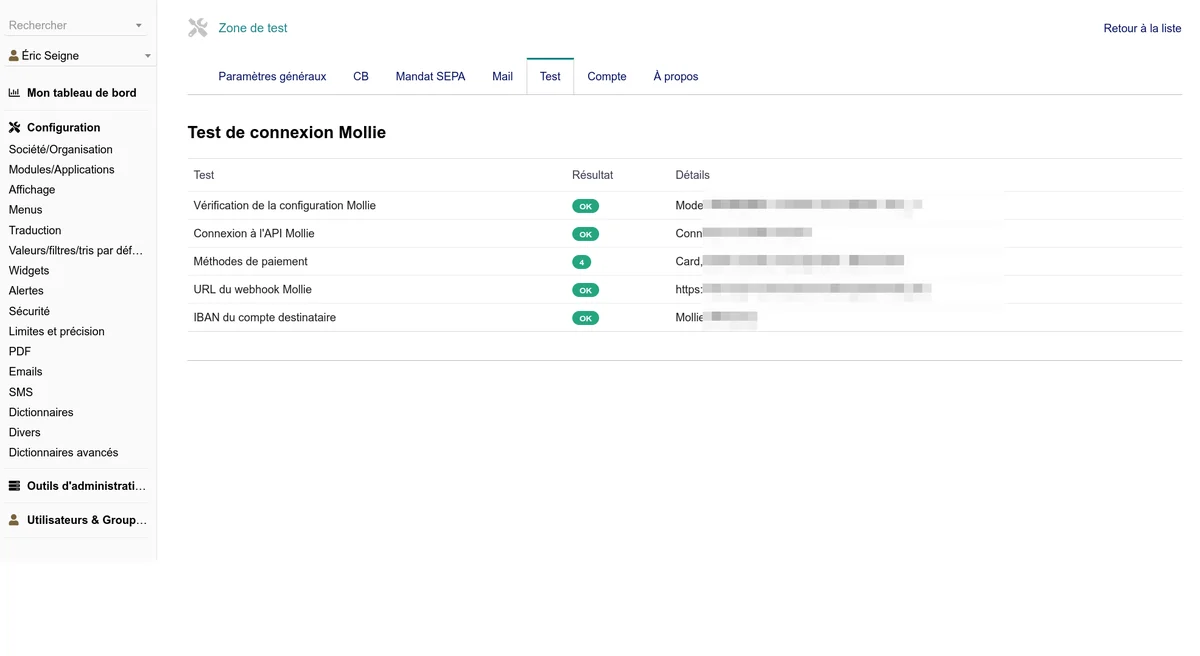
The administration interface is accessible from Setup > Mollie. It has the following tabs: Settings, CB, SEPA, Email, Test, Account and About.
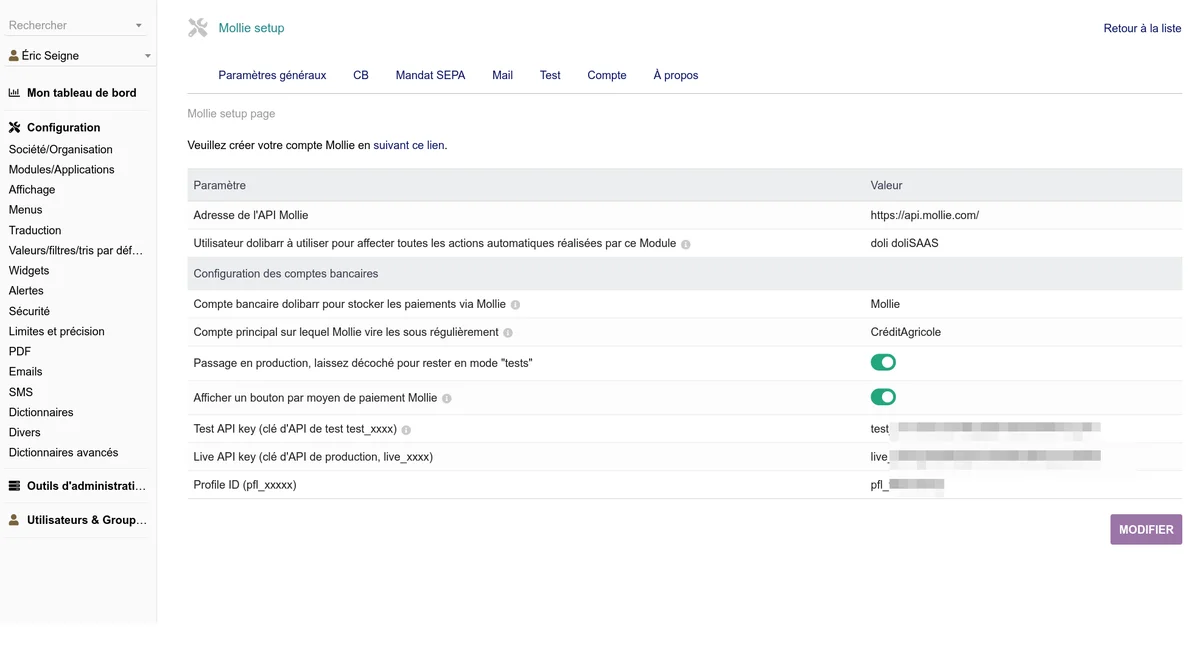
General settings
Access: Setup > Mollie > Settings
API keys
Two keys are required for the module to work:
- Test API key (
test_xxxx) - Used in test mode to simulate payments without a real transaction - Live API key (
live_xxxx) - Used in production mode for real payments
These keys are found in your Mollie dashboard: https://my.mollie.com/dashboard/developers/api-keys
- Profile ID (
pfl_xxxxx) - Identifier of your Mollie profile, visible in the dashboard settings

Test / production mode
The Switch to production field controls the active mode:
- Unchecked: Test mode - Payments are simulated, no real transaction is made
- Checked: Production mode - Payments are real
Warning: Always check that your integrations work correctly in test mode before switching to production.
Bank accounts
- Bank account for Mollie payments: The Dolibarr bank account dedicated to storing Mollie transactions. By default, the module creates a "MOLLIE" account on activation.
- Main account for payouts: Your main bank account to which Mollie transfers the funds.
User for actions
Select the Dolibarr user account that will be associated with the module's automatic operations (synchronizations, webhooks, scheduled tasks).
Required: without this user, the module refuses to record payments received by webhook. The notification is then kept with the Failed status and replayed automatically by the scheduled task once the setting is filled in: no payment is lost, but nothing is recorded until the setting is done.
Important: This user must have sufficient rights for the automatic operations, in particular: closing orders, creating and validating invoices, recording payments.
HTTPS access
Mollie only notifies https URLs. If your Dolibarr URL is not secure, a red banner is displayed at the top of this page and no payment can be started: credit card, SEPA direct debit and automatic debit are all refused, with an on-screen message and a trace in the logs.
This is intentional: without a webhook, the money would be collected by Mollie without any entry appearing in Dolibarr.
Synchronization
- Number of transactions to download: Limits the number of transactions synchronized on each refresh (default: 50, recommended maximum: 200 occasionally)
- Number of days to synchronize: Historical depth of the synchronization (default: 30 days)
Warning: Only increase these values occasionally. Permanently high values risk overloading the Mollie API and getting your account deactivated.
Cleaning test data
When you switch to production, a Clean test data button appears. It deletes the Mollie account identifiers created in test mode from the third party records.
Card configuration (CB)
Access: Setup > Mollie > CB
This tab configures credit card payments.
Prerequisite: The "CB" code must exist in the Dolibarr payment methods dictionary. If not, an error message is displayed.
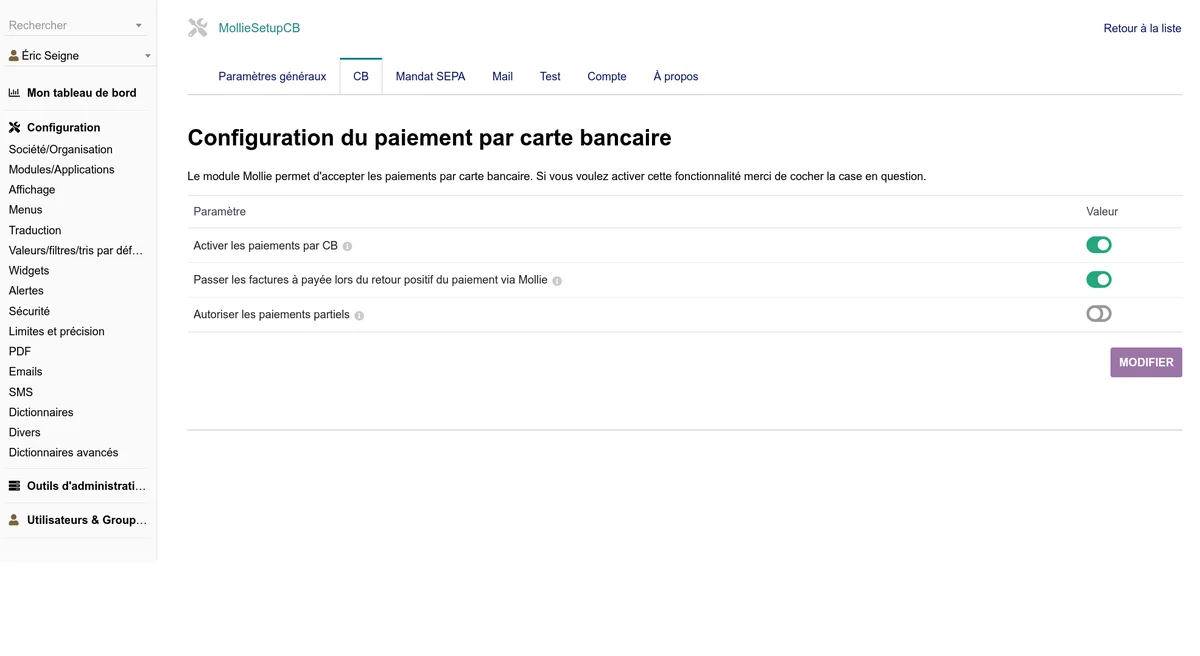
Available settings
| Setting | Description |
|---|---|
| Enable card payments | Enables or disables credit card management. Disable this option if you only use SEPA direct debits. |
| Mark the invoice as paid on positive return | If enabled, the invoice is marked as "paid" as soon as Mollie pre-validates it, without waiting for the bank's final confirmation (within a few days). The invoice is only closed if nothing remains to be paid: a partial payment leaves the invoice open. |
| Partial payment of orders | Allows a down payment on an order (e.g. "30% on order") with automatic creation of a down payment invoice. Available from Dolibarr 16.0. The down payment invoice is created both on the customer's return and by the webhook, and the order remains open for the balance. |
SEPA configuration
Access: Setup > Mollie > SEPA
This tab configures SEPA direct debits and mandate management.
Prerequisite: The "PRE" code must exist in the Dolibarr payment methods dictionary. If not, an error message is displayed.
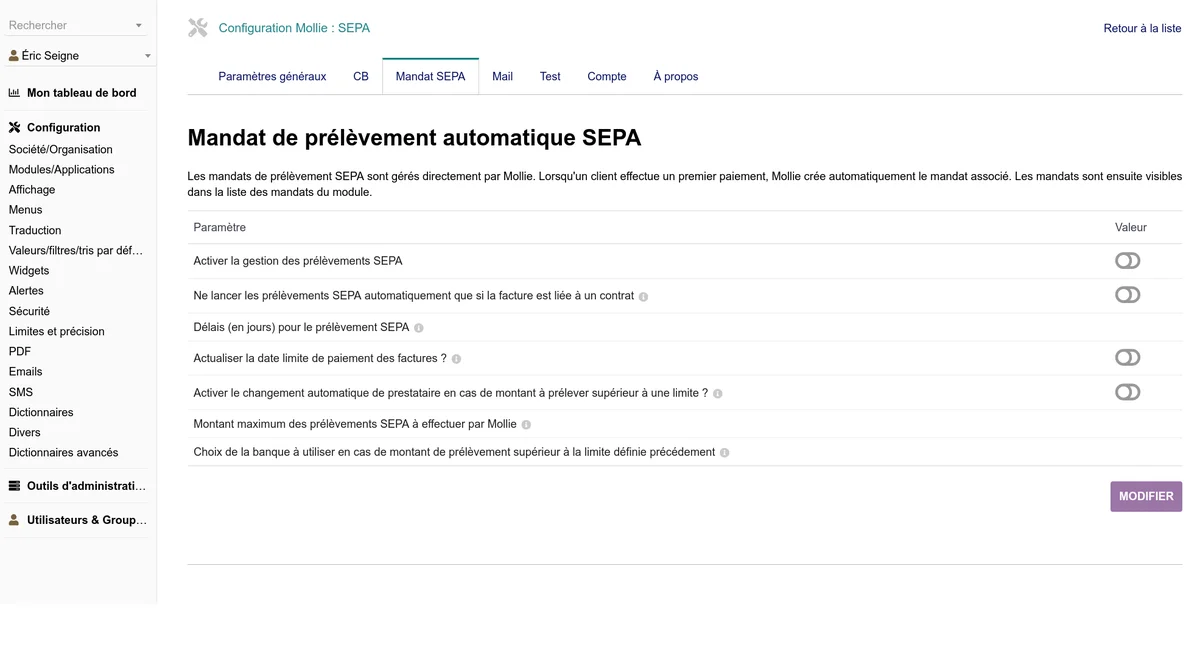
SEPA direct debit mandates are managed directly by Mollie via the Mandates API. When a customer enters their IBAN on the public mandate creation page, Mollie automatically creates the associated mandate. Mandates are then visible in the module's mandates list.
Information: Mollie uses its own ICS (SEPA Creditor Identifier) to establish mandates. The mandate is therefore legally between your customer and Mollie (acting on your behalf). This mandate will not be transferable if you change payment provider.
Available settings
| Setting | Description |
|---|---|
| Enable SEPA direct debits | Enables or disables SEPA direct debit management |
| Direct debits for contracts only | If enabled, only invoices linked to a contract are automatically debited by the scheduled task |
| SEPA delay (days) | Number of days between the invoice date and the debit, to comply with regulations (14 days in France) |
| Update the payment due date | Automatically updates the payment due date of invoices according to the configured delay |
| Switch to another account | Beyond a certain amount, redirects the direct debit to another bank account |
| Maximum amount | Threshold above which the switch applies |
| Destination account | Alternative bank account for direct debits above the threshold |
Email configuration
Access: Setup > Mollie > Email
This tab configures the automatic sending of payment-related emails. The displayed options depend on the enabled features (card and/or SEPA).
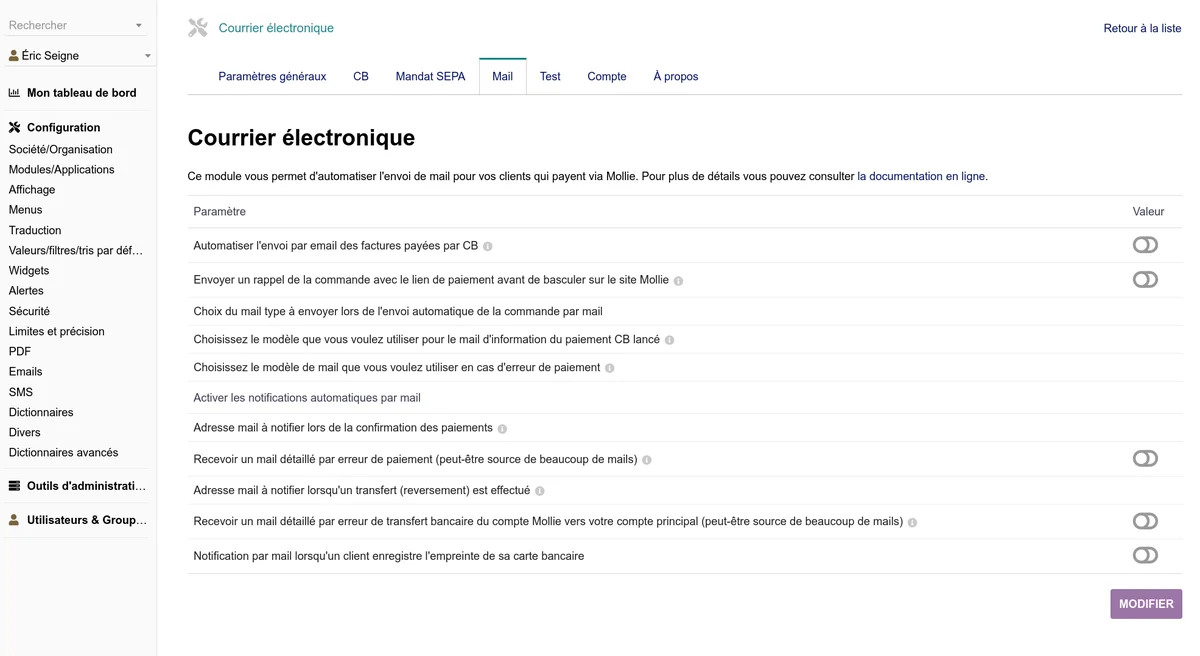
Emails for card payments
These settings only appear if card management is enabled.
| Setting | Description |
|---|---|
| Send the invoice after card payment | Automatically sends the invoice by email when the card payment is confirmed |
| Send an order reminder | Sends a reminder email with the payment link before redirecting to Mollie |
| Email template (order) | Choice of "order" type email template to use for the reminder |
| Email template (card invoice) | Choice of "invoice" type email template to use for sending after payment |
Emails for SEPA direct debits
These settings only appear if SEPA management is enabled.
| Setting | Description |
|---|---|
| Direct debit pre-notice | Sends an information email on the invoice date to warn of the upcoming direct debit |
| Template (pre-notice) | Email template for the SEPA pre-notice |
| Direct debit confirmation | Sends an email on the day the SEPA direct debit is actually initiated |
| Template (direct debit) | Email template for the direct debit confirmation |
| Paid-in-full confirmation | Sends the invoice to the customer when the SEPA payment is complete and the invoice is settled |
| Template (paid in full) | Email template for the final confirmation |
Error email
| Setting | Description |
|---|---|
| Email template on error | Email template used in case of a payment error, whether by card or by SEPA |
Administrator notifications
| Setting | Description |
|---|---|
| Payment notification address | Email address to notify when payments are confirmed. Leave empty to disable. |
| Payment error details | Receive a detailed email for each payment error (can generate a lot of emails). If disabled, an overall summary is sent. |
| Payout notification address | Email address to notify when a transfer to your main account is made |
| Payout error details | Receive a detailed email for each bank transfer error |
| New card registration notification | Receive a notification when a customer registers their card fingerprint |
Email templates are created in Home > Setup > Emails. Choose the "Send invoice" type for invoice templates and "Send order" for order templates.
Mollie account information
Access: Setup > Mollie > Account
This page displays, in read-only mode, the information retrieved from the Mollie API.
Organization
- Organization name
- Registration number
- VAT number
- VAT regime
- Full address
- Language
Profile
- Profile ID (
pfl_xxxx) - Name, website, email, phone
- Business category
- Active mode (test or live) with colored badge
- Profile status:
- verified (green) - Verified profile
- unverified (yellow) - Awaiting verification
- blocked (red) - Blocked profile
- Creation date
Integration (Onboarding)
- Status:
- completed (green) - Onboarding completed
- needs-data (yellow) - Missing data
- in-review (blue) - Under review
- Can receive payments - Yes/No
- Can receive settlements - Yes/No
- Link to the Mollie dashboard
Permissions
List of all API permissions associated with your key, each with:
- Permission identifier
- Description
- Granted (green) or denied (red) status
Payment methods
Access: Setup > Mollie > Payment methods
This page displays the payment methods available on your Mollie account.
Display
Two modes are available via a toggle button:
- Active methods only - Displays the currently enabled methods
- All methods - Displays all available methods (including those not enabled)
Information per method
For each method, the page displays:
- Icon of the payment method
- ID (e.g.
ideal,creditcard,bancontact,banktransfer) - Description of the payment method
- Status:
- Enabled (green)
- Onboarding in progress (yellow)
- Under review (yellow)
- Refused (red)
- Minimum amount and maximum amount accepted (with currency)
Mapping to Dolibarr
The module automatically associates certain Mollie methods with Dolibarr dictionary payment methods:
| Mollie method | Dolibarr code | Description |
|---|---|---|
creditcard / card |
CB | Credit card |
directdebit / sepa |
PRE | SEPA direct debit |
banktransfer |
VIR | Bank transfer |
Payment methods are managed from the Mollie dashboard. This page is read-only.
Mollie tab on the third party record
The module adds a Mollie tab on each third party record. This tab allows you to:
- View the associated Mollie customer account
- Create or link a Mollie customer account
- Manage card payment information (masked number, card type, expiry date)
- View existing SEPA mandates (IBAN, BIC, Mollie reference)
- Communicate the SEPA mandate creation link to the customer: if the customer does not yet have an active mandate, a secure link is displayed. The customer enters their IBAN there and the mandate is created directly via the Mollie API.
- If the customer already has a valid SEPA mandate, a confirmation message is displayed.

SEPA button on invoices
When an invoice meets the following conditions, a SEPA direct debit by Mollie button appears on the invoice record:
- The invoice payment method is "Direct debit" (code PRE)
- The associated bank account is the Mollie account
- SEPA management is enabled in the configuration
Two behaviors depending on the mandate status:
- The customer has an active SEPA mandate: clicking the button directly starts the direct debit via the Mollie API (recurring payment with
sequenceType: recurring) - The customer has no mandate: a popup displays a link to communicate to the customer so they can create their SEPA mandate and pay their invoice