Usage
Automatic operation
Once the module is enabled and configured, Factur-X generation is fully automatic. You have no additional action to perform: each time a customer invoice PDF is generated, the module embeds the Factur-X XML metadata in it.
The following events trigger the generation:
- Generation or regeneration of an invoice PDF
- Validation of an invoice
- Adding, modifying or deleting an invoice line
- Modifying public or private notes
- Recording a payment
Checking the result
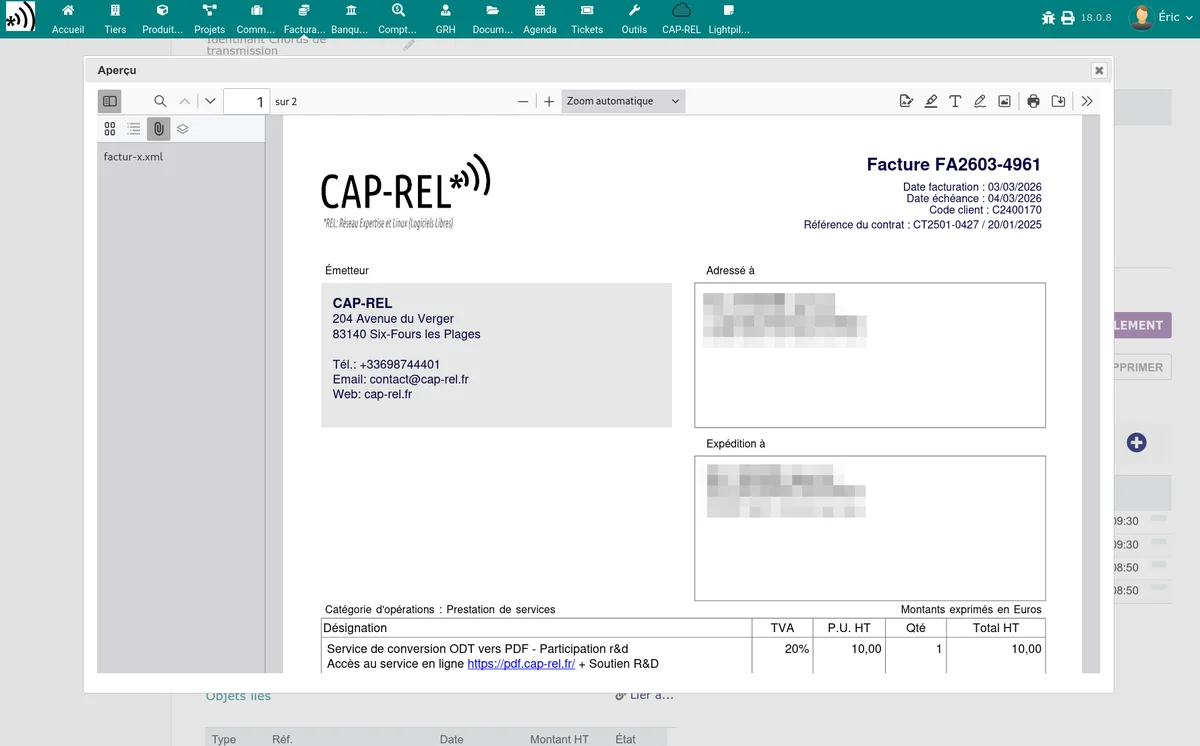
After generating a PDF, you can check that the Factur-X metadata is present:
- Download the invoice PDF
- Open it with a PDF reader capable of displaying attachments (Adobe Acrobat Reader, Foxit Reader, etc.)
- A
factur-x.xmlfile appears in the PDF attachments
Separate PDF file
If the Create a new suffixed PDF file option is enabled in the configuration, the module does not modify the original PDF. A second file is created with the _facturx suffix:
FA2202-2003.pdf-- original PDF (without metadata)FA2202-2003_facturx.pdf-- PDF with Factur-X metadata
Both files appear in the list of documents attached to the invoice.
Alert messages
During PDF generation, the module checks the mandatory information. If data is missing, error messages are displayed at the top of the page:
Your company information
| Message | Cause |
|---|---|
| Your VAT number is empty | Enter the intra-community VAT number in Home > Setup > Company |
| Your company has neither an electronic billing address nor an email address | The BT-34 field will be absent from the XML and the French check BR-FR-11 will flag the invoice. Enter the sender identifier in the module configuration, Access point tab, or your company's email address |
| Your company's address is empty | Enter the address in your company configuration |
| Your company's postal code is missing | Enter the postal code |
| Your company's city is empty | Enter the city |
| Your company's country is empty | Select the country |
Customer information
| Message | Cause |
|---|---|
| Your customer has no name | The customer's third-party card is incomplete |
| Your customer has no company id (SIREN) | Enter the SIREN on the third-party card (FR customers) |
| Your customer has no company id (SIRET) | Enter the SIRET on the third-party card (FR customers) |
| Your customer's address is empty | Enter the address on the third-party card |
| Your customer's postal code is missing | Enter the postal code on the third-party card |
| Your customer has no associated city | Enter the city on the third-party card |
| Your customer's country is not filled in | Select the country on the third-party card |
| Your customer has no VAT number | Enter the intra-community VAT number on the third-party card, or declare the customer as an individual (see below) |
| Your customer has neither an electronic billing address nor an email address | The BT-49 field will be absent from the XML and the French check BR-FR-12 will flag the invoice. Enter the electronic billing address on the third-party card, or failing that its email address |
Individuals case
An individual has neither SIREN, nor SIRET, nor intra-community VAT number: the EN 16931 standard makes these identifiers optional for a B2C invoice, and the module must therefore not require them.
To do this, open the third-party card and set the Third party type field to Individual, then regenerate the PDF. The three identification checks (SIREN, SIRET, VAT number) are then ignored for this customer.
Warning: the Subject to VAT checkbox on the third-party card plays no role here. Dolibarr checks it by default on every new third party, including an individual, so only the Third party type field allows the module to tell the difference.
Billing contact
If a Billing type contact is linked to the invoice, its postal coordinates must also be complete. Otherwise, similar messages are displayed for the contact.
Payment and recipient
| Message | Cause |
|---|---|
| The payment method of this invoice is a bank transfer, but no IBAN is associated | The EN 16931 standard (rule BR-61) requires the payment account identifier (BT-84) as soon as the payment method is a transfer. Attach a bank account to the invoice, or define a default account in the module configuration |
| Your customer seems to be a French public entity (...) | The invoice goes to an administration without being marked for Chorus Pro: see Chorus Pro |
Billing contact
The module supports Billing (BILLING) type contacts associated with the invoice. If such a contact is defined, its address is used in the Factur-X XML instead of the third party's address.
To associate a billing contact:
- Open the invoice card
- Go to the Contacts/Addresses tab
- Add a contact with the Billing address type
- Regenerate the PDF
Delivery contact
The module also supports Delivery (SHIPPING) type contacts associated with the invoice. If such a contact is defined, it is what describes the delivery location in the Factur-X XML: its name feeds the BT-70 field and its address the BG-15 block, whose destination country is BT-80. If this contact has no address of its own, the third party's address is used.
To associate a delivery contact:
- Open the invoice card
- Go to the Contacts/Addresses tab
- Add a contact with the Customer delivery type
- Regenerate the PDF
The contacts of an order being copied to the invoice issued from it, a delivery contact entered on the order does not need to be re-entered.
On this contact's card, a Delivery location identifier (BT-71) field allows indicating the code that designates this site at your customer (GLN in retail, store code or warehouse code). It is optional: see the detail in the FAQ.
Payer party (EXTENDED profile)
In EXTENDED profile, a Payer party field appears on invoice cards. It allows designating a third party different from the invoiced customer who makes the payment. This third party must be an existing customer in Dolibarr.
Negative lines
If your invoice contains lines with a negative amount (discounts, partial credit notes), the module handles them in the Factur-X XML. An information message is displayed to warn you that the XML implementation of negative lines differs from the standard format.
Bulk actions
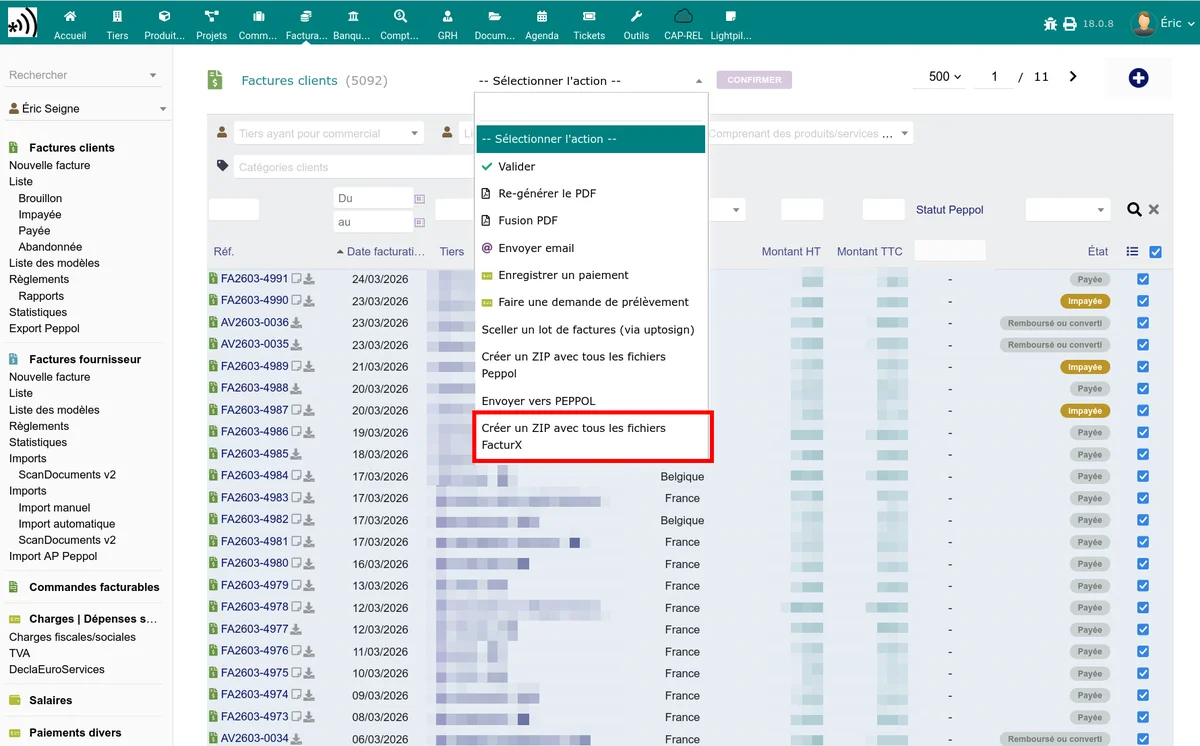
From the invoice list, you can perform Factur-X actions in bulk:
- Go to Invoicing > Customer invoices > List
- Check the invoices concerned
- In the Bulk actions menu, select Create a ZIP with all FacturX files
- The module generates a ZIP file containing all the Factur-X PDFs of the selected invoices
Recurring invoices (invoice templates)
Dolibarr allows turning a draft invoice into an invoice template, which then generates invoices at regular intervals. The fields added by the module follow this journey end to end: from the original invoice to the template, then from the template to each generated invoice.
Fields carried over to the template
When creating the template from a draft invoice, the following fields are automatically copied to the template:
| Field | EN16931 code |
|---|---|
| Buyer order reference | BT-132 |
| Service code | BT-10 |
| Contract number | BT-12 |
| Purchase order number | BT-13 |
| Invoice for Chorus Pro | -- |
| Payer party (EXTENDED profile) | -- |
| VAT exemption code | BT-121 |
These values are then carried over to each invoice generated by the template, whether generation is launched manually or by the scheduled task. Without this carry-over, a recurring invoice destined for the public sector would go out without a service code or purchase order number, and would be rejected by Chorus Pro.
Fields deliberately not carried over
The Chorus identifier and the document identifier at the access point are not placed on templates. These are tracking numbers specific to a precise transmission: carrying them over would give all generated invoices the tracking number of one single submission. Each invoice gets its own at its own sending.
Correcting a template's values
The template creation form does not display these fields, hence their automatic carry-over from the original invoice. Once the template is created, they appear on its card and remain editable: open the template and correct the value directly, it will be used by the next generated invoices.
Note that Dolibarr deletes the original draft invoice once the template is created: that is its normal behavior, and it is why the module reads the values at template creation time.
After a module update: these fields are created on invoice templates when the module is activated. If you have just updated Facturx, disable then re-enable the module in Home > Setup > Modules so that they are available on your templates.
Disabling Factur-X on an invoice
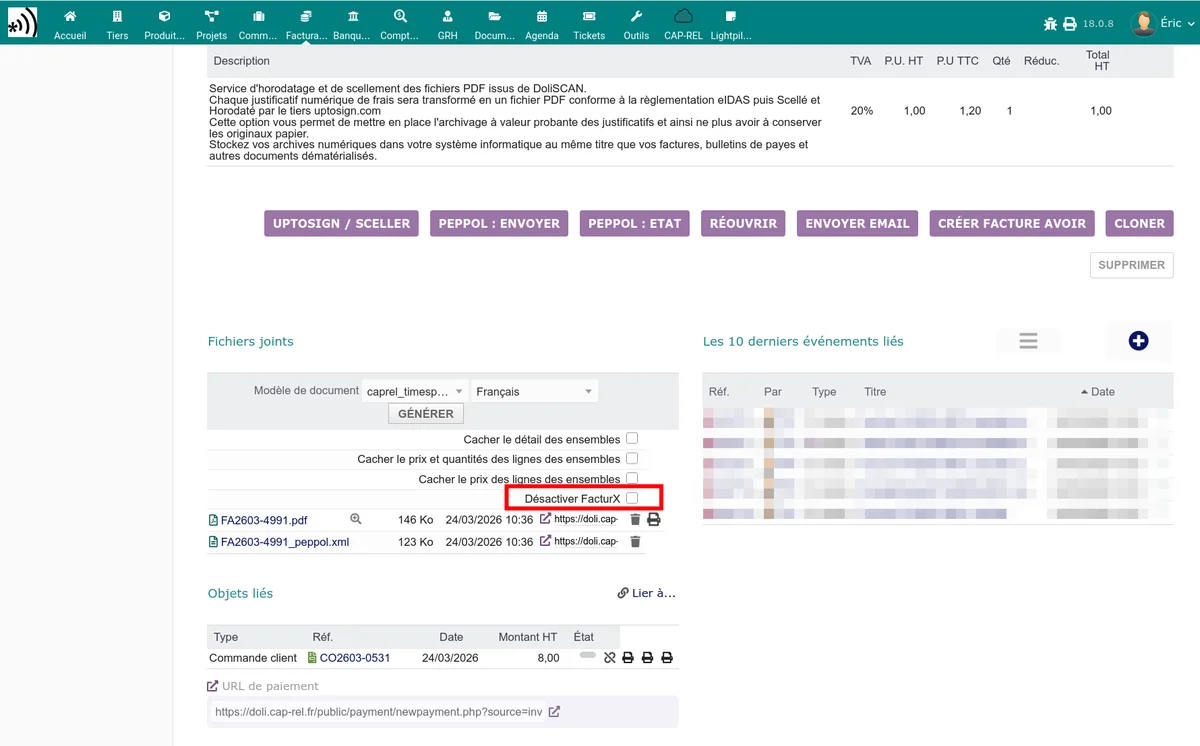
When generating an invoice's PDF, a Disable FacturX checkbox appears in the document generation area. If you check it before regenerating the PDF, the module does not process this invoice and the PDF is generated without Factur-X metadata. This setting is kept in session for the invoice concerned.
Progress invoices
Progress invoices are not supported by the Factur-X standard. The module detects this invoice type and displays a warning. The PDF is generated normally but without Factur-X metadata.