Configuration
The setup of the module is available from Home > Setup > Modules > Dolipdf, Configuration tab.
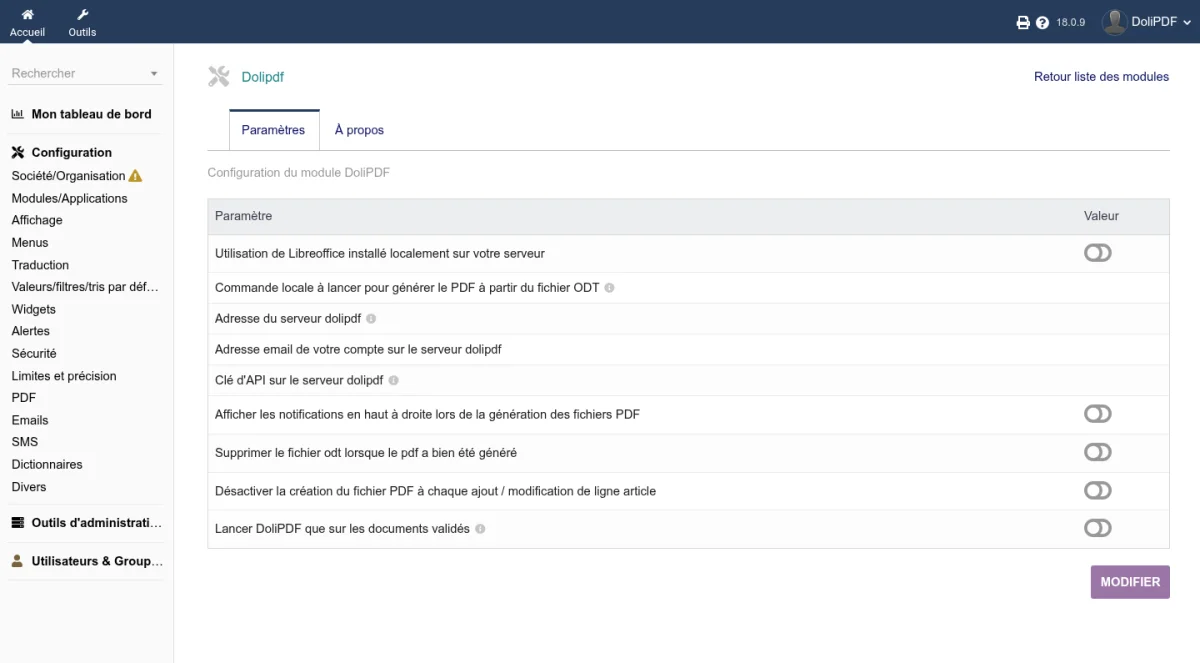
Conversion mode
DoliPDF offers two conversion modes, which can be used separately.
Remote mode (default)
The ODT file is sent to a DoliPDF server, which converts it to PDF. This mode is the easiest to set up.
| Setting | Description |
|---|---|
| Dolipdf server address | URL of the conversion server. The default value is https://pdf.cap-rel.fr. |
| Email address of your account | Email address linked to your account on the DoliPDF server. |
| API key on dolipdf server | Authentication key of the service. It is stored automatically when you open your account from the Open an account tab. Format example: 1\|lUr8Tj4fHZZZmpwAAAMpBBBDb8KCCC5Iw5DDD2sH. |
Open your account from Dolibarr
No DoliPDF account yet? Open it without leaving Dolibarr, and without copying anything:
- Open the Open an account tab of the module setup. It shows the details of your company that will be sent (company name, email, country, SIREN, address), read from Home > Setup > Company/Organization
- Click Open my account on pdf.cap-rel.fr, then Continue to payment: the order page opens in a new tab, with these details already filled in. Choose your plan, correct what needs to be, then pay
- Go back to the Open an account tab: it updates itself as soon as the payment is received, and the API key is stored in the module setup. The I have paid, check now button forces the check if needed
An email is sent to the address of the order so that you can choose the password of your account on the DoliPDF server, where you find your invoices and your API keys.
If the email address of the order already matches an account, the plan is added to that account and no new key is created: enter the existing key of that account.
Already have an account? Create a key from the API tokens menu then New in your account on the DoliPDF server, and paste it into the API key field of the Configuration tab.
Test the connection
The Test connection button, below the settings of the Configuration tab, checks in a few seconds that remote conversion will work, without converting any document or using up your plan. It checks the server address (complete and https), that an API key is present and well formed, then queries the DoliPDF server.
The result is shown at the top of the page:
- Connection OK: the server answers and accepts the key. The message recalls the account in use and, when the server reports it, how many conversions are still available
- Warning: the key is valid, but no plan is active or the plan is used up. A link leads to the order page
- Error: the message names the cause (missing or http address, missing or incomplete key, server unreachable with the network detail, key refused, account locked, server error) and what to do
Local mode (LibreOffice)
If LibreOffice is installed on your server, you can convert locally without sending your documents to an external server.
| Setting | Description |
|---|---|
| Use LibreOffice installed locally on your server | Enables the local conversion mode. |
| Local command to run to generate PDF from ODT file | System command run for the conversion. Only fill in this field if you enable the local mode. |
Warning: When the local mode is disabled, DoliPDF automatically prevents any local run of LibreOffice, even if the Dolibarr constant
MAIN_ODT_AS_PDFis set. This avoids unintended local conversions.
Options
Notifications
| Setting | Description |
|---|---|
| Display notifications at top right when generating PDF files | Shows a confirmation or error message after each conversion. |
File management
| Setting | Description |
|---|---|
| Delete ODT file when PDF has been successfully generated | Automatically deletes the source ODT file once the PDF conversion has succeeded, so that only the final PDF file is kept. |
Performance
| Setting | Description |
|---|---|
| Disable PDF file creation each time a product line is added or modified | Prevents the automatic regeneration of the PDF when you add or change a line on a document (invoice, proposal, order). The PDF is then only generated when you explicitly generate the document. |
| Run DoliPDF only on validated documents | Restricts the PDF conversion to documents with the "Validated" status. Draft documents do not start a conversion. This option saves usage of the remote DoliPDF service. |
Data sent and privacy
To provide its service, the module sends the following information.
On each conversion in remote mode
- The content of the ODT file to convert, sent to the configured DoliPDF server (by default
https://pdf.cap-rel.fr), together with your API key and the email address of your account - A technical installation identifier (
DOLIPDF_UUID): a random identifier generated once, stored in the Dolibarr database, which tells two installations apart without revealing who they are - The name of your company as set in the Dolibarr setup (Home > Setup > Company/Organization menu), sent in the User-Agent field of the HTTP request
- The language of your Dolibarr, so that the DoliPDF server writes its messages in that language
The local conversion mode (LibreOffice) makes no outgoing request: your documents stay on your server.
When the connection is tested
- Your API key, sent to the configured DoliPDF server, with your company name (User-Agent field) and the language of your Dolibarr. No document is sent
When an account is opened
- The details of your company shown by the Open an account tab (company name, email, country, SIREN, address), sent to the configured DoliPDF server to fill in the order page. Nothing is sent until you click Open my account
When updates are checked
Like any Dolibarr module with a version check address, the module queries https://cap-rel.fr/dolibarr/ver.php and sends at that time:
- The installed version of the module
- The Dolibarr version (
DOL_VERSION) - A non-reversible fingerprint (
md5) of the Dolibarr data directory, only used to tell installations apart in the download statistics
If your privacy policy requires it, you can block this check on your outgoing firewall: the module keeps working.