What's new in version 1.2
Version 1.2.12
Fix release published on November 18, 2026. Each sales representative now only sees their own customers in CapCRM. Automatic events show in the history. Sending an email from the CapCRM card works again, and the demonstration accounts see every block of the demonstration.
Each sales representative stays on their customers
In Dolibarr, a sales representative who lacks the right to extend their access to all third parties only sees the third parties they are the sales representative of. CapCRM now applies the same rule:
- the CapCRM card of a third party that is not assigned to them is refused, like the Dolibarr third-party card;
- the third-party search at the top of the CapCRM card only offers their third parties;
- on the sales dashboard, they can no longer change the status of the quotes of a third party that is not theirs.
A user without the right to read third parties no longer gets any result from the search.
The "Contact Tracking" and "Indirect sales" blocks follow their permissions
- The "Contact Tracking" block (Contact Tracking module by Inovéa Conseil) shows for users holding the CapCRM permission "Access data from the Contact Tracking module". Until now it stayed hidden from every user, administrators included.
- The "Indirect sales" block and the indirect share of the sales growth chart only show with the CapCRM permission "Access data from the Indirect Sales module", no longer with the quotes one.
Check these two permissions in Home > Users & Groups for the users concerned: see the Permissions page.
Automatic events in the history
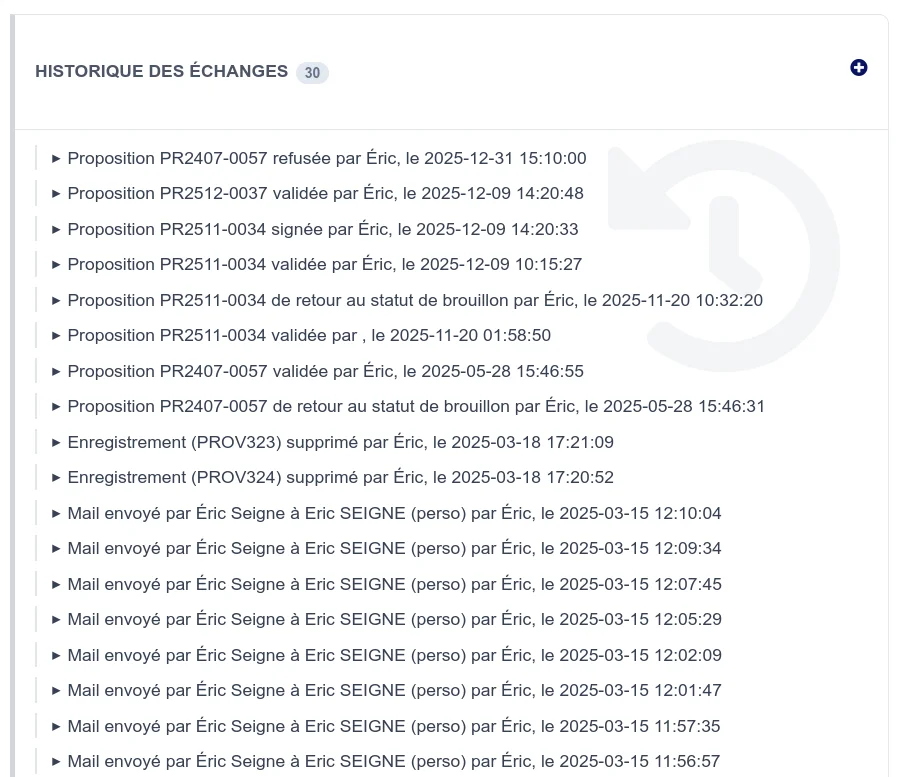
In the History of exchanges tab of the configuration, you choose the agenda event types to display. The "Other auto" type gathers the events Dolibarr creates on its own: a third party modified, a quote validated, an invoice sent, etc. Once selected, it still showed none of these events. They now show in the history of exchanges, and in the future actions if you chose it for that block.
Sending an email from the CapCRM card
The email sending window, opened from the CapCRM card of a third party or from one of its contacts, has been repaired:
- the Subject field is there and prefilled, and the third-party email templates are offered;
- the email sent is recorded in the third party history, like an email sent from the Dolibarr third-party card (depending on the automatic events enabled in the agenda configuration);
- after sending, you are back on the third-party card.
Demonstration: accounts that see everything
The capcrm.commercial and capcrm.manager demonstration accounts now receive every right the demonstration needs: the CapCRM tab of the third-party card, the quotes, and the "History of exchanges" and "Future actions" blocks. When a right could not be granted, for instance because the module providing it is not enabled, the generation log reports it with a [WARN] line instead of announcing a success.
The phone numbers of the demonstration third parties and contacts come from the ranges the French regulator ARCEP reserves for fiction: none of them reaches a real line.
Other fixes
- The "To follow up" block shows the date of the last action and the name of its type ("Phone call", "Send email"), instead of an empty date and a code such as
AC_TEL. - An entry of the history of exchanges names its author even when their account has no first name, like the administrator account of many installations, instead of showing "By ,".
- The Future actions tab of the configuration carries its own title, instead of the history of exchanges one.
Update
- Replace the module files with those of version 1.2.12 (or use the update zip).
- Disable then re-enable the module in the modules administration page, to record the new version.
- If you use the "Contact Tracking" or "Indirect sales" blocks, check the permissions of your users.
- If you already generated the demonstration data, run the generation again to give the new rights to the demonstration accounts.
Your settings, your campaigns and each user's block layout are preserved. If you come from a version earlier than 1.2.10, also see the Version 1.2.10 section.
Version 1.2.10
Fix release published on October 27, 2026. It puts an end to duplicate follow-ups, makes CapCRM's scheduled tasks succeed and gives the demonstration the face of a real company.
A single follow-up per stagnating prospect
When a prospect stays too long in a campaign stage, CapCRM creates a follow-up in the salesperson's agenda. This follow-up was until now recreated at each run of the scheduled task, so the agenda filled up with one duplicate per day. CapCRM now finds the follow-up already created and does not add more as long as it is recent.
Scheduled tasks no longer go into error
CapCRM's scheduled tasks (prospect archiving, follow-ups, alerts, score readings) appeared in error in Dolibarr's scheduled jobs list whenever they had actually worked. They now end in success, with a sentence summarizing what was done, or indicating that there was nothing to do.
One click, one action
Sending a notice from the "About" page and importing a list of prospects into a campaign are slow actions: a double click launched them twice. The button now disables as soon as the first click happens.
Other fixes
- A link to the module without a specific third party opens the sales dashboard instead of a "Missing socid" error page.
- On Dolibarr 18, the labels "Previous year", "Person" and "Email" are displayed translated instead of their code.
- The Dolibarr module list displays a real description of CapCRM.
A richer and safer demonstration
The demo data page (reserved to the administrator, at the address custom/capcrm/admin/demo.php) has been redesigned:
- it builds an SME with about fifty employees: a sales team of six people, sixty third parties and their contacts, months of exchanges, quotes, orders, invoices, campaigns and follow-up rules;
- appointments, follow-ups and invoices are dated around the generation day: the demonstration looks alive whatever the day it is launched;
- it can be rerun as many times as you want: what a previous run created is reused, and the log says what was created or reused;
- the demo accounts are called
capcrm.commercial,capcrm.manager, etc.; the olddemo.commercialanddemo.manageraccounts are automatically renamed; - a real account that would carry the same login as a demo account is never taken over or deleted;
- on a production installation, generation and purge are refused: you must set
MAIN_FEATURES_LEVELto 2 or the constantCAPCRM_ALLOW_DEMO_DATAto 1 to allow them; - on MySQL, the demo agenda events do carry their marker, which allows the purge to find them.
The visitor of the online demonstration also benefits from the guided tour: try CapCRM on dolitry.fr/capcrm.
Update
- Replace the module files with those of version 1.2.10 (or go through the update zip).
- Deactivate then reactivate the module in the module administration page, to register the new version.
Your settings, your campaigns and each user's block layout are preserved. If you come from a version earlier than 1.2.8, also see the Version 1.2.8 section.
Version 1.2.8
Fix release published on October 20, 2026. It repairs the windows opening from the CapCRM card and makes the module fully usable with the security protection that Dolibarr 24 enables by default.
Customer card: popups open again
From a third party's CapCRM card, several windows no longer opened correctly. They work again:
- modifying the third party's tags;
- sending an email to a contact;
- calling a contact or noting an exchange;
- adding an event from the "Exchange history" and "Upcoming actions" blocks, whose add buttons no longer appeared.
Compatible with Dolibarr 24's CSRF protection
Dolibarr 24 strengthens by default its protection against forged requests (option MAIN_SECURITY_CSRF_WITH_TOKEN at level 3). On an installation at this level, several CapCRM links displayed an error page "Access to this page this way ... is refused by CSRF protection". They now work:
- the "Rules", "Third parties" and "Archives" tabs of a campaign, as well as the return to these tabs after a modification;
- the list of unpaid invoices and the private note opened from the CapCRM card;
- the creation of a task from the tasks block, when the captodo module is enabled;
- the third-party search at the top of the CapCRM card.
Nothing to set on your side: the module works whatever the level chosen in Dolibarr's security configuration, including on Dolibarr 18 to 23.
Update
- Replace the module files with those of version 1.2.8 (or go through the update zip).
- Deactivate then reactivate the module in the module administration page, to register the new version.
Your settings, your campaigns and each user's block layout are preserved. If you come from a version earlier than 1.2.6, also see the Version 1.2.6 section.
Version 1.2.6
Consolidation release published on October 13, 2026: two new languages, automatic tracking of updates, styles that no longer mix with the rest of Dolibarr, and multi-company locking on all the module's lists.
Two new languages: Dutch and Brazilian Portuguese
CapCRM is now available in Dutch (nl_NL) and Brazilian Portuguese (pt_BR). The module has eight complete languages, and each key is translated in each of them: no screen falls back to English anymore around a filter or an alert message.
Update available alert
At each module activation, CapCRM compares its installed version to the latest published version and displays a warning banner if an update exists. You will know that a new version is available without leaving Dolibarr.
Styles isolated under a dedicated wrapper
The module's stylesheet is confined under a wrapper specific to CapCRM pages. Concretely: the display of your CapCRM pages no longer depends on the active Dolibarr theme, and the module never again modifies the layout of the core menus nor that of another module displayed on the same page.
Strengthened multi-company
If your Dolibarr uses several companies, each list is now strictly filtered on the current company:
- list and filters of prospecting;
- kanban and lists of campaigns;
- target selectors for emailings (products, categories, campaigns);
- dashboards and recent exchanges.
A company no longer sees the third parties, campaigns or products of another, including in the counters.
Controlled activation
Activation is refused with an explicit message if a table declared by the module is missing from the database, instead of activating a module that would break later, far from the cause. This control also applies to updates.
Technical improvements
- Minimum base raised to Dolibarr 18 (LTS), compatible and analyzed up to Dolibarr 24, and PHP 7.4 to 8.2.
- Extended test suite: behavior of the emailing selectors tested on a real Dolibarr, and new E2E suite that browses the module's main pages in a browser.
- Feedback email from the About page enriched with tracking headers (trackid, X-Dolibarr-Info).
- Searches protected against SQL wildcards (
%,_), escaped JavaScript confirmations, ajax endpoint inputs validated by whitelist. - Exchange history shared with the upcoming actions administration page.
Bug fixes
- List filters are no longer lost when changing status in the kanban.
- The prospecting list displays a warning when truncated by the 500-line ceiling, instead of silently hiding the end.
- Campaign counters no longer count twice a prospect carried by two salespeople.
- The version check URL again carries the anonymous hash of the instance.
Update
- Replace the module files with those of version 1.2.6 (or go through the update zip).
- Deactivate then reactivate the module in the module administration page.
- The migration runs automatically: follow-up rules duplicated by versions prior to 1.2.6 are deduplicated keeping the oldest copy of each rule, and your custom rules are kept as they are.
If you come from a version earlier than 1.2.5, also see the Version 1.2.0 section: it remains relevant for demo mode, the guided tour and all campaign features.
Version 1.2.0
CapCRM version 1.2.0 is a major update that brings prospecting campaigns (stage-based sales pipeline), active follow-up (follow-up alerts and temperature detection), two new views (sales dashboard and prospecting), extrafield display, CapCall phone integration, a visual redesign of the blocks and many fixes.
Prospecting campaigns
A complete sales campaign management system, accessible from the menu Sales > CapCRM > Campaigns.
Creating and managing campaigns
- Two campaign types: permanent (continuous pipeline with no end date) and one-off (linked to an event, with start/end dates)
- Configurable stages: each campaign defines its own stages with color, position and custom stagnation threshold
- Terminal stages: mark a stage as "Won" or "Lost" to identify the outcomes of the process
- Automatic numbering: references are generated in the CAMP-YYMM-NNNN format
- Objectives: define a target number of conversions, a target amount and a deadline
Mini kanban on the third-party card
On the CapCRM dashboard of each third party, the Campaigns block displays a horizontal mini kanban for each campaign the third party participates in:
- Each stage is a colored cell (light tint for unreached stages, full color for the current stage)
- The number of days in the current stage is displayed
- Click another stage to move the prospect directly from the third-party card
- Stagnation alerts are signaled by an orange border
- The activity score is displayed next to the campaign name (if scoring is enabled)
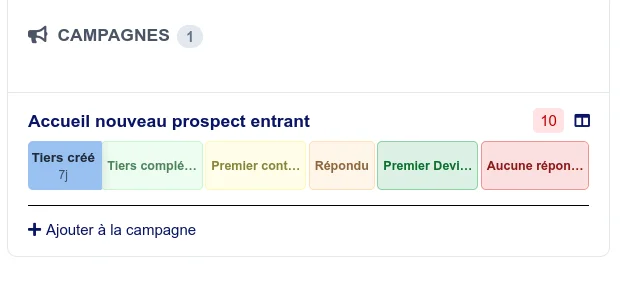
Adding third parties to a campaign
Several feeding methods:
- Mass import from the campaign card: by country, by category/tag, by salesperson or manual selection
- Filter by creation date: import only third parties created in the last X days
- Quick add from the third-party card: the "+ Add to a campaign" button opens a modal with the list of available campaigns
- Automatic feeding: configure a default campaign so that each new third party is automatically added to its first stage
Automatic progression
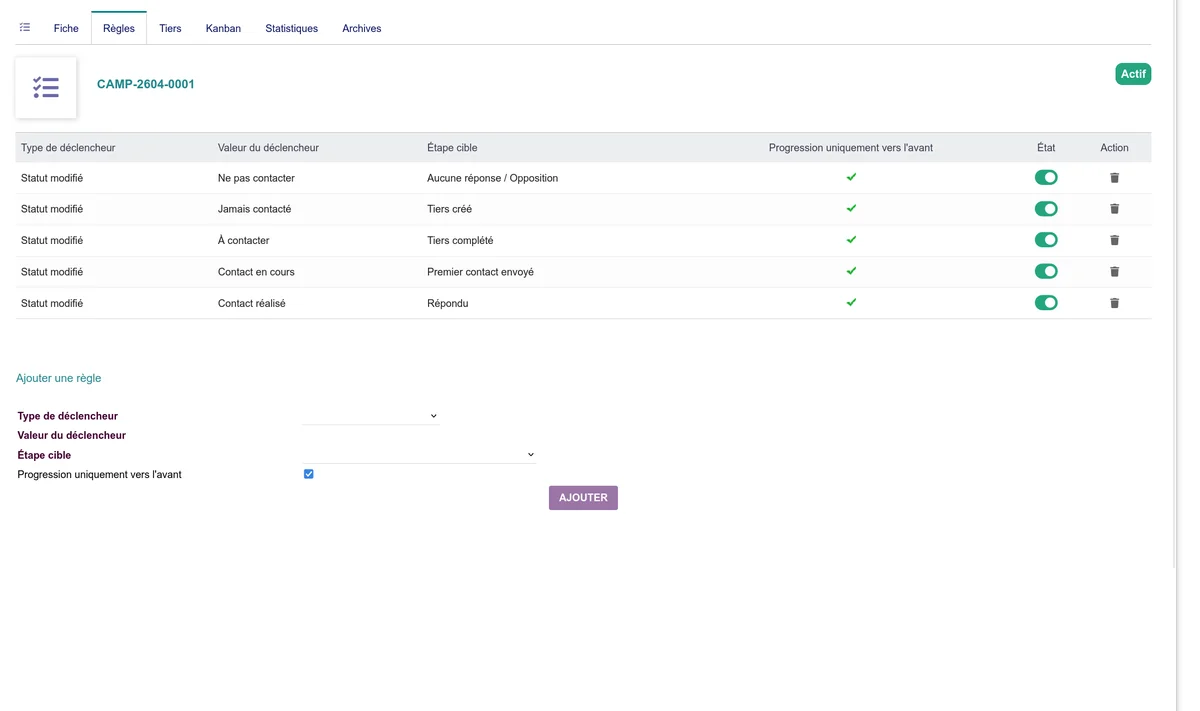
Configurable rules allow moving prospects forward without manual intervention:
- By tag added: when a Dolibarr tag is added to the third party (e.g. module purchase -> "tpeconnect" tag)
- By tag removed: when a tag is removed
- By status change: when the third party moves from prospect to customer
Each rule can be limited to "forward" progression only, to avoid accidental regressions.
Kanban view
A full-page kanban view displays a whole campaign:
- Columns = stages, cards = prospects (third-party name, days in stage, salesperson, score)
- Drag and drop between columns via SortableJS
- Conversion rate displayed between each pair of columns
- Filter by salesperson (each salesperson only sees their prospects by default)
- Pagination beyond 50 prospects per stage
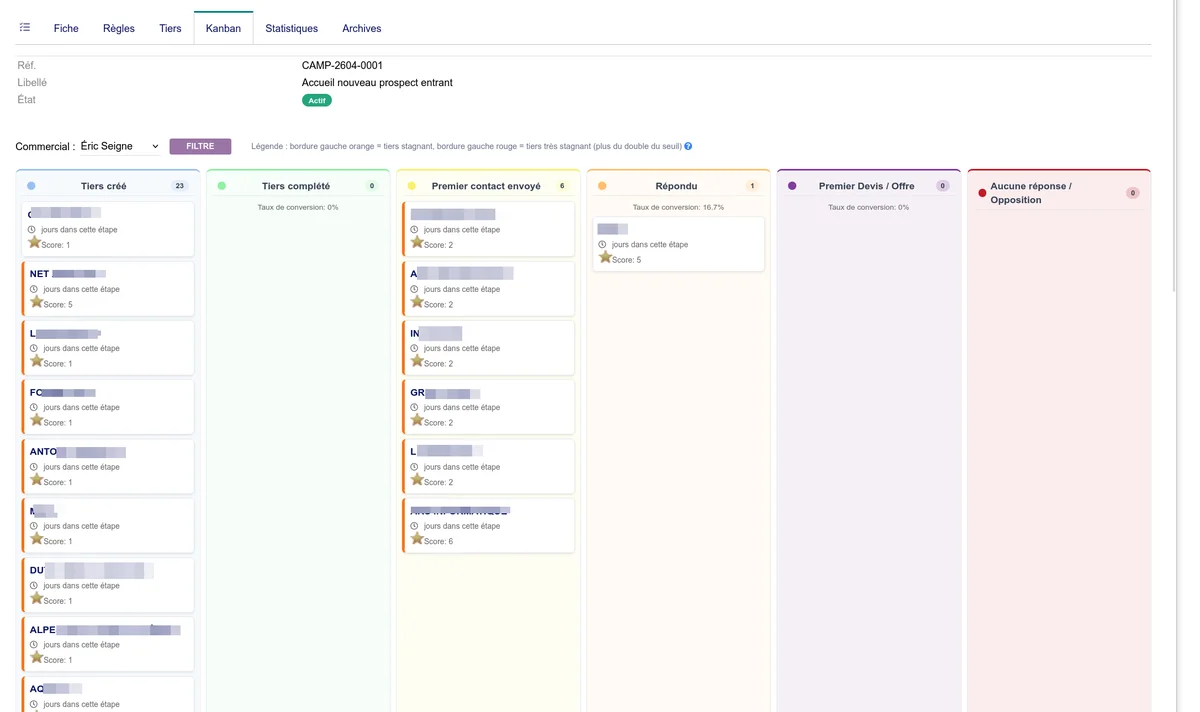
Statistics, loss reasons, personal pipeline
- Statistics per campaign: conversion funnel, average duration per stage, won/lost, performance by salesperson, stagnating prospects
- Loss reasons: mandatory popup when moving to "Lost" with six configurable reasons in Administration > Dictionaries
- Personal pipeline: aggregated dashboard per salesperson (key indicators, mini funnel per campaign, stagnating prospects)
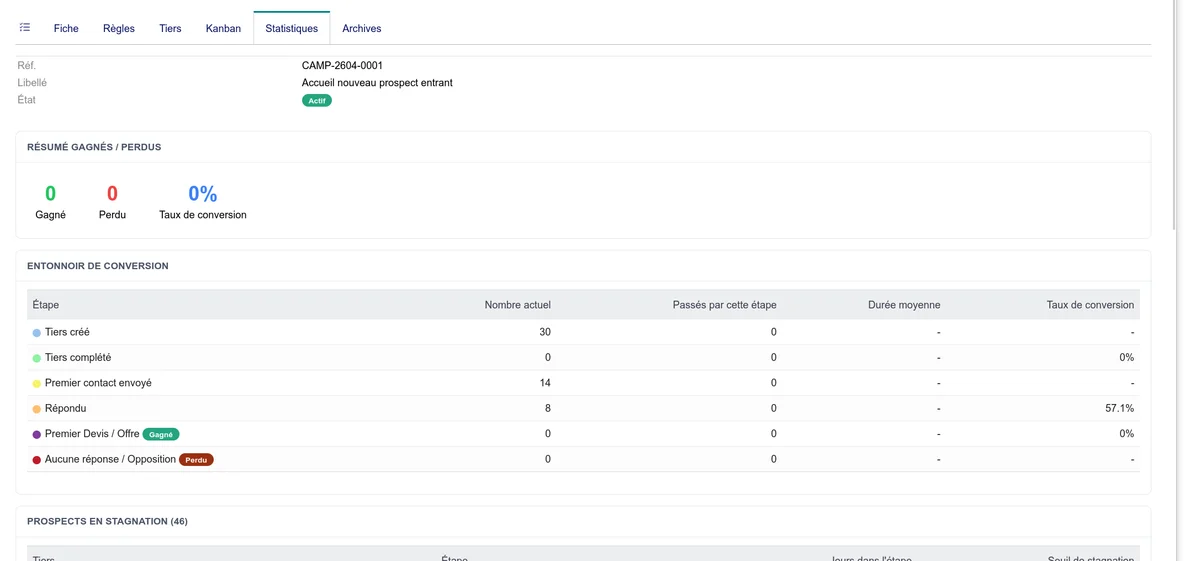
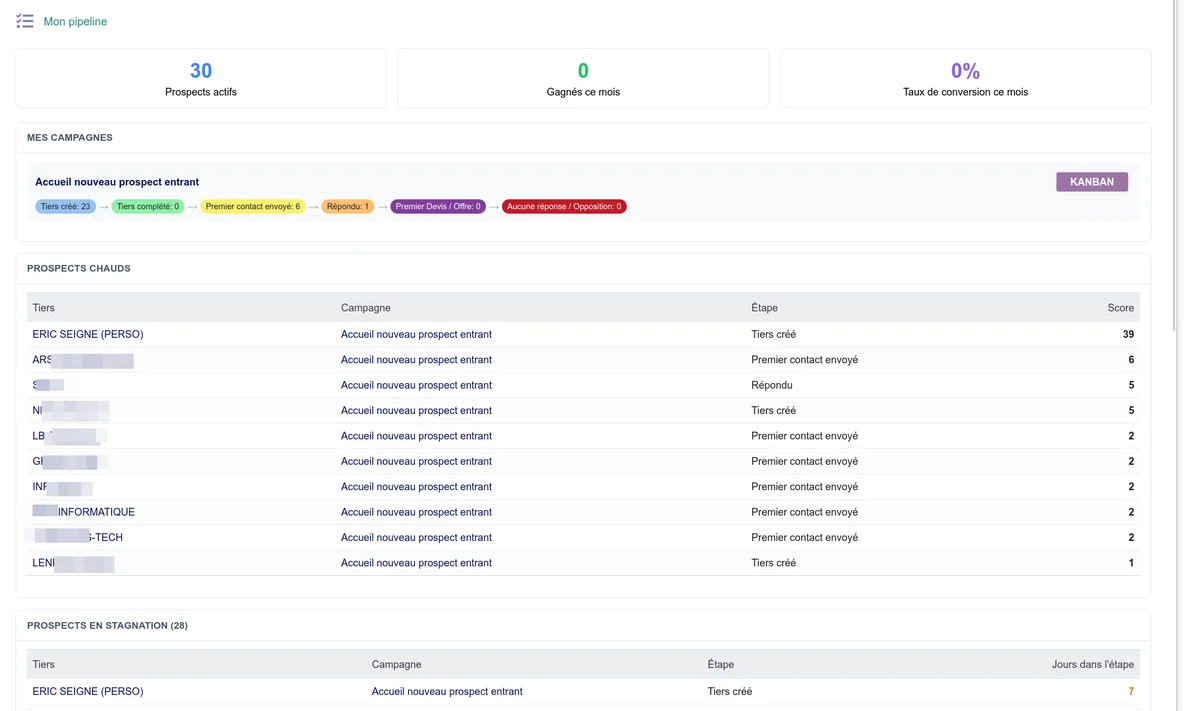
Duplication, archiving, closing, export
- Duplication: create a new campaign from an existing one (same stages and rules, without the prospects)
- Automatic archiving: prospects in a terminal stage for more than 90 days (configurable) are moved to the archives
- Closing: freezes the campaign in read-only mode, suspends automatic rules. Reopening possible.
- Deletion: automatically archives active prospects before permanent deletion
- CSV export: all fields, respects filters and user rights
Prospect scoring
Automatically calculated activity score (can be enabled in the configuration): emails (+5), calls (+10), appointments (+15), sales proposals (+20), recent stage change (+10), stagnation per week (-5). Displayed as a colored badge (green/orange/red) on the kanban and the third-party card.
Campaign filter in prospecting
The prospecting view offers a Campaign filter with a stage selector as sub-filter, combinable with the existing filters.
Campaign permissions
Three new permissions: view campaigns, create/modify, delete.
Campaign configuration
New section in the general configuration: activation, default campaign (drop-down selector), archiving delay, stagnation threshold, scoring, automatic follow-ups, loss reasons.
Active follow-up
A follow-up alert system based on the analysis of each third party's real activity, with trend detection (temperature).
"Follow-up" block on the third-party card
A new block displays for each third party:
- Temperature: colored thermometer indicating the trend (warming up, stable, cooling down) based on the score evolution over 14 days
- Follow-up alert: if a follow-up rule is triggered, red banner with the rule name, the date of the last action and the number of days late

Configurable follow-up rules
Alert rules are configurable in the Follow-up rules tab of the module configuration:
- Action type: call, outgoing/incoming email, quote, appointment, automatic action, or all types
- Delay before alert (in days)
- Direction: outgoing (we contacted), incoming (the customer contacted us), or both
- Cancel if reply: an incoming action from the third party cancels the current alert
Five default rules: first contact without reply (1d), call without answer (3d), quote sent without response (5d), ticket resolved (7d), silent customer (30d).
Incoming/outgoing classification
The system automatically classifies each action: outgoing (created by an internal user) or incoming (email received, form, trigger). A follow-up does not reset the counter the same way as a real customer reply.
Temperature detection
A weekly cron records each third party's score. The comparison over 14 days determines the trend: warming up (increase > 10 pts), stable, or cooling down (drop > 20 pts, configurable).
"Follow-up" column in prospecting
New optional column displaying a badge with the number of days late if an alert is active.
Cron tasks
Two new scheduled tasks (disabled by default): daily alert evaluation and weekly score snapshot.
Sales dashboard
A new page accessible from the menu Sales > CapCRM Dashboard offers an overview of the sales portfolio:
- Quote pipeline in Kanban columns (Draft, Validated, Signed, Ordered, Invoiced) with drag and drop to change status
- Action tracking: actions of the day, of the week and overdue
- Unpaid invoices with number of days late and follow-up button
- Dormant prospects: third parties without contact since a configurable threshold (default: 30 days)
- Filters by salesperson, period and third-party category
The inactivity threshold and drag-and-drop are configured in Home > Setup > Modules > CapCRM, section Sales dashboard.

Prospecting view
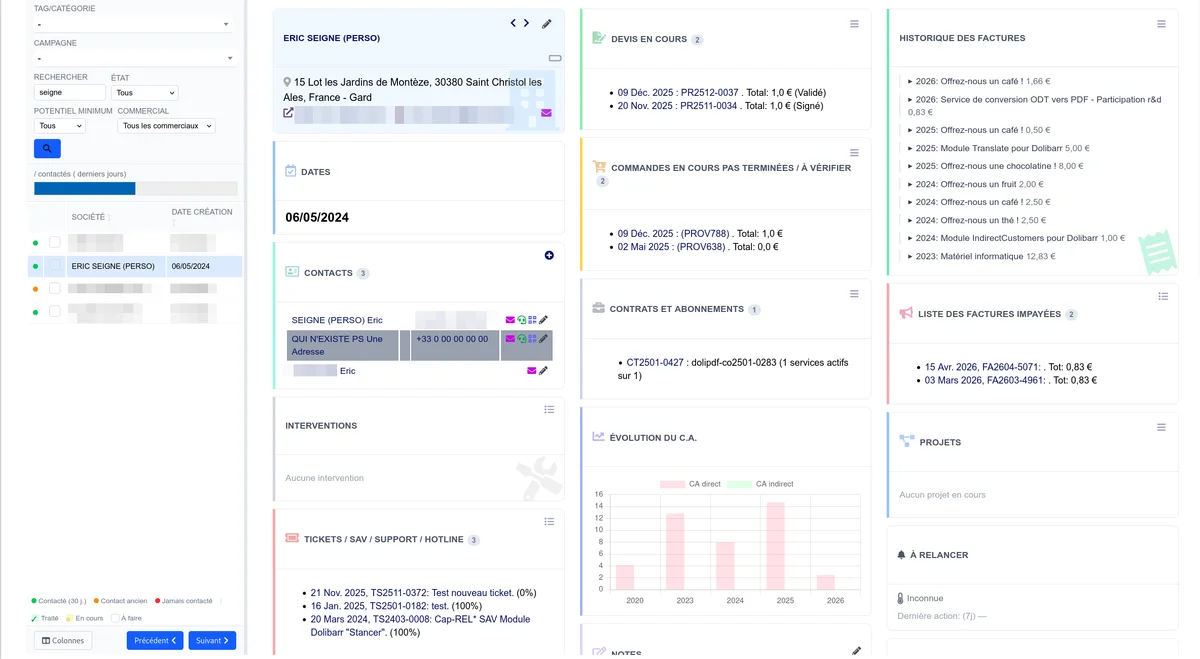
A new page accessible from the menu Sales > CapCRM Prospecting offers a two-panel display:
- On the left: paginated list of third parties with status badges (green = recently contacted, orange = old contact, red = never contacted)
- On the right: full CapCRM card of the selected third party
The list columns are fully configurable. All columns of Dolibarr's native third-party list are available (name, alias, address, zip code, city, department, country, phone, email, SIREN, SIRET, third-party type, prospect level, sales status, etc.), as well as calculated columns (last contact, next appointment, ongoing quotes, unpaid, revenue this year).
Click a column header to sort the list. Sorting correctly handles dates and amounts.
Default columns are configured in Home > Setup > Modules > CapCRM, section Prospecting.
Extrafields
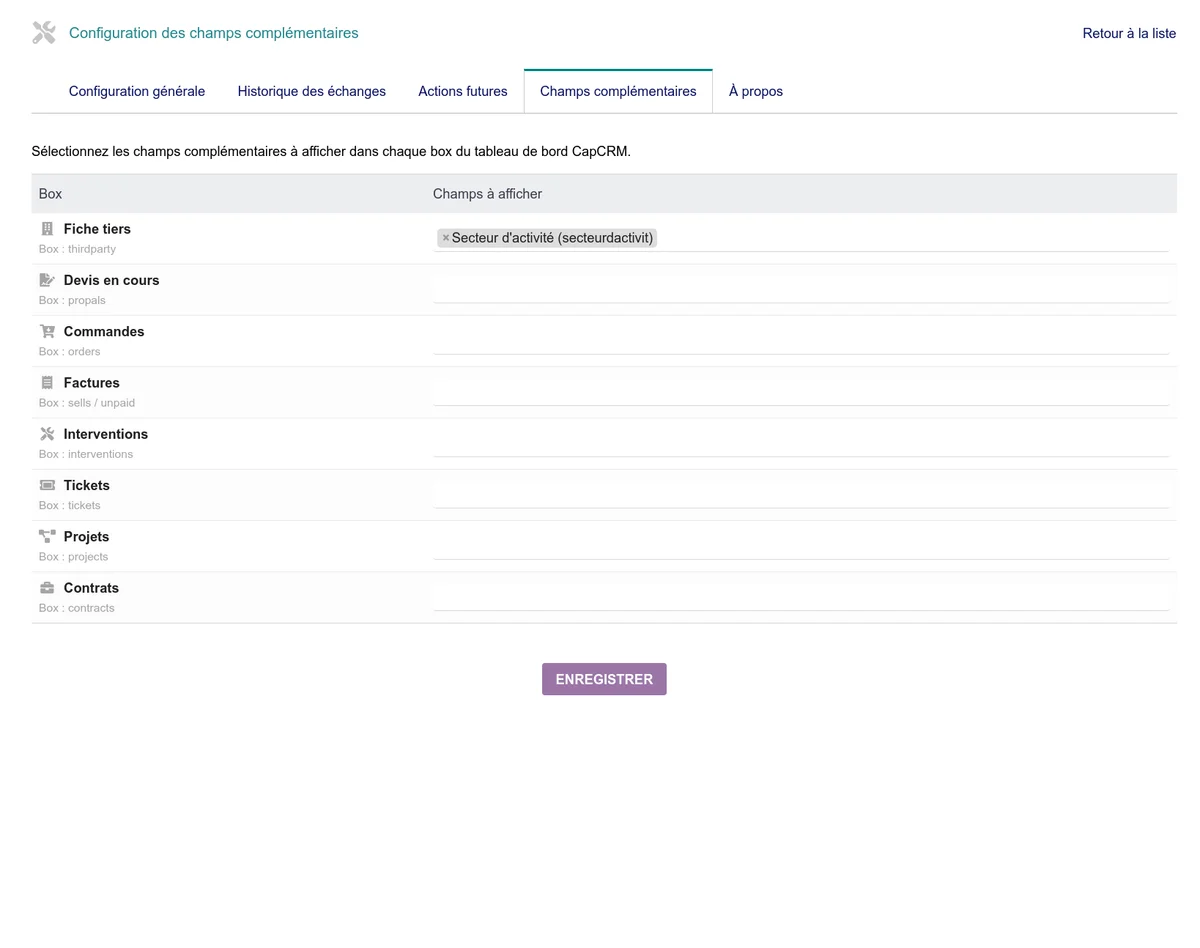
A new Extrafields tab in the module configuration allows choosing which Dolibarr extrafields to display in each dashboard block.
For each object type (third party, contacts, quotes, orders, invoices, interventions, tickets, projects, contracts), a multiple selector lists the defined extrafields. The selected fields appear:
- Under the address in the third-party card
- In a line under each entry in the contacts block
Go to Home > Setup > Modules > CapCRM > Extrafields to configure the display. See the configuration documentation for more details.
CapTodo integration
If the CapTodo module is installed and enabled, a new Todolist block is added to each third party's dashboard:
- Display of the tasks associated with the third party with their status (to do, in progress, done)
- Quick add button for a new task
- Checkboxes to mark a task as done
- Count badge in the block title
The block display is configurable in Home > Setup > Modules > CapCRM via the CAPCRM_UI_CAPTODO option.
OnepageBasket integration (prepaid interventions)
If the OnepageBasket module is installed and used to manage prepaid intervention durations, the dashboard's Interventions block now displays:
- The total duration prepaid by the customer
- The consumed duration (sum of the interventions carried out)
- The remaining balance (with color code: green positive, red negative)
This allows the salesperson to see at a glance the situation of the customer's subscription or hours package, directly on the third-party card.
CAP-REL integration (indirect sales)
If the CAP-REL module (indirect customers / partnerships) is installed, a new CAPCRM_UI_INDIRECT_SELLS option allows displaying:
- A dedicated Indirect sales block listing the linked third parties (partners, subsidiaries)
- A combined revenue chart (direct + indirect revenue) on the third-party card
- A quick access button to indirect invoices
Useful for multi-level structures (resellers, franchise networks) where a main third party generates revenue via related third parties.
Phone QR code for mobile calling
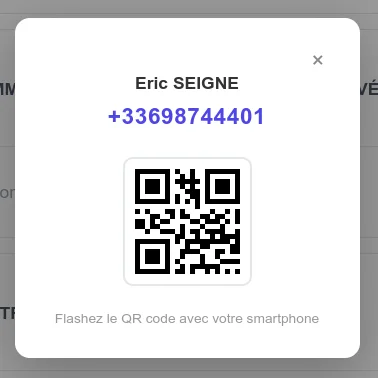
A new QR code button appears next to each phone number (third-party card and each contact):
- Click the indigo QR code icon to display a popup with a QR code
- Scan this QR code with your smartphone to launch the call directly from your mobile
- Particularly useful for salespeople who work on a large screen (dual desktop monitor) but call from their mobile
"Recent exchanges" page
A new page accessible from the main menu displays a timeline of the third parties the current user has interacted with recently.
- Chronological list of the last exchanges (emails, calls, appointments) made by the logged-in user
- Grouping by third party with a direct link to the CRM card
- Practical to resume a prospecting thread after an absence or at the start of the day
CapCRM trigger for automation
A new file core/triggers/interface_99_modCapCRM_CapCRMTriggers.class.php is installed with the module. It listens to Dolibarr events:
CATEGORY_LINK,CATEGORY_UNLINK,CATEGORY_MODIFY: automatic progression of prospects in campaigns by tag add/removeCOMPANY_CREATE: automatic addition of the new third party to the default campaign (if configured)COMPANY_MODIFY: automatic progression of prospects by sales status change
This trigger is enabled automatically when the module is installed. No further configuration is needed beyond defining the progression rules in the campaign card.
Option to disable Kanban drag-and-drop
For teams that prefer a read-only mode, a new CAPCRM_DASHBOARD_KANBAN_DND option allows disabling the drag-and-drop of quote cards on the sales dashboard (sales proposal kanban). Configurable in Home > Setup > Modules > CapCRM, Sales dashboard section.
CapCall integration
If the CapCall module is installed and enabled, a phone (headset) icon appears:
- On the third-party card, next to the email icon, when the third party has a phone number
- On each contact who has a phone number (mobile or landline)
A click opens the direct CapCall page in a popup, allowing to launch a call via the SIP gateway without leaving CapCRM.
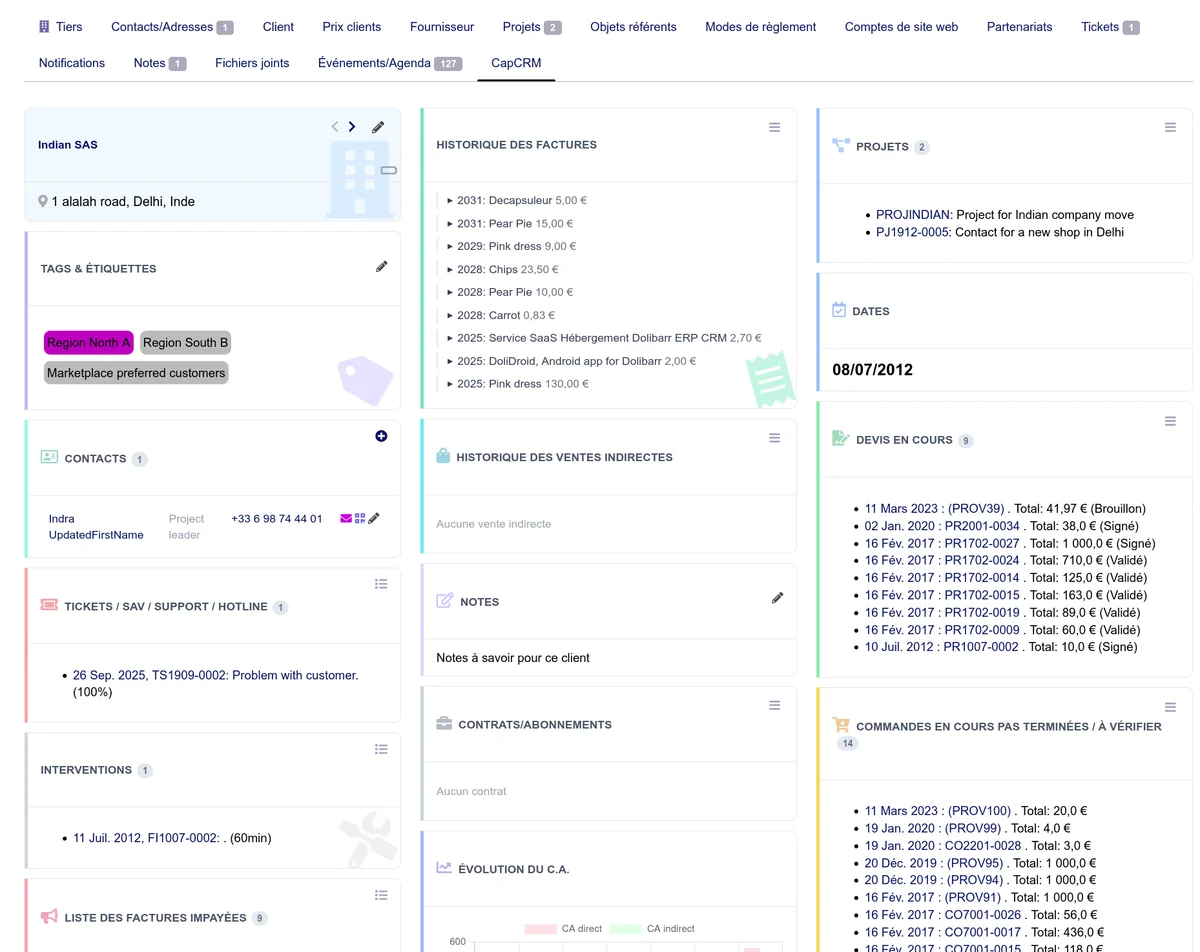
Visual redesign of the blocks
All dashboard blocks have been visually enhanced:
- Colored left border with a distinct pastel color per block
- Icon in the title to quickly identify each block
- Watermark icon on some blocks for a stronger visual identity
- The third-party card stands out with an ice-blue background and a building icon in the background
Blocks are now reorderable by drag and drop thanks to SortableJS. The order is saved per user.
Prospect potential indicator
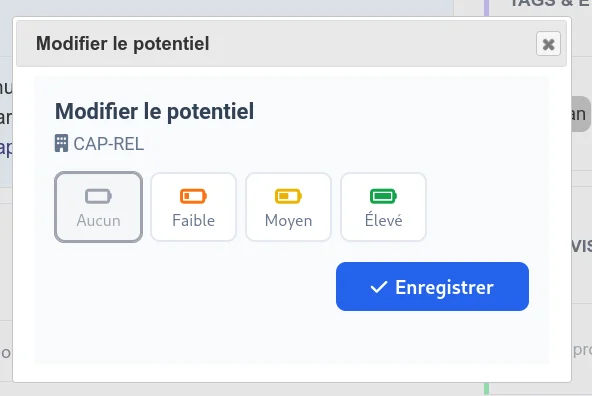
Dolibarr's native Prospect potential field (fk_prospectlevel) is now visually used in CapCRM.
- Battery badge at the bottom right of the third-party card's title banner, with four graphical levels: empty battery (None), 1/4 (Low), 1/2 (Medium), full (High). The color goes from grey to green depending on the level.
- Quick edit: a click on the icon opens a dedicated popup with the four levels side by side, the current level being highlighted. One click is enough to change the value.
- Integration with the report form: the quick exchange add form offers a potential selector with the same four icons. A value change when entering a phone report is automatically traced (old -> new) in the private note of the created event.
- "Minimum potential" filter in the prospecting view, to focus only on high-potential third parties.
- Potential column in the prospecting list: now displays the battery icon and the translated label (rather than the raw code).
Changing the potential uses Dolibarr's native Edit third parties permission (societe->creer). No new CapCRM permission is required.
Navigating between third parties
Previous / Next arrows are added in the third-party card's title, allowing to quickly move from one third party to another without going back to the list.
Company creation date
The "Dates" block now displays two pieces of information:
- Creation date in Dolibarr: when the card was created
- Company founding date: for Dolibarr 23+ (native
birthfield) or via theautoupdatethirdpart_birthextrafield for earlier versions
Both dates are displayed side by side when available.
Clarified quote block title
The sales proposals block now displays the title Ongoing quotes instead of Sales proposals, to better reflect its content (only draft, validated or signed quotes are displayed).
Enriched About page
The About page has been entirely rewritten with:
- Module information: version, publisher, license, minimum required versions
- Feedback form with star rating
- Donation box to support development
- Useful links: online documentation, support, forum, contact
- Changelog displayed directly in the page
Interface improvements
Quick exchange add
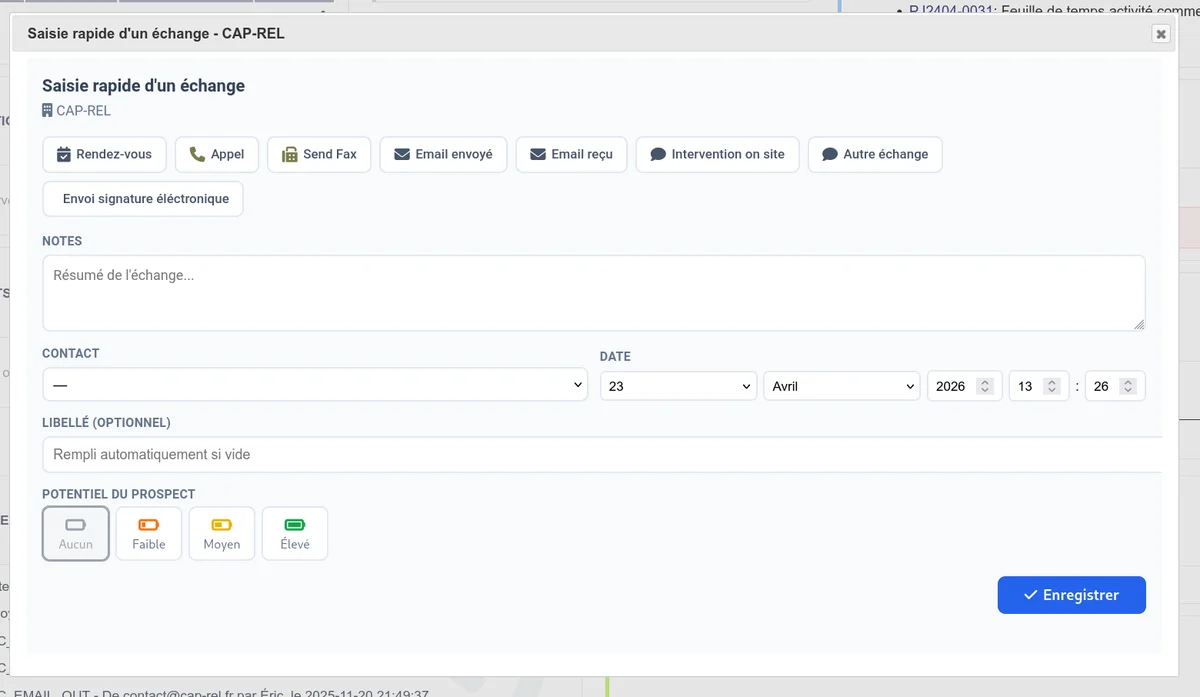
A new quick exchange add form is accessible from the Exchange history and Upcoming actions blocks via the + button. This form opens in a popup and allows recording an exchange in two clicks:
- Visual radio buttons to choose the action type (loaded dynamically from the Dolibarr dictionary)
- Note area with automatic focus to immediately enter the report
- Contact selector to associate the exchange with a contact of the third party
- Pre-filled date and time: current day for a past exchange, next day at 9:00 for a future action
- Auto-generated label if the field is left empty (based on the action type and the third-party name)
- Anti-double-submit protection with spinner
In future mode (mode=future), the progress percentage is set to 0% and an optional reminder can be configured: browser (push) or email notification, with a configurable delay. Reminders require the AGENDA_REMINDER_BROWSER or AGENDA_REMINDER_EMAIL constants to be enabled in Dolibarr.
In history mode, a Schedule a follow-up event checkbox allows, in the same form, to schedule the upcoming follow-up: action type, date (default J+3 business days at 9:00) and free note. On submit, two ActionComm are created: the past exchange (percentage=100) and the future event (percentage=0). This replaces chaining two successive popups.
Contacts block redesign
The Contacts block now uses a structured table instead of a simple bullet list. Each line displays the contact's name, their position (in grey), their phone number and the action icons (email, edit, call). Reading is faster and alignment more consistent.
Count badges on blocks
All list-type blocks now display a badge with the number of items next to their title: contacts, tickets, interventions, unpaid invoices, projects, contracts, quotes, orders, exchange history, upcoming actions, CapTodo tasks, emails and campaigns.
Third-party name respects case
The company name in the main block is no longer forced to uppercase. It is displayed as entered in Dolibarr, thus respecting the original case (e.g. "iPhone Solutions" instead of "IPHONE SOLUTIONS").
Email display fix
The emails block now correctly displays the disclosure triangle, the direction icon (incoming/outgoing), the date and the subject on a single line. The display was broken by misplaced <img> tags.
Harmonized action icon colors
Action type icons (email, phone, appointment, video, etc.) now use consistent colors on all module pages: third-party dashboard, sales dashboard, recent exchanges, prospecting view and quick add form.
Anti-double-click protection on popups
All popup opening buttons in the dashboard blocks now display a spinner and are disabled while the content loads. This avoids multiple openings in case of double or triple click.
Technical improvements
- Complete CSS redesign with Tailwind v4, without DaisyUI and without resetting the native Dolibarr styles
- FontAwesome 5 compatibility (replacement of FA6 icons)
capcrm::prefix normalized on alldol_syslogcalls for easier diagnosis- Replacement of all
require_oncewithdol_include_once(DoliStore compliance) - Memcached cache flush on module activation
- New Makefile targets:
deploy-docandscreenshots - Unit tests added
Bug fixes
- Display of notes in the exchange history: literal
\nsequences are now correctly converted to line breaks, the email signature (after--) is removed, the "Attached files and documents" line is removed - Fix of "envoyé au" to "envoyé à" in the history labels
- Date column sorting in the prospecting view (was sorting as text instead of chronologically)
Other improvements
- Module icon: new handshake icon (instead of the generic file icon)
Update
- Replace the module files with the new version
- Go to Home > Setup > Modules
- Deactivate then reactivate the CapCRM module to create the new SQL tables and cron tasks
- Configure the new options in the Extrafields and General configuration tabs (Dashboard and Prospecting sections)
- Configure campaigns in Setup > CapCRM > General configuration, "Prospecting campaigns" section
- Configure active follow-up in the "active follow-up" section
- Enable the follow-up rules in the Follow-up rules tab
- Enable the cron tasks in Home > Setup > Scheduled tasks (archiving, campaign follow-ups, follow-up alerts, score snapshots)
- Assign the new campaign permissions to the users concerned