Installation
Download
Download the module from the DoliStore or from your CAP-REL customer area. You get a zip archive ready to install.
Installing the module
- Log in as a Dolibarr administrator
- Go to Home > Setup > Modules/Applications
- Open the Deploy/install external app/module link
- Select the downloaded zip archive of the module, then confirm
The module then appears in the list of available modules.
Enabling
- Stay in Home > Setup > Modules/Applications
- Look for "Dolipdf" in the list of modules
- Click the activation button
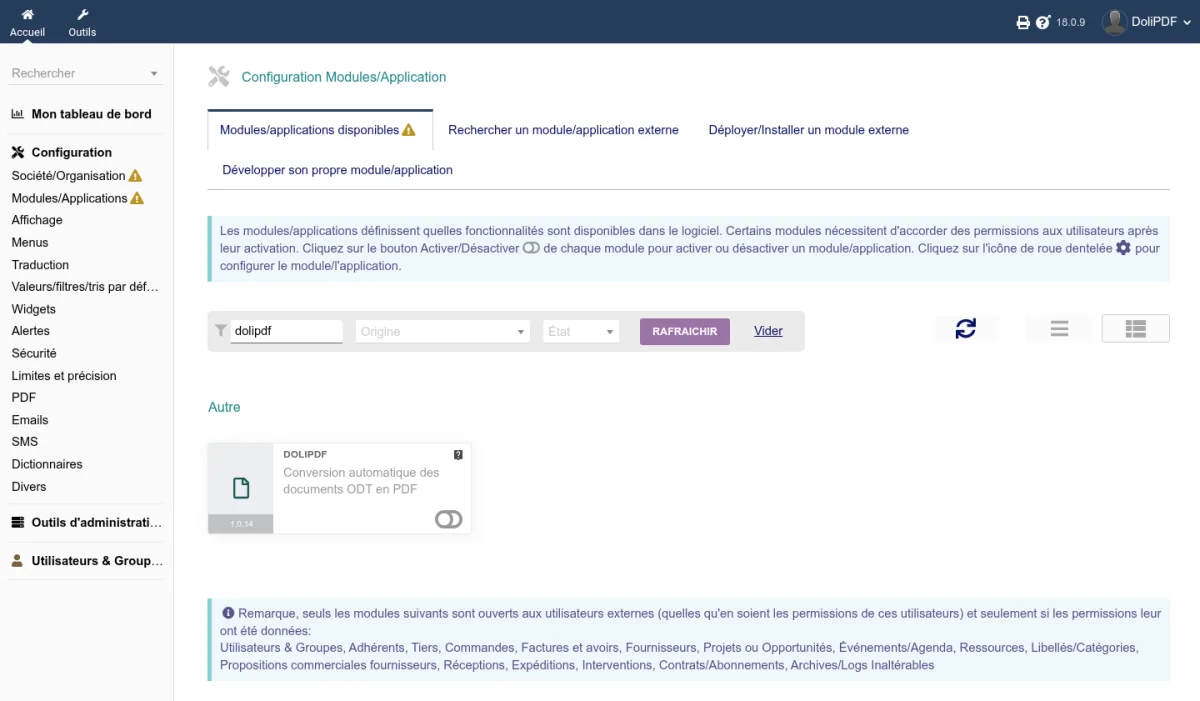
Checking
Once enabled, a new setup tab appears in Home > Setup > Modules > Dolipdf. It contains three sub-tabs:
- Configuration - Setup of the conversion mode and of the options
- Open an account - Opening of your account on the DoliPDF service, the API key being stored automatically
- About - Information on the installed version of the module
Requirements for ODT templates
DoliPDF only works with documents generated from ODT templates. To use ODT templates in Dolibarr:
- Put your
.odtfiles in thedocuments/doctemplates/directory of your Dolibarr installation - In the setup of the document type concerned (invoices, proposals, orders, etc.), select the ODT template as document template
Warning: DoliPDF does not convert the documents Dolibarr generates natively in PDF. It only works on ODT files.
Update
- Deploy the new version of the module as for the first installation
- Disable then enable the module again from Home > Setup > Modules/Applications: this applies the database updates and registers the new hooks and permissions
Uninstall
Disable the module from Home > Setup > Modules/Applications. The documents already converted to PDF stay available and are not changed.